Garry's Mod

Garry's Mod

评价数不足
Making Drivable Vehicles [with Prefab]
由 мяFunreal 制作
Learn how to make basic vehicles just like Half-Life 2 does it. Covers Land, Water and Amphibious vehicles.
Not using SymfPhys, LVS or whatever!
3
   
奖励
收藏
已收藏
取消收藏
Foreword
Learn how to create a basic vehicle addon, the same way the original hl2 vehicles are made.
No SymPhys, Photon, Vcmod or whatever exists now. We're gonna use basic vehicles.
If you want to learn how to make those vehicles, find proper documentation by those devs.

You can do two types of vehicles; Cars and Airboats
However, the car setup can be modified to behave as nearly any land vehicle, including bikes.
The airboat setup can be altered to behave like a boat that "only" works on water.

The only differences between how cars and airboats/boats are made is that cars got visible wheels and suspensions, boats do not.
Airboats/Boats also have a "Raytrace thing, More on what that does later on, when its relevant.

More notes:
  • Cars will automatically have steering wheel drive anim, airboats will have handlebar anims.
    This is set in the LUA script by setting the vehicle type. No idea if this can be changed.
  • Bikes don't have a native driving animation.
    It would look real weird when you're making a bike, but it would drive either way.
  • Amphibious vehicles like an APC will only work on the Airboat base (using this way).
    This means the APC could turn on the spot, slide around... Like the airboat does.
    There would be a way to make another type of APC system, like this mod uses, but its buggy and I won't explain any of that. But if you absolutely need to make an apc like that, go reverse engineer that one yourself. This lua script[github.com] is the only difference I could find.
That being said, we'll start with the guide.
First make sure you got all the things listed in the next chapter.


Due to how I made this guide, you'll see screenshots of various vehicles.
I hope this won't be confusing. You should be fine if you just follow the instructions.
Requirements
This Prefab[drive.google.com]
Blender[www.blender.org]
Blender SMD Plugin[steamreview.org]
Crowbar
Wavosaur[www.wavosaur.com] - Only for making vehicle sounds with loop cues.

VTFEdit[nemstools.github.io] or VTFEdit Reloaded[github.com]
This guide uses VTF Reloaded.
They're the same tool, but VTFEdit reloaded is has more functions and is still being updated.
The original VTFEdit is abandoned. The original website by the dev is long gone too.

Optional:
Notepad ++[notepad-plus-plus.org] (Or any text editor)
Notepad ++ VDF Languages[github.com] - Optional. Only for Syntax Highlighting.

Image Editor VTF Plugins:
Photoshop VTF plugin[nemstools.github.io] (only for 32 bit photoshop.exe)
GIMP[github.com]
paint net[nemstools.github.io]
Exploring the Prefabs
Airboats/Boats and cars have two different setups, therefore I made two prefabs.
Even the animations are premade for you. You'll just have to redo the speedometer animation.
I'll still show the animation making process here, should you want to do it from scratch.

Essentially, all you'll need to do is scale your model, rig it, then export the anims and compile.
That should take like an hour, not counting the time you'd spend on material and texture edits.
If you fail making a vehicle with this easy prefab, you essentially got a room temperature IQ.


Step 1
Open one of the prefabs you want. The original Airboat / Buggy is inside to scale your model to.
It contains:
  • Dr.Kleiner's as helper model, to make sure the player fits into the vehicle, and later to get his position to then put the driver attachement in the right spot.
  • A finished vehicle for you to inspect to find out how it worked, should you not understand a step.
    It has premade animations. Once you put your bones where you want, you should be able to export the anims and compile almost straight away.
  • The Airboat/Boat prefab has a helper model for the waterline. More info about that later.
  • A whole pre-made addon with scripts, and textures you could copy.

Model Edits
Step 3
Import your custom model into Blender.
Make it roughly fit the dimensions of the original vehicle.
We just want to make sure the vehicle won't be too wide for roads and parking spots.

If your model is a format there's no import function for, find a way to import it.
I won't answer questions like "how to convert .carbin to .obj" or "How to import 3ds"


I've also prepared a template of Kleiner holding the steering wheel/Handlebar.
You can use this to further scale the car seat until it fits kleiner's model.
This will later come in handy for the attachment locations.
The vehicle hardware doesn't fit in his hands because that's the default attachment offsets of the original vehicles. Nevermind that the hands don't even properly grab on anyways.
Obvioulsy, you would not want to scale kleiners model to fit the car. But i'll mention it anyways.


Once scaled and centered, apply all scales of your custom model.
Do not apply any transforms on the helper models! You'll need their origins later.


Step 4
Make sure the materials here have names that make sense.
These names will end up being the same names your VMT files will use later.
Do not add file endings to these names.


Note:
Gmod has a color tool, which can be used to color any entity.
This tool is often used to color vehicles aswell.
If you want to make a car where just the paint can be colored, you should make a new material that is just for the paintjob. This will make things easier for you later on when you create the materials and textures for the model. You could call this material "Paint" or "Colorable".

You can also have multiple skins. You do not need to define every skin in the materials.

Step 5
If you need to edit the mesh at all, do whatever you need to do.
Fix smoothing, edit UV's edit shape. Whatever...

Just so you know, vehicles have a thing called "pose parameters".
They allow you to have parts of the vehicle move when driving.
Usually, you got the steering wheel, the wheels/rudders that steer, and the speedometer.

You can make any part of the vehicle change pose when those anims are happening.
For example, the speedometer is just an animation that changes pose based on speed.
The faster you go, the further this speedometer animation plays towards the last frame it has.
But you could make an Active Aero spoiler extend and lower the car in the same anim. ( ͡° ͜ʖ ͡°)


I'm mentioning this here so you can edit the model to use these pose parametrs if you want.
I myself did not have a speedometer model I could rig to bones, so I made one from scratch.


That being said, prepare your model until you can start working on bones.

Note:
You can also make animations for entering and exiting the car, but I wouldn't make them because the playermodel chills inside the car, waiting for the camera to enter the car, or the playermodel stays outside while the camera moves outside the car. So don't bother making doors that can be opened.

Note, for boats:
The original airboat has a modeled propeller and a simple square image with a blurry propeller.
When the airboat accelerates, the model of the propeller hides, leaving just the blurry image.

This is done because the blurry image appears to be spinning faster.
Look for yourself. both of these rotate at the same speed.


This is optional, would look better with, but not required.
If you want this, you'll need to make boat, propeller model,and blurry image separate meshes.


In this prefab, the qc's made to use "Prop_Blur" for the blurry image and "Prop_Solid". for the solid propeller. Name your models the same.
Explaining Airboat's Raytrace
The airboat has a special setup. Instead of wheels, it has "Raytrace" attachments.
I'm putting this here because its important to keep in mind when doing any of this.
If you're making a land vehicle, skip to the next section.

Raytrace determines ride height/waterline at once, acts as particle attachment and stabilizers.
All at once.

Ride Height
2 to 3.5 units under the Raytrace attachments is where the vehicle will sit in water.
Keep in mind: the vehicles bob in the water, so the waterline isn't constant.
The distance between the Raytraces seems to have a bit of an impact on bobbing depth.

About 13.5 units under the raytrace is where the ground will be.
If any collisionmesh goes more than 13.5 units below the attachment, you can't move on land.

Here's a visual representation:
Top of red line is attachment height. The entire red line is basically just buffer.
The bright blue is the 2 - 3.5 unit space where the waterline will be bobbing through.
Top blue box is the water. The raytrace attachment won't sink that deep, unless falling by gravity.
Top of green line is where the floor will be.
The black shape is the collisionmesh. If it crosses the green line, the vehicle gets stuck on land.


This visual aid box is in prefab. Allowing you to see how the hovercraft would look like ingame.
For boats just slap the attachment about 2 units above where waterline should be.

Trails & Particles.
The game renders splash particles between both left raytrace attachments, and the right ones.
Only if either the raytrace is close to the water, or if any part of the collisionmesh clips into water.
(Tip: Bingtoggle "vcollide_wireframe" to a key to toggle this blue collisionmesh ingame)


It makes this trail appear, which gets very narrow and disappears when you hit 55MPH.


It also allows this set of splash particles to appear when you steer at high speeds.


Roll & Pitch Stability
Raytrace's third, and honestly passive function is handling stability of the vehicles roll and pitch.
The wider apart the left and right attachments are, the less likely it is for the boat to roll over.
The further apart the front and back attachments are, the less likely it is to "do a wheelie".

Here's a picture where the raytrace front and back is mere 5 units apart.


You can slightly counteract this by using the vehiclescript's "massCenterOverride" to lower the center of gravity beneath the boat, so that it is less likely to roll over.

Unfortunately you can't just make the raytrace further apart, because particles will show there, so you would see water splashes disconnected from the boat.
Collisionmesh
Every model needs a collisionmesh, including vehicles.
For vehicles its slightly different, because none of the collisionmesh should touch the floor.

I've already made a video guide on how to make collisionmeshes.
You only need to watch 1:16 to 2:40. The rest is explained here.
Read this entire section before you watch the video though.

Create a new mesh object, entirely smooth shaded, built out of several convex pieces.
None of these pieces should have even a single sharp edge, none of them should be connected.


For airboats, you'd want a collisionmesh with a wedge in front, to easily slide onto land.
Without it, the airboat might just bump into land and float back into the water.

This collisionmesh clipps into the "Floor". This is fixed by using $origin in the qc file later.

If you are making a cabin to stand inside, make sure the vertical height is at least 73 units tall, so that players can stand upright inside the cabin.
Things like stairs need 34 units width to properly walk through it. Wider if possible though.


Bone Editing
Step 6
Once you finished the model editing, we can start thinking about the bones.

The car you decompiled came with bones, a lot of them will be useless or in the wrong spot.
So instead of keeping all bones, you can use the prefab I have provided.
It has all the bones required for a car and boat, but you can add more.

For example if you have a car with visible suspension pistons, in which case you can use a bone for each end and then use bone contraints to always point at the other half to make animating super heckin easy. But figuring that out is up to you, i'm not going to explain blender basics.


Let's begin with the steering wheel, because it is on a weird angle.
There's a neat trick to place bones on weird angled things.

You can select the very rear ring of the steering wheel.
Press Shift + S, then click Cursor to Selected.


Now you got a cursor in the middle of that the wheel.
Select the base of the steering wheel bone, click "Shift + S > Selection to cursor"

Now the base is right in the middle of the steering wheel.


Do the same for the tip of the steering wheel bone.


Now you have a bone that is perfectly aligned with the steering wheel, making it easy to animate.


The wheels are just as easy.
Select a ring on the inside of the wheel.
Put the cursor on it, then in Pose Mode, snap the Suspension bone to that location.
Now the suspension, steering, and wheel rotation bone are all centered in the middle of the wheel.


You may need to change the location of the suspension and steer bones towards the car center, so that the steer animation steers the wheels around the correct spot.


The Airboat/Boat prefab has two sets of propeller bones.
The ones in the blue box are children of the rudder bone, just like all the boats have it.
The ones in the red box are for hovercrafts. They aren't meant to steer.
Figure out which ones of them you should use and position them where you want them.


Dr. Kleiner's model helps you position the player and the eyes
The origin of his player is where the "a_Driver" bone goes.
You can place him in the driver's seat, to make sure the playermodels actually fit the interior.
Don't try to rotate him to "lay down", because the arms in first person view won't rotate.


The head is gone on purpose, because Gmod shrinks the head bone so that the eye attachment fitts better to where the eyes would be.
Move "a_View" to where you want the eyes to be.
By default, the eyes are just 32 units above the player model spot.
If your car has bucket racing seats, you may want to move the camera 3 units towards the steering wheels to stop the camera from clipping into the chair.


The models got more attachment bones which you should move to where you want em.
  • The ones in the black box are the blinking lights the Jalopy would have.
    Only cars have this system available. If you don't want them, you can just delete the bones.
  • The ones in the green boxes are headlights, engine and exhaust.
    I don't think they do anything, Removing them or rearranging them never did anything, but i've added them anyways. You can delete these too id you want.
  • The bone in the red box is where players spawn when exiting the vehicle.
    It has to be high enough that stopping next to a curb won't get you stuck in the curb. Maybe 8 units.
    If this is on a boat, you can place it above the collisionmesh, to drop safely on the boat.
    It should be 34 units away from the vehicles collisionmesh, else the player gets stuck in the car.


Step 7
If you had moved anything in pose mode, you'll need to apply the pose as rest pose.
Which makes the bones stay where you had put them.


Depending on whether or not you made things that need their own bones, like "Active Aero Spoilers" or maybe some jiggleboned bobblehead or whatever, you'll need to add your own bones.

So add all the extra bones you want and lets start rigging.
Rigging
Step 8
To start rigging, select your mesh object(s), then select the armature and press Ctrl + P.
Pick "With empty Groups".


Now you'll have all bones in the vertex group tab.


Step 8
Enter mesh edit mode, select parts that you want to rig, select the bone out of the Vertex Group list. Click "Assign" to rig the selected mesh to the selected bone.

Example; the front left wheel (Careful to not select the brake pads!), rigged to "Wheel_FL_Rot"


The brake pads can be rigged to the steering bone in front and the suspension in the back.


Some car models have actual suspension hardware, but this one does not.
So I don't have to rig any of that junk. ¯\_(ツ)_/¯
Proceeds to rig the entire damn speedometer.

Step 9
After you rigged the entire mesh, enter pose mode to move all bones.
We'll check if all the mesh is rigged to the correct bones.
If they're not, go back to the previous step and rig the mesh.


Exporting
Step 10
Go to the Scene Properties tab's "Source Engine Export" section, browse for the output folder.


Then select your models and hit the export button.


You'll need to click on the "Selected Objects" aswell, else nothing exports!
Animations (Shared)
Step 11 - Anim Setup
Now's the time where the steering, wheel rotation and other anims are made.
The prefab comes with premade anims. So you should be fine.
The only one you will probably redo from scratch is the speedometer animation.

Head to the Animation tab.


Swap the Dope sheet to Action Editor.
This allows you to easily swap between all anims you got.


You'll probably have to use the scroll wheel to scroll the toolbar along, to add new actions.


Enabling this little button will make any pose you make be saved as a keyframe immediately.


Either enable this, or select all bones and pres "i" followed by "Whole character",
to save all keyframes manually.


Change "Transform Orientations" to "Local" and "Transform Pivot Point" to "Individual Origins"
That way the bones own axis is used, and each bone is rotated on its own origin. Makes it easier.


Step 12 - Steering
Let's begin with the steering animation.

On Frame 0 select all bones, then press "i"
This makes a keyframe for all bones in this pose.


Enter "Top Down" view by pressing Num7
Select the front wheel's Steering bones , press R, and then enter the number 45.
(For airboats, use rudder bones, or the one that rotates the engine. Maybe 35° max.)
You want the vehicle to steer left in this frame.
You'll see the wheels steer one direction. If it is the wrong direction, also enter -.
This will change rotation from 45° to -45°.
Once the wheels point the correct way, press the Enter key to apply the rotation.


This will overwrite the two keyframes for these two bones on Frame 0.


Switch to Frame 2 and rotate the wheels / rudder / engine to steer right.


Now to the steering wheel.
Since we set "Transform Orientations" to "Local" we can press the Y key to force all rotation along the bone's local Y axis.
If you press Y twice, it'll swap to global Y axis.

Make the wheel steer left on Frame 0 and right on Frame 2


On Frame 1, the wheels and steering wheel should be straight.
If they're not. go to Frame 1, select all bones and clear all transforms for all bones.

Step 13 - Speedometer
With steering done, we can now do the other animation that all vehicles share: The speedometer.
If you don't have a speedometer, just skip this step.

Click the X, then Click the "New Action" Button to make a new action.
Which means we'll unlink the steering anim, so we can make a new separated anim.


Name this action "Speedo".
Note: "Auto Keyframe" is turned off every time you export. You'll need to turn it on again.


Make Frame 0 be your "idling" frame. For when the engine is idling.


Notes:
  • Due to some weirdness in the game, this damn speedo won't actually scale properly, unless you edit the speedometer's blend scale in the qc file.
    The prefab is made for 60 frame anim to work for cars, and a 2 frame animation for boats.
    If the last frame of the speedo isn't reached when driving fullspeed, lower the scale number.
    If the last frame is reached bafore going fullspeed, raise the scale value.
    You'll just have to trial and error the speedometer sometimes.
  • If you stand still, the anim shows frame 0, the faster you go, the further the anim progresses.
  • The default cars got a single mph meter that just goes up and that's all it does.
    That can be done in two frames. Unless you'll need to rotate the meter above 180°, then you'd need three keyframes, because rotation that goes beyond 180° in one frame won't work properly.
  • The shown MPH means is not related to the actual speed you travel. Its purely cosmetics.

For now, just make the 59th frame have the MPH needle be at the max that your speedo shows.
If you change the speed in the vehicle script, you'll probably need to redo the animation.
It might be best if you do the speedometer animation once over when you're done.

I myself don't care. I just recorded this speedo in FH5 and rebuilt it in blender.


Swap interpolation "Linear". This stops the animation from "easing" between keyframes.
Select all bones, head to "Key - Interpolation ;ode - Linear"


Export the speedometer anim when done.
Now we'll do anims that are just for boats, or just for cars.
You can just look at the section you need, skip the other, and then continue at QC editing.
Animations (Cars)
Step 14 (Car)
Cars still need the following anims:
Suspension, Wheel Spin

Suspension
Make a new Action, called "Suspension". This thing serves two purposes.

For one, it's a suspension. It does basic suspension things exactly like you'd think it would.

But at the same time, the suspension animation is required to decide ride height.
The vehiclescript's "springConstant" value sets the ride height for you.
That setting basically just defines how far along this animation the wheels are lowered/raised.
The game knows that the wheels have to touch the floor, so it raises the vehicle instead.

This animation requires three frames.
Frame 0 is the lowest "Dangle", Frame 1 should be default, frame 2 is the most compressed.


If your wheels for some reason can't go upwards a lot, but you still dragged them downwards 8 units or so, you should make Frame 1 have no keyframes for the suspension bones, so it automatically picks whatever is right in between your highest and lowest setting.

FYI: The original buggy lowers the wheels by 8.07 units, and rasies them by 6.54.


Wheel Spin
Make a new Action, called "wheelspin", This, as the name suggests, spins the wheels.
The wheels need 7 frames of animation 0-6 with the wheels spinning a full 360°.

But you can't just rotate the bones 360° on the last frame, because the animation does not export properly when a bone rotates over 180° between two keyframes.
Either it moves the wrong way, or since we rotate 360°, it just won't rotate at all.

So, just rotate 60° every keyframe. Or 120° every other keyframe.

Animations (Boats)
Step 14 (Boats)
Airboats/ Boats still need the following anims:
Propeller / Fan rotation,

The original airboat also has a flex animation, which is kinda like suspension, in that it moves the pontoon up and down a little, but that doesn't work in gmod.

This is simple.
Make an animation with 30 frames. Make sure you're rotating by individual origins. Makes it easier.
Frame 0, all bones are in its default pose.
Frame 10, every propeller is rotated 120°.
Frame 20, they're rotated an additional 120°.
Frame 30 they're yet again, rotated an additional 120°.

Call this animation "Speed", make it use linear interpolation and export it.


This propeller animation autoplays nonstop, but the faster you go, the faster it rotates.
Actual maximum rotation is set via the "FPS" setting in the QC file. More about that later.
Animations (Optional Extra)
Step 15

You have the ability to add extra animations, but with limitations.
Originally, in HL2-EP2, the Jalopy's engine can rattle only when you're in the car.
This was made by using the "ACT_IDLE_STIMULATED" activity.

However, this animation somehow only works on HL2Ep2 maps and I don't yet know why.
So the "standart" way of adding animations when the car is running is out the window.

All we can do is make animations that always play, even when the engine is off.
This could be used for radar dishes on boats, for example.


If you want any kind of nonstop idle animation, you can make one.
Just go animate a thing, you should know how to do it by now.

They'll be implemented later on in the QC.
Either by using the animation you made as the idle, or by adding a new autoplay sequence.
Exporting animations
Step 16
Select the armature, pick an action in the "Action Editor" and use the export button.


Alternatively, you can use a script to export all existing actions as smd anims.
The prefab has this script inside of the animation tab. Running it exports all anims.
You'll see the button be pressed and remain colored for maybe a second or two. Then its done.


If you opened the blend save without loading the UI, you'll have to go to the scripting tab, or add the scripting window into your animation tab.


In case the script does not get saved in the blend for some reason, here it is:
#############################################
# batch exports all Actions into its own
# file for Blender Source Tool usage.
# Just hit the "Run Script" button to export
# by: Davi (Debiddo) Gooz, free to use
#############################################

import bpy
import os

for a in bpy.data.actions:
bpy.context.object.animation_data.action = bpy.data.actions.get(a.name)
bpy.ops.export_scene.smd()
QC Editing
The prefab you downloaded contains two QC files.
One for cars, one for airboats / boats.

I've prepared this QC so that you need to do barely any edits at all, except for the first sections.
A lot of the things have comments inside the QC file, so read those awell.

QC - Model Definition
$Modelname: what the name of the compiled model will me. Make it unique for every vehicle!
$Model: defines what smd to compile as visible model. Use the smd you exported.
$Animation: required later on to blend animations. Use the same smd as $model uses.
$Collisionmodel: The collision model smd. The mass will be overwritten by vehiclescript.
$Bodygroup: Allows swapping parts of the model. In this example spoiler and wheels. (Optional)

The only parts you have to edit are in the red boxes.
The modelname line has to be unique. I'd recommend using your own name in the path.
The bodygroups are entirely optional. If you do not have any body parts you'd like to swap or hide, you can remove the bodygroup section on cars entirely.


Boats and hovercrafts got an extra option, which is also done via bodygroups.
It's a modeled propeller that disappears when you speed up. If you want to use this, you should've named the models properly, as I had mentioned in "Model Editing".
If you don't want to use this, delete or comment it out.


QC - Basic Data
$CDMaterials: Where the VMT and VTF files will be saved.
I would recommend you to set up a "shared" CdMaterials folder. like I have in the screenshot.
Make sure the shared folder is below your normal folder, that way the top folder can overwrite data of the bottom folder, if need be.

That folder would allow you to make one type of material that every vehicle will share.
For example glass, chrome, or car emblems.
Because if you end up making many cars using the same chrome textures, eventually you'll have several GB of redundant files cause you download them with every car.
So, you could make one Gmod workshop addon that's just the shared textures, to make all other cars require less drive space.

$TextureGroup:Allows you to have multiple skins on the vehicle. Like Liveries or solid colors.
They are entirely optional. Some people like to add them, just so that others could make livery addons for your cars.

The other things shouldn't really be changed. You could change the surface property if you wanted.


QC - Level Of Detail
If you want, you can enable LOD. It makes your model look less detailed when far away.
That's pretty much all. But you'd need to make a low poly version of the model, or "delete" bones.
Lots of people don't do it, but it's best to do it for optimization,


QC - Attachments
The only thing you could do here is enabling the rear and headlight attachments on cars.
They're the annoying blinking lights that the Jalopy in HL2EP2 has.
These lamps turn on when you exit the car and they can never be disabled.
That's why I commented them out to begin with.


QC - Hitboxes
Hitboxes do two things:
  • Define basic hitbox data, to know when the model is being hit, or shot at.
  • The "entryboxes" allow you to pick specific spots where entering the vehicle is possible.
    For example, you can make a hitbox that only allows you to enter from the drivers side, or a hitbox on top of a large boat where only standing next to the driver seat will allow you to enter it.

If you do not set any hitboxes, the game makes some for you. allowing you to enter from anywhere around the vehicle.


QC - BoneMerge
Bonemerges make the compiler not forget bones when compiling.
If you added new bones, you may want to list them here. If not, ignore this.


QC - PoseParameter & WeightLists
PoseParameters are required for anims. That's all. Do not edit them.

The weightlists on the other hand, pick what bones should be ignored and used in animations.
For example, the steering animation is set up via weightlist to only care about the steering wheel, the steering bone of the front wheels and the rudder.
Unless you added bones, you got nothing to worry about.
If you changed the bones around, like making an APC with more steered wheels, you should define those extra bones here so that the anims pick the proper bones.

But assuming you added extra bones, you should know what this is anyways.


QC - Animations & Sequences
The animations re already set up in way that they work as-is.

The only things you could edit are:
  • The FPS in the boats "propeller_spin1" sequence, to make the propellers spin faster.
  • Adding extra autoplay anims, like i had mentioned before.
    But you could just make those anims the one and only idle anim. Easier this way.
  • If you added more frames to the speedometer, you can add more animation lines for the frames and also list them in the speedometer sequence. But you got 60 frames to begin with.
  • If you changed the speed in the vehicle script, you may need to edit the speedometers scale.


    It seems as if the top speed in the vehicle script is linked to the blend scale.
    My Hovercrafts top speed is 50MPH in the script, and the perfect blend scale is 0 to 0.50
    My car's top speed is 73MPH and the blend scale is 0 to 0.73.

    Maybe this is just a crazy coincidence, but you could try making your max blend scale just the same as yout top speed value is, with a "0." in front. ¯\_(ツ)_/¯
The rest shouldn't be changed.


Compiling
Now we get to turn these SMD files into a working model.

Step 18
First, make sure that Crowbar is set up to compile for Gmod.
That's done in the "Set up games" tab.


Note how the "Gameinfo" string points to a "!Mods" folder.
This is a setup where all custom content is moved to a folder separate of all vanilla content, so that you can later delete all custom files easily if you want to.
You don't need to do that, but you definitely should.

Learn how to do that here:
https://psteamcommunity.yuanyoumao.com/sharedfiles/filedetails/?id=1507939076

Step 19
Drag and drop the QC onto crowbar.
The compile tab will open. Pick Gmod from the game list and click the compile button.


Unless you added more sequences and didn't set them up correctly, your model will compile.
The compile log will end up looking like this when done.


Note:
For some reason, gmod's compiler cancels and shows errors when you change sequences.
Which looks like this when adding sequences between compiles:


And like this when you remove sequences:


These errors are pure BS. Just click the compile button once again and it'll compile properly.
Thanks gmod dev team!


If you followed the steps correctly, you now have a model that can be used for vehicles.
Its not yet actually drivable because the scritps are missing.
The textures are missing too, so we'll deal with this first. (After the optional hitboxes, ofc.)
Making entry Hboxes
As I mentioned in the QC Editing section, you are able to make entry hitboxes, where you can only enter the vehicle when you stand inside any of these hitboxes and press E.

This would be useful for large vehicles like a big bus where you want to only enter the driver's seat when you're at the very front of it. Or a boat with a cabin, separated from another seating area.
Just so that if anyone would want to add invisible seats to the back, or any other interactible thing, they wouldn't just end up driving the vehicle when they'd really just want to pressa button or something.

Or maybe you just want realism, make your vehicle only enterable from the driver side door.

You could open "Half Live Model Viewer" and tediously make your own hitboxes, or you can easily auto generate more hitboxes with a little bit of modeling effort on your end.
But modeling some boxes is way easier than "Trial and error-ing" your way through the manual hitbox generation tool that HLMV has.

We will use the compilers "auto hitbox generation" function. This function will always be drawing one large cube that uses your mesh shape, but if the bone it belongs to is outside of that box, the compiler will make the box bigger just to make sure that bone is also in the hitbox.
If you were to manually make hitboxes, you could avoid this. But manually making them sucks.

Here's what i mean by "making the hitbox bigger to encapsule the bone"
The pink cube is the hitbox mesh we want, the croshair on the right is where the bone is.
The large translucent box is the hitbox it generated, because the bone is outside our box mesh.


Entry $Hbox - Step 1
If you want customized entryboxes, you should compile the vehicle model with the -H option.


This will print out the auto generated hitboxes towards the top of the compile log.
This won't work if you have any hbox lines in the qc.


Copy this block of text and paste it into your qc file into the Hitbox section.


This part is the default hitboxes. Every model will always have hitboxes for every bone.
You could delete all hitboxes except for the main body and wheels if you want.
Or any other large parts that would warrant a hitbox.

The reason we copy these hitboxes from the compile log, is because as soon as you define even just one hitbox manually, it won't auto generate any hitboxes.
The entry hitbox will be defined manually, so therefore we need to write these out aswell.

Entry $Hbox - Step 2
Make a new mesh and build a box around the seat, then rig it to the a_Driver bone.
If you want to have multiple entry hitboxes, rig those boxes to bones inside that box.
You could even make new bones just for those entry boxes, which might be a good idea.

Make it look like this:


Make sure that all transforms are applied before exporting!

Name this mesh "Hbox" and export it.

Entry $Hbox - Step 3
The prefab contains a "Hbox" folder with "HboxGenerator.qc" inside.
Put your hbox.smd in the Hbox folder, compile the HboxGenerator.qc with the -H option enabled.
If you also add -verify it won't create a mdl, just print a log. But be sure to stop using it later!

It will, again, spit out hitbox data.
Only copy the one for the a_Driver bone, along with the custom ones if you made any.


Paste them into your vehicles QC underneath the $hboxset "entryboxes" line.


Now when you compile your vehicle, the entrybox hitbox is saved.


Materials and Textures
Every model needs materials and textures, else you won't see anything.
Technically, you could make a model only use materials with solid colors using $color2.

Step 20
Back in the QC editing stage, you defined at least one $CdMaterials folder path.
This is where the materials (VMT) will be saved. But textures (VTF) should be there too.
We have to put the materials into a folder so that the game can use it.

IF you want to load the model in HLMV (this guide was written in a way to avoid doing that) you'll need to put all these things into the "!mods" folder. Else HLMV won't load the textures.

All we wanna do it make the game itself load the materials and models, so we'll make an addon.

Go to steamapps\common\GarrysMod\garrysmod\addons.
Make a new folder, named after your addon. I'll call mine "Tut_Cars"
Inside that folder, make another folder called "materials".
Inside "Materials", recreate the folderpath of the $CdMatrials line.


Step 22
The model you're porting probably comes with textures in tga, dds, png or some other format.
Should you not have textures, make your own. If you don't know how, find out. ( ͡° ͜ʖ ͡°)

The material tab in blender listed numerous materials.

Each of those materials has at least one base texture. Sometimes called Diffuse.
The model may also come with a bumpmap, some masks and whatever.

For simplicity sake, in this tutorial we will only look at the base texture that is not modulated by a bumpmap or any other fancy thing, because explaining everything will take too long.
You'll just have to learn that on your own. The Valve Developer Community is a good place to learn things.

Anyhow. let's actually make some damn textures.
You can do one texture at a time, or all at once.

Open VTFEdit Reloaded.
Use "Tools - Convert Folder"


Pick the folder where your tga. dds or whatever format textures are.
Make sure this folder only has the files you want to convert. Else you got useless extra files.
Pick the output folder. Which is the same folder you had made earlier within gmod's addon folder.
You can just copypaste the folder path from the explorer window right into these strings.

Pick what filetype to convert. Use * for "any" image file.
If you press the Options button, the window on the right appears, In which you can pick settings.
Pick "Create VMT Files"
Then click the convert button


Note:
Even things like bumpmaps, or masks will get their own vmt this way.
Bumpmaps don't need any vmt file.
Every material in blender needs one vmt counterpart. No more, no less.

Eventually the conversion is done.


You can open the folder you converted to and look at your materials and textures.


Step 23
Even though we auto generated VMT files, we're not done.
All auto generated VMT files default to a shader we can't use, and add a setting we don't want.

First, open all VMT files in Notepad++.
Replace the "LightMappedGeneric" with "VertexLitGeneric".
Delete "$translucent 1". Unless its a texture that actually needs translucency.


If the texture actually needs transparency, the alpha channel of the basetexture defines visibility.
Black = Invisible, White = visible.

Add this text before the final } on all vmt files that should not be colored by the color tool.
"$colorfix" "{255 255 255}" "Proxies" { "Equals" { srcVar1 $colorfix resultVar $color } }
You could make something fancy with bumpmap, self glowing parts, translucent, animated, ect.
But for now, we'll just do something really basic. Just the actual texture, nothing else.

Here's an example of how my VMT looks like:


You can add extra stuff like bumpmaps, envmap masks or whatever else you want.
I'm not gonna waste my time explaining all of the material options because it would take ages.

Note:
I lost count of how many times i had to say this to people:
The $cdmaterials line, the $basetexture line, and all other lines that determine a texture will usually always start with "models/..."
The material system is coded to only go look in the materials folder.
Even though the lines read "models/..." it assumes that, overall, it's in "materials/models/..."
Do not put your vmt and vtf files next to your mdl files, I swear to god!


You'll notice that I have all the textures for the prefab vehicles, so you can look at the textures and materials I had used. You can copy out some data from there.
Alternatively, you could also use someone elses vmt's. For example, you can download an addon you like with crowbar, open it up and look at the vmt setups they made.

My "tm_cars" vmt use a "patch" shader, which allows me to set all settings in another vmt file.
I can edit one vmt file, and have all other vmt's automatically use the same settings. Cool, innit?
This is absolutely not required, but if you make a car with multiple skins that should all have the same settings, this makes it nicer for you to make sure all of them actually are the same.


There's also some basic chrome or glass textures that you can copy, if you want to.
Scripts
In the prefab's "Premade_addon" folder is a Lua and a Scripts folder.

Also, it should be obvious, but I'll say it anyways:
You must edit the content of the scripts to make sure it uses your own names to avoid conflicts when eventually someone will just re-use the prefabs without any changes in names.

Step 24
Open a lua script from lua\autorun
Whichever type of vehicle you want to make.

Replace the parts in the red box for whatever you want. Just make it make sense.


The "Local Category" name would appear in the red box.
If multiple separate addons use the same name, they'll appear in the same spawn menu.
The "Name" would be the vehicle name in the green box.


Step 25
Open a vehicle script in scripts\vehicles.
I copied descriptions for most lines from Facepunch's wiki, giving you some explanation.

Most of these values are entirely up to you.
Tip: You could use "VCMod Handling Editor" to edit the script ingame. Might be easier this way.

Just two things to keep in mind:
Half Life's vehicle physics are not realistic.
If you drive too fast, the vehicle is just gonna spin uncontrollably. So don't make max speed 304mph because a real Bugatti Chiron can go 304 mph.

The Boost section is optional.
You can just remove that part if you don't want your car to go fast when you press Shift.


One important thing that you'll need to edit is the radius of the front and rear wheels.
Obviously not for airboats cause that doesn't matter.
Not doing so could cause your tires to either clip into the floor, or float by a few inches.
Luckily, this is very simple.

Look at your car's wheel in blender.
Select the biggest radius hoop this wheel has and duplicate it pressing Shift+D
Move this new hoop to the side.


Press F to make it a solid face. Then Alt+P to "poke" it. which makes it look like this:

If Alt+P does not work, press Ctrl+F to manually select "Poke Faces"


Enable the "Edge Length" measurement tool and then select one edge if this poked wheel.


This says the radius is 17 units long. But its not accurate.


Set blenders unit to metric, and you'll see it show 16.6 instead.


Now you can enter a slightly smaller value into the wheel's radius value. Like 0.2 units smaller.


If you do use 16.6 exactly, your wheel could still float slightly over the floor because the pieces that connect all the "radius" edges are always shorter.
Very much shorter if you don't have a lot of polygons on your wheel.
Like this:


Another thing you might need to edit is the suspension's "springConstant".
This setting determines the ride height of your vehicle. Depending on how you set up your suspension animation, you may need to raise or lower the value.
The actual value is up to you.
Vehicle Sounds
Vehicle sounds are part of the vehicle script.
They're purely cosmetic, but it would be nice to have sounds that aren't just the default cars.
But at the same time, if you got custom sounds that sound like the car was recorded on a crappy mic, with clipping, and the car sounds like it is going 200mph, while you're cruising only at 50, it will sound horrible. So keep that in mind.

You could also just download some vehicle with sounds you like and copy all its sound data.
But you should definitely ask the person who made the sounds for permission first.
Not just the guy who also copied them, but the guy who made them in the first place. Be nice.

Step 26
Scrolling down in the vehicle script you'll get to a spot called "Vehicle_Sounds"
The first few "Gear" listings are not related to the actual gears listed above in the engine section.
All these do is define at what point the gear shifting sounds, and slow/fast driving sounds play.


Not sure how the "max_speed" works, but it seems to be an overall ratio that gets normalized.
As in, the max value of the highest gear is 2.0, so 2.0 is normalized as 100%. Aka, max speed.

If that is the case, then just using values that go up to 1.0 would be easier, cause then 1.0 is just 100%, 0.5 is 50% and so on. I've written down my calculation of the normalized value just in case i'm right. Which I hopefully am.
So in theory, when you reach 25% of max speed, the sound system makes the second gear sound play, which consists of a gearshift sound, followed by a looped driving sound. All in one wav.
You can adjust the ratios to your liking. That is the easy part.

I honestly do not know what "speed_approach_factor" does.
There's no documentation anywhere I could find either.

Step 27
Below the Gears are the States, which define what sound plays in which scenario.
To actually add the sounds, just list the soundfile by name, like the example script does.


State
Description
SS_START_WATER
Starting car underwater. Doesn't actually work, so just use default.
SS_START_IDLE
Starting engine, idling for a few seconds. Idle part is looped.
SS_SHUTDOWN_WATER
Drowning engine. Moslty unchanged by any cars afaik.
SS_IDLE
Just the looped idling part of SS_START_IDLE.
SS_REVERSE
Driving backwards.
SS_GEAR_0
Idle, but with short rev at start.
Some cars use same sound as SS_IDLE.
SS_GEAR_0_RESUME
Going from 1st gear to idle.
Default car uses same sound as SS_IDLE.
SS_GEAR_1
From idle to 1st gear.
SS_GEAR_1_RESUME
From 2nd to 1st gear.
SS_GEAR_2
From 1st to 2nd gear.
SS_GEAR_2_RESUME
From 3rd to 2nd gear.
Often reuses same as SS_GEAR_1
SS_GEAR_3
From 2nd to 3rd gear.
SS_GEAR_3_RESUME
From 4th to 3rd gear.
Often reuses same as SS_GEAR_1
SS_GEAR_4
From 3rd to 4th gear.
SS_GEAR_4_RESUME
From "Boost" to 4th gear.
Often reuses same as SS_GEAR_4
SS_SLOWDOWN_HIGHSPEED
Letting go of gas at high speeds, then going into idle loop.
SS_SLOWDOWN
Letting go of gas at low speeds, then going into idle loop.
Some cars use same sound as SS_IDLE
SS_TURBO
Turbo / Nos / "Nerf This" sounds.
SS_SHUTDOWN
Engine shutting down.

There's also two crash sounds, one set at high speed and one at lower speed.
As well as three skid (drifting) sounds for low, medium and high speeds.
The game doesn't care what surface you drift on. it always plays the same sounds.
You could make your own sounds for that too if you want.

Step 28
Now the harder part, making sounds that loop.
Source engine handles loops by adding "Loop Cues" into the wav file itself.
Those loop cues are read by the game and it will first play the sound from the beginning, once the sound stops, it will restart from "Loop_Start" and play up to "Loop_End" indefinetly.

Here's how that looks.


Adding the loop cues is simple to do, but you need a sound that would loop nicely.
For example, a sound where you can hear a pitch shift is a bad idle sound because you'd hear it shift pitch over and over, making the car sound like its trying to "run away", or just generally sounding like crap.

Either ways.
For the non looping sounds, just make wav sounds that you think would fit your car.
Basic stuff, Just use audacity or whatever audio software to clip and save wav files.

For looping sounds, boot up Wavosaur, drag and drop your own soundwave onto it.
Enable the loop option.


Select any range that you think would loop nicely and play the sound.
Wavosaur will loop only the selection you chose for now.
Maybe close your eyes and listen closely, to find out if it loops properly.

If it doesn't loop nicely, you can hold the Shift key and click somewhere else to select more or less to finetune your potential looping spot.


Once you found the perfect spot, press L to make loop cues.
The loop end cue should be the end of the sound file.

If your end cue happens to not be the end of the wav, delete the rest behind it.
This is surprisingly annoying to do though.
Because double-clicking the part behind the end cue and deleting it also deletes the cues.
Probably because deleting that part also deletes the "shared 0.001 second" that's in the loop.

Should you need to delete parts, click this button here to get to the last loop cue.


Now zoom in until you see these dots here.


Select the first dot on the right of the end cue, then drag it all the way to the end, to delete it.


Save the sounds. Now you're done.

Spawn Icon
The last thing to do is the spawn icon.
You can either render out an image in blender or use some "elaborate" screenshot dupe setup to keep loading the same save to make a screenshot ingame.
You could even make a map that has a camera inside of it yourself.

Its probably nicer to make renders in blender, because it looks nice if all icons are the same angle.
Like this set of spawn icons (Although this is automatically generated, not rendered in blender)


But for now, I'll just use two screenshots.

Step 29
In the Lua script, this thing here defines what the icon name is.


Make icons of the same name in the materials\vgui\entities folder.
The Prefab comes with two icons you can edit. Don't forget the VMT content!
For this you need some kind of image editing software to either crop a screenshot, or if you use blender, render directly into the 256x256 size.
then just convert using VTFEdit, or photoshop/gimp with the vtf plugins.


Packing & Publishing Addon.
This step is the very last step for you to do.
Once you made sure that everything works and literally nothing else can be done, pack up your mod.

Step 30
That folder that you copied into "garrysmod\addons" probably does not yet contain your models.
So either copy the model files into the folder, or just make crowbar compile into that folder.


Open the Json in a text editor and change the title.


Now drag and drop this entire folder onto crowbar's pack tab.
Make sure to pick Gmod from the list
Pick two tags, then pack it up.


You'll get a gma file. This can now be published onto the workshop if you want.

Step 31
To publish this addon, drag it onto the "publish" tab.
Pick Gmod from the list, you might need to click the "Reload" button and also accept the steam subscriber agreement.


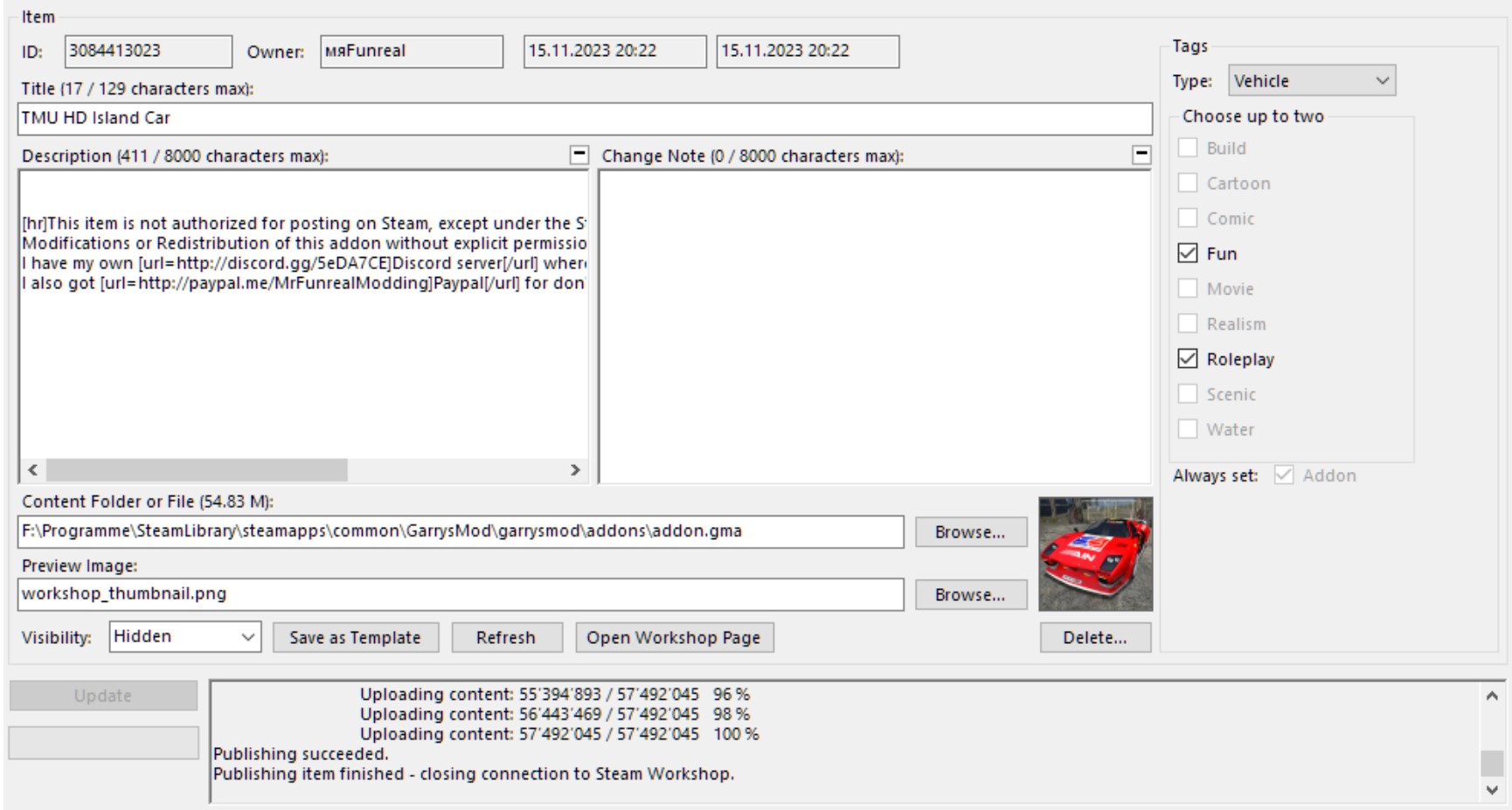
Enter title, description, thumbnail and tags.
Then just click the publish tab and wait for it to finish uploading.


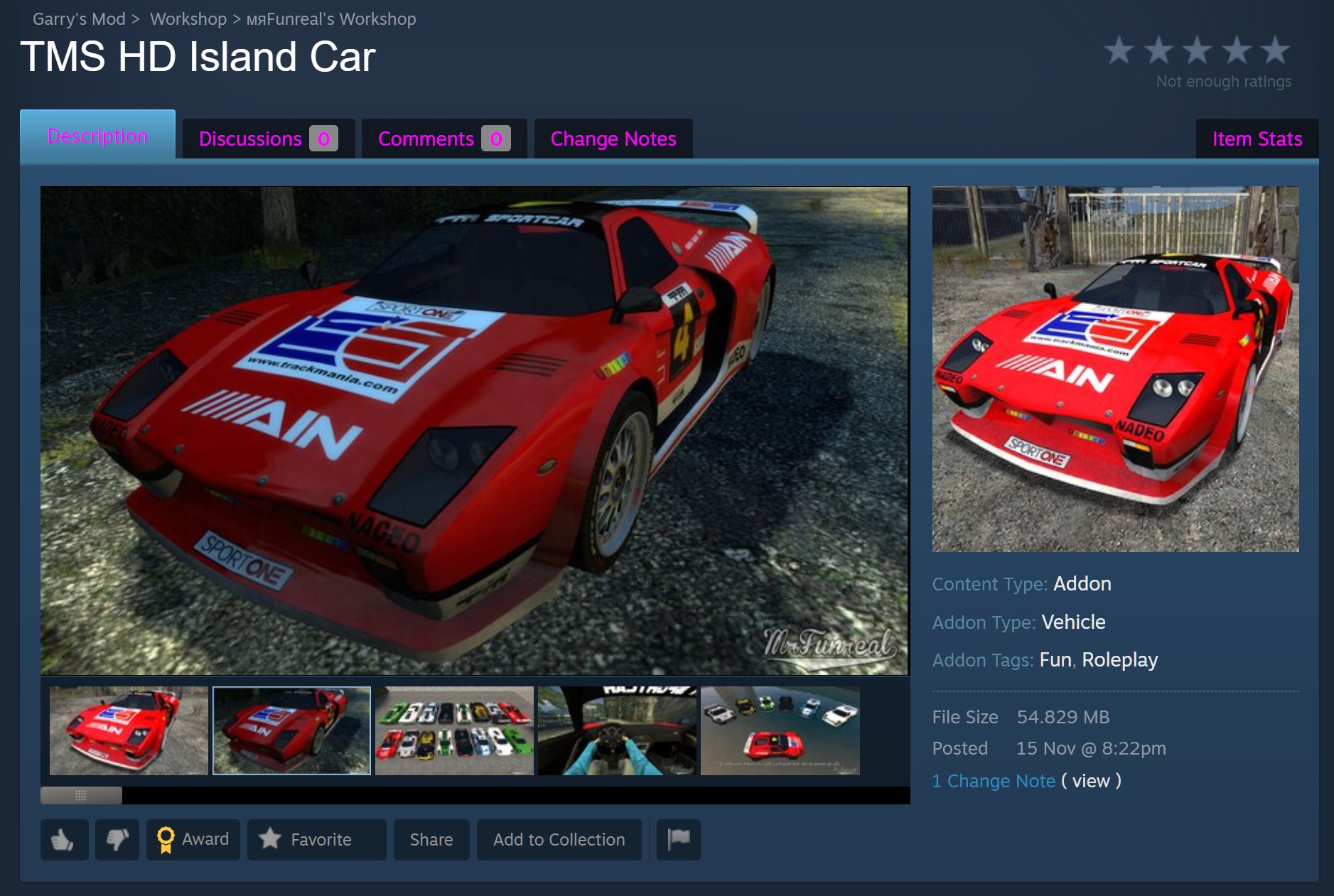
There's a "Open workshop page" button that sends you to the site of the mod you uploaded.


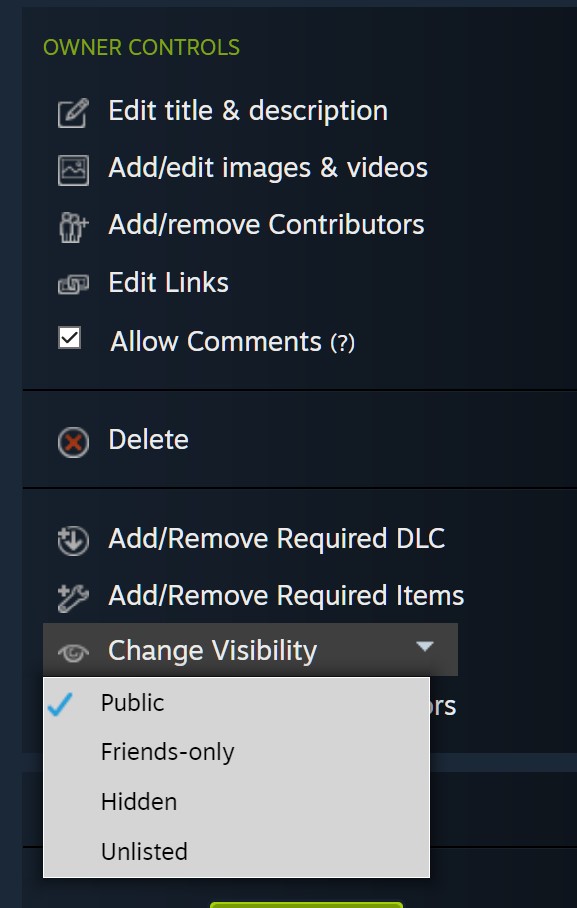
Don't forget to eventually change visibility to public, if you want it to be public.
Closing Words
And that's that. ¯\_(ツ)_/¯
I hope you found this guide useful, if not, you've probably already left a comment.
If you got any problems and need help, feel free to join the Dead 4 Mods Discord server.[discord.gg]
We're a group of Source engine modders who like to help each other out.
We even got a tutorial section which links to various guides we have made and/or found.


If you want, you can join my personal Discord server.[discord.gg]
Should you think I deserve it, I got a Paypal[paypal.me] for donations.
3 条留言
aydro 2024 年 9 月 21 日 上午 9:01 
yep
мяFunreal  [作者] 2024 年 9 月 21 日 上午 2:42 
All of those "guides" are just attempts at farming points to buy stuff in the steam store shop.
aydro 2024 年 9 月 20 日 下午 5:40 
now this is the type of guides we need, not the low effort "HoW tO mOvE" and "hOw tO ShOoT" guides