Counter-Strike: Source

Counter-Strike: Source

175 个评价
How to download Skins for CSS
由 Nero 制作
This guide will show you how you can install skins for CSS.
4
   
奖励
收藏
已收藏
取消收藏
introduction
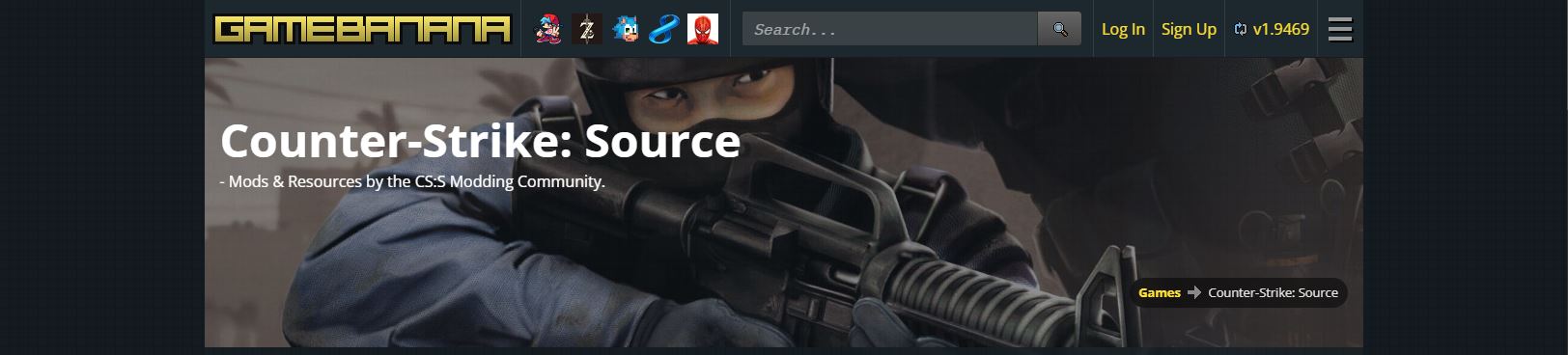
The site we will be downloading skins from is gamebanana[gamebanana.com] for those who are worrying about the safety of the site, it is completely safe and tons of people use it.

What is gamebanana?
Gamebanana is a company made for mod and skins of a game that's compatible with mods.
Step 1
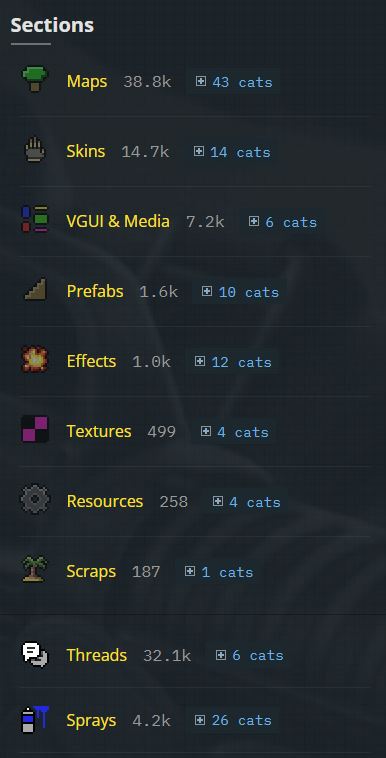
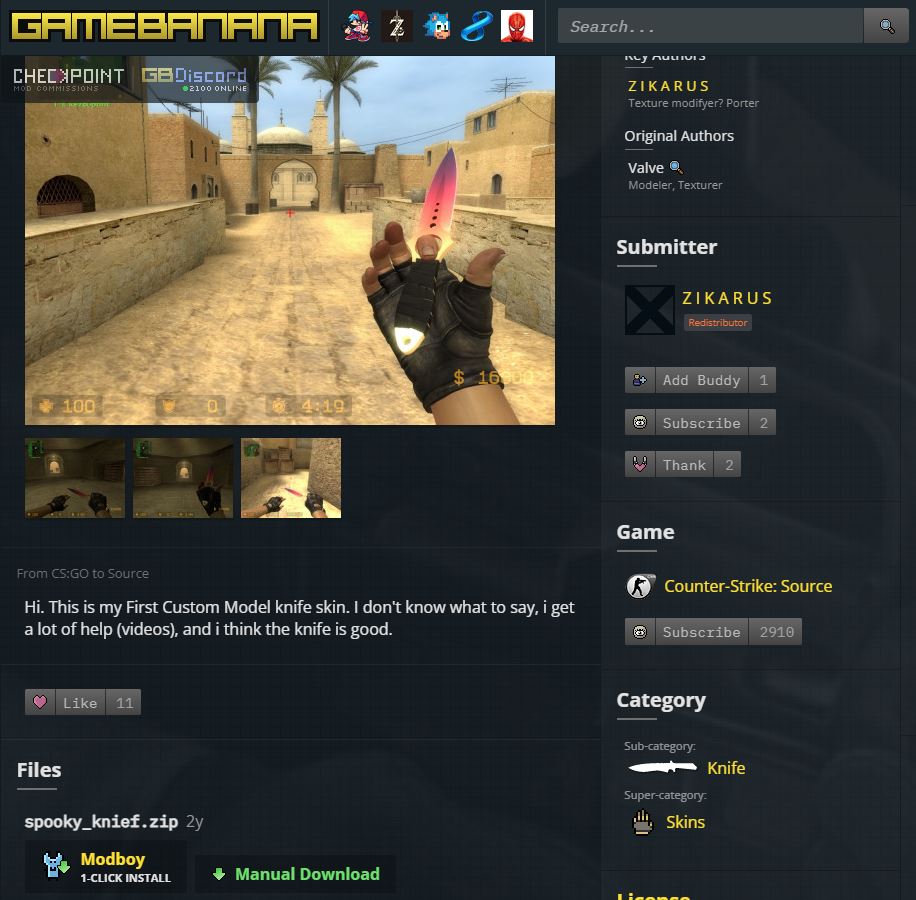
Once you have entered the site scroll down and you will see on the side right "Sections" from here we can choose what we want to download. We will be downloading Skins so press on the "Skins" button, you could also download other things like maps, but this guide will be focused at Skins.

Step 2
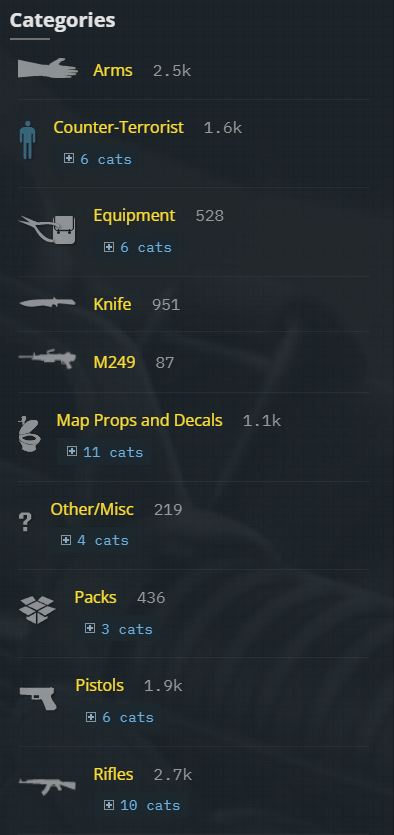
From entering Sections scroll down and on the same right side you will find "Categories". From the "Categories" you can find multiple options like in "Sections" you can choose for what object you want a skin, for this tutorial I will be downloading a knife skin.


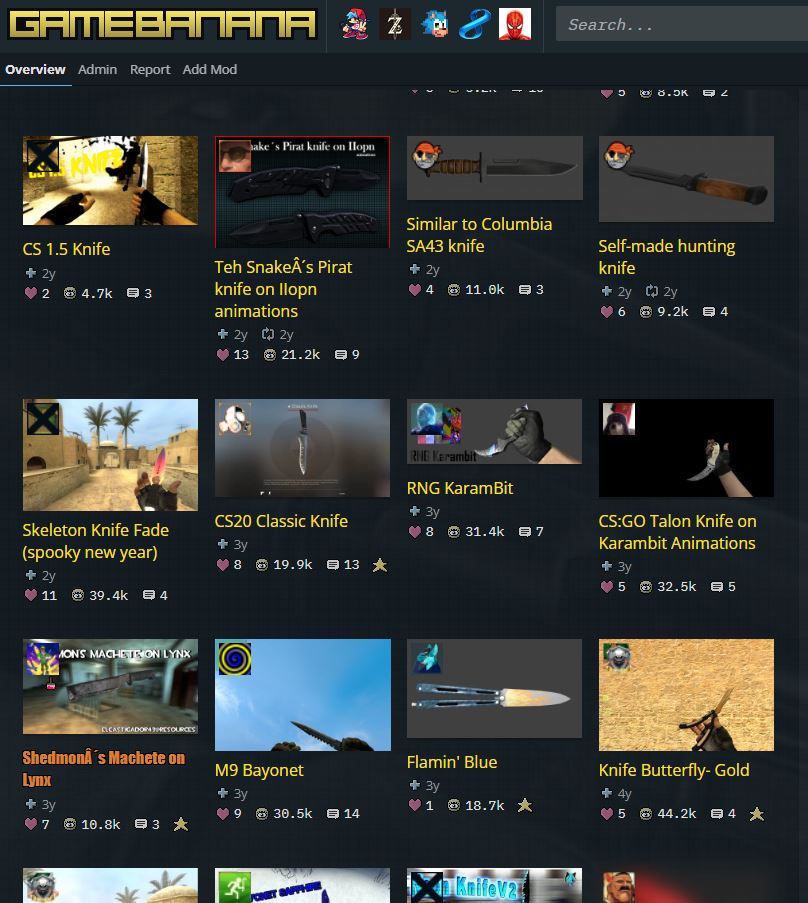
After you have chosen what category skin you want, scroll down and find the one you like.


Once you have found the skin you like, click it and scroll down a bit till you see the "Manual Download" button, press it.

Installing the Skin
Once you have downloaded the skin you will get a WinRAR folder, in which contains the skin.

Go to the drive you have installed CS: Source and then go to Steam/steamapps\common\Counter-Strike Source\cstrike\custom\ or go to your Steam library right click on Counter Strike: Source press properties and press Local Files from there you will see a button called browse, press it. It will take you to the Counter-Strike Source folder from there press cstrike folder and then custom.

Note: If there is no custom folder make a new folder and call it custom!

Once you're there open the WinRAR folder and drag the folder inside the custom folder you just have open from CSS. If there are multiple folders (materials, sound, scripts, models - if some of these are missing, it doesn't matter, they are probably not part of the skin.) create a folder inside custom and drag those folders into it.

Once you have done all of this launch the game and enjoy!

One final thing if you don't see the skins, it is probably because that server you joined doesn't support it.

Don't forget to Like, Favorite and Share if you found this guide helpful!

38 条留言
󠀡󠀡 10 月 8 日 上午 12:14 
awesome guide, super simple and easy to understand. now i have a minecraft pickaxe in source, excellent.
player 6 月 29 日 上午 6:36 
Thanks, works great. If anyone is having trouble it's because you can't read
Nero  [作者] 5 月 28 日 下午 3:58 
This guide might be outdated since I haven't played in a while. (might update) I suggest looking up a tutorial on youtube
Keshi 5 月 5 日 上午 8:45 
followed your steps, turned on private match, the skins i downloaded doesnt show at all
cangamecan 2 月 25 日 上午 6:48 
Thank you so much this is awesome!
GnomeStruck 1 月 4 日 下午 3:15 
Useless, doesn't work at all. Followed steps carefully and tried it on a private server.
lemon gaming (real) 2024 年 12 月 17 日 下午 12:15 
weapon skins dont show up
Marv2icy 2024 年 12 月 8 日 上午 10:31 
nice :steamhappy:
Prime. 2024 年 12 月 8 日 上午 7:47 
thank you bud, got pixels that sell in cs2 for 61k for absolute free
Nero  [作者] 2024 年 12 月 8 日 上午 7:16 
remove the skins from the folder