PROTOTYPE 2

PROTOTYPE 2

314 个评价
Guide: Startup Crash Fix
由 GaybitBiscuit 制作
Before posting about your specific problem, please read all of the guide instructions.
I will try to help you out with the annoying startup crash problems.
13
7
9
2
2
   
奖励
收藏
已收藏
取消收藏
First Startup Crash Solution:
1. Go to this guide: Fixing Crash On Startup
That guide was created by w3stracer, you should thank him if it works for you.

2. Download missing files from google drive: Download[drive.google.com]
There is three of them: cementfiles.p3d, skuinfo.p3d, audio.p3d.

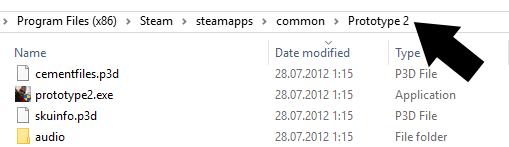
3. Replace your game files with these new ones:
C:\Program Files (x86)\Steam\steamapps\common\Prototype 2

4. Try to run the game directly from this folder:
If this solution isn't working for you, try the next one.


Second Startup Crash Solution:
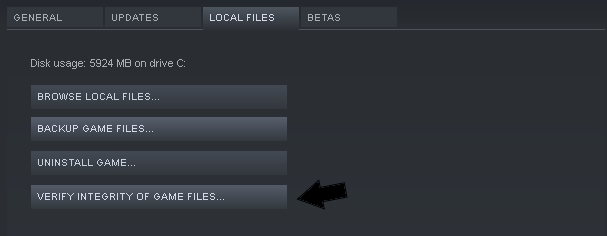
1. Go to Properties of the game in your steam library
Check the picture below to see what I'm talking about.

2. Press "Verify Integrity Of Game Files" in Local Files
Check the picture below to see what I'm talking about.

3. Check if it says "Failed to verify 1 file" every time you try to verify integrity
This basically means that the game isn't downloaded properly.

4. Click "Browse Local Files" and go to properties of the whole prototype folder
C:\Program Files (x86)\Steam\steamapps\common\Prototype 2.

5. Turn Off "Read-only" in folder properties and try to run the game directly from the folder
You can also try to run it as administrator and If this solution isn't working, try the next one.

Third Startup Crash Solution:
1. Press (Windows) + (R)
This will open Run Command.

2. Type in "devmgmt.msc", then press Enter
This will open Device Manager.

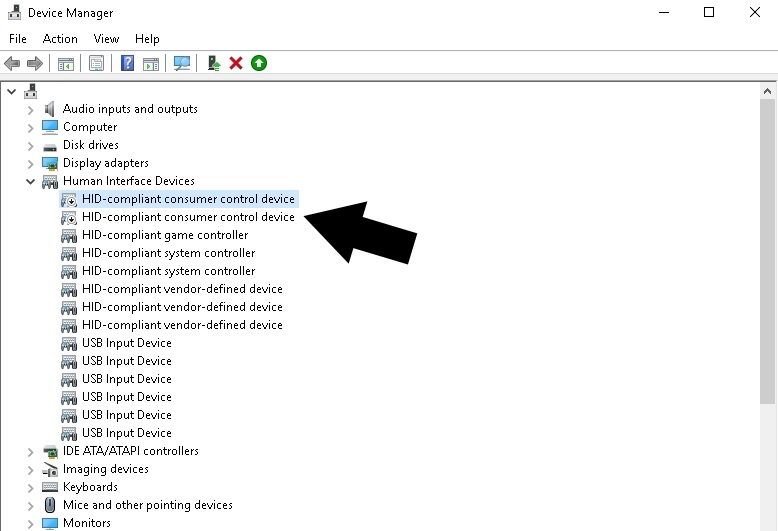
3. Find "Human Interface Devices" and then "HID-compliant consumer control device"
Check the picture below to see exactly where to find them.

4. Disable "HID-compliant consumer control device" and then try to run the game.
If it still doesn't work, you can try to disable the other 'HID' devices as well.

5. If the game works now, don't forget to enable those 'HID' devices after playing.
It's really highly recommended to enable them back after you quit from the game.

Fourth Startup Crash Solution:
1. Go to Properties of the game in your steam library.
Just like we did in the second startup crash solution.

2. Click "Browse Local Files" and go to properties of the whole prototype folder.
C:\Program Files (x86)\Steam\steamapps\common\Prototype 2.

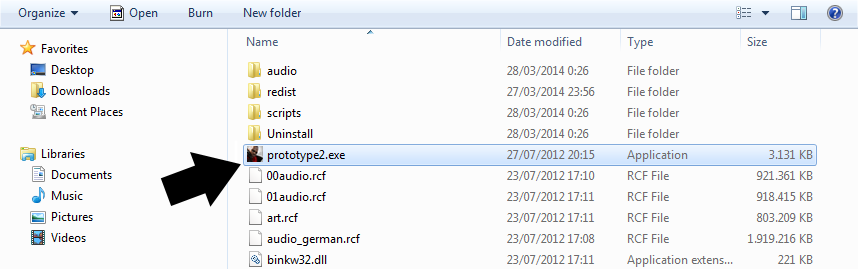
3. Right click on prototype2.exe and go to properties and compatibility tab.
Check the picture below to see what I'm talking about.

4. Disable fullscreen optimizations and run this program as an administrator.
https://psteamcommunity.yuanyoumao.com/app/115320/discussions/0/1696049513767699537/

Fifth Startup Crash Solution:
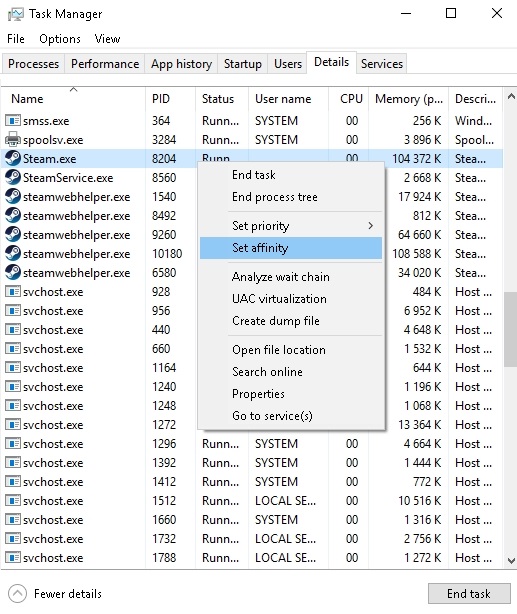
1. If you have a processor with too many cores: Go to the Task Manager.
Navigate to the Details Tab in the Task Manager and Find the steam.exe

2. Now you have to right click the steam.exe in the Details tab and set core affinities
You can check the picture below to see what exactly I am talking about.

3. Once you see a small window with the list of CPU's: Have only eight of them enabled.
You can try having four enabled, if eight doesn't work. The game doesn't support more than eight.

4. Now you can just save and test if the game is finally working correctly.
And don't forget to change the cores back to how they we're once you finish the game.

Sixth Startup Crash Solution:
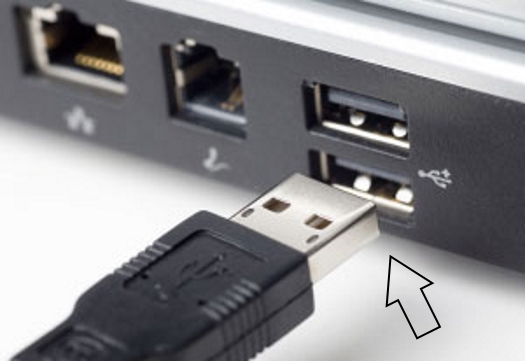
1. Disconnect your keyboard and mouse from the computer.
It seems to work according to Monkinias in the comments.

2. Reconnect them back to your computer after the game loads up the main menu.
Before disconnecting them, you need to run the game and then immediately disconnect them.

3. You can try to disconnect some of your other devices that are connected via the usb.
Everything can be connected back into the pc after you reach the main menu safely.

Thanks For Reading
I hope something from this guide will be helpful to someone with startup problems.
If you know about other possible solutions, please write them down in the comments.
If I find some other solutions, I will eventually add them to this guide for people to see.
99 条留言
灭_destruction 11 月 7 日 下午 7:45 
GUYS
I think i've found it. It's the controller input. So i brought my laptop outside today and redownloaded the game, it started without problem. I was so happy and i went back home to play, but after I plugged everything to my laptop it crashed again. So I started wondering what's wrong. I unplugged the monitors, still crashes. I unplugged the other keyboard.
IT STARTED.

Try your luck on that.
Zipyslav® 9 月 15 日 下午 5:03 
Its too old guide and complicating the whole thing .

Read my post there:

https://psteamcommunity.yuanyoumao.com/app/115320/discussions/0/597398236592920089/

This fixing the whole game - fixing infinite loading screen from start etc .
Parňák The Rat 9 月 7 日 上午 12:38 
nothing work to me
so what now
Black-Hound ツ 7 月 24 日 上午 5:59 
First Step actually worked for me but i am stuck in an infite loading screen after the first cuscene...
Seriously what is this bullsh!t....
Mazila 4 月 23 日 上午 11:30 
3 worked for me
bertolan77 2 月 24 日 上午 1:57 
The mouse and keybourd unplug actually work
Bichelkush 1 月 31 日 下午 9:41 
The first step worked for me
Animawesome 1 月 10 日 上午 10:08 
I must have the worst luck ever. 2 months ago I didn't need to do any of this sh*t to play the game, now NONE of it works.
cacophonousAntiquarian 1 月 3 日 上午 7:51 
This game could really use a remaster
Thulak 2024 年 11 月 7 日 上午 11:49 
For all the folks not crashing during startup, but when loading the main menu:
The game cant handle more than 8 cores, so you can fix it by putting
DXVK_FRAME_RATE=60 taskset -c 0-7 %command%
into the startup options. (The important bit being "-c 0-7 %command%" the rest just sets framerate)