Halo: The Master Chief Collection

Halo: The Master Chief Collection

Otillräckligt med betyg
Downpatching MCC
Av theffapanda
In the past I've helped recover old theater files. Wrote this to assist, sharing here.
   
Utmärkelse
Favorit
Favoritmarkerad
Avfavoritmarkerad
Downpatching MCC
Downpatching Halo MCC
It's enough information to be dangerous….

1) Copy your Entire Halo The Master Chief Collection folder somewhere else so you don’t corrupt it.
DO NOT DELETE THE ENTIRE HALO MCC FOLDER FROM YOUR STEAMAPPS/COMMON FOLDER.
That will force you to completely reinstall - also DO NOT uninstall via Steams Library UI.
You'll lose the manifest files, Steam will complain, you'll complain - just don’t do it.
You'll need to download and copy/paste two main file folders - BASE and Multiplayer Depots.
Linked below on SteamDB for reference.
For dates around/after mid 2022 you'll also need to download the campaign depots MANUALLY in game.
The in-game prompt for theater will yell at you that you don’t have campaign installed.
I will cover this later.
Base Link:
https://steamdb.info/depot/976731/manifests/
Multiplayer Link:
https://steamdb.info/depot/976739/manifests/
At this stage you should have an empty Halo The Master Chief Collection folder in your "../SteamApps/Common" folder.

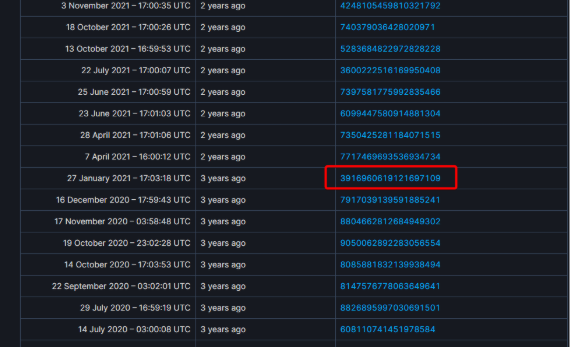
2) Now you need to determine what version you need by going to the manifest files and reading the dates.
If you're trying to view a theater file from February 2021, you go back to the release before it (January 2021) and that will be your selection. Screenshot below.


3) Once you know what version you need, populate the download_depot command into the Steam Console (shown in BLUE text in the screenshots below).
The only value you'll need to change per date is the manifestid
The appid/depotid will stay the same (respective to BASE/MULTIPLAYER)
Note that the depotid and manifestid will not be the same for each date. So you cannot grab the manifest ID for BASE and use it for MULTIPLAYER, etc.
It follows this format:
download_depot <appid> <depotid> <manifestid>

Appid for Halo MCC: 976730
Depot ID for MCC Base: 976731
Depot ID for Halo 3 Multiplayer: 976739

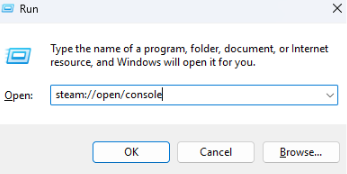
4) Access the Steam Console by typing opening Run and entering: steam://open/console


I provided examples of BOTH commands you'll need to run, separated by DATE and the folder (BASE/MULTIPLAYER)
Note that the console will NOT give you progress.
Once completed, you'll see the "Depot download complete" message showing you where the file is saved.
You have to repeat this for both the Base and Multiplayer files BEFORE launching MCC via Steam.


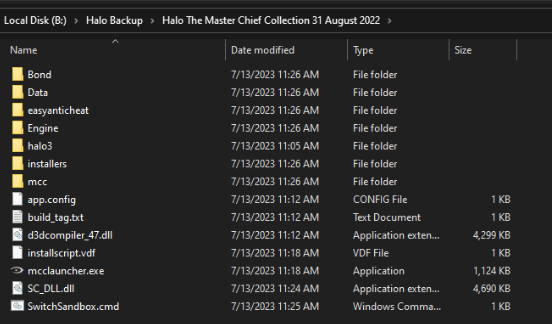
The next screenshot shows an example of the new Halo MCC folder I created after downloading the BASE file (which has all of the menus etc) and the MULTIPLAYER file (which has all of the maps/gametypes etc)
The files will download into specific "../Steamapps/Content/App_XXXXX" folders. One for BASE (lower number) and one for MULTIPLAYER (higher number)

5) We copy all of these files (BASE+MULTIPLAYER) into our "../Steamapps/Common/Halo The Master Chief Collection" folder.
Your "../Steamapps/common/Halo The Master Chief Collection" folder should look similar to the below (and shouldn’t have the date in the folder name, it’s a picture from my storage drive!)


6A) (Preferred method)
If not present add a file called steam_appid.txt, with the value 976730 as the text inside of the file.
You can finally launch! If you want to launch using the steam launcher continue to 6B.
Open the MCC->Binaries->Win64 folder and launch MCC-Win64-Shipping.
You’ll know your downpatching worked successfully when the game launches WITHOUT the EAC splash art.


6B) (Through Steam launcher)
When launching MCC make sure to select the Mods ENABLED (EAC DISABLED) version of the client.
If you launch with EAC Enabled you will always get an error.
You can edit this option via the Steam Library by clicking Properties -> General -> Launch Options
Note: I'm assuming your theater files are already in the MCC theaters folder.

If you get a "Campaign not installed" error, manually install the files like you normally would - in game its Settings -> Gameplay -> Change Installed Games, Select Halo 3 Campaign.
You may need to close/reopen MCC to ensure the download finishes.


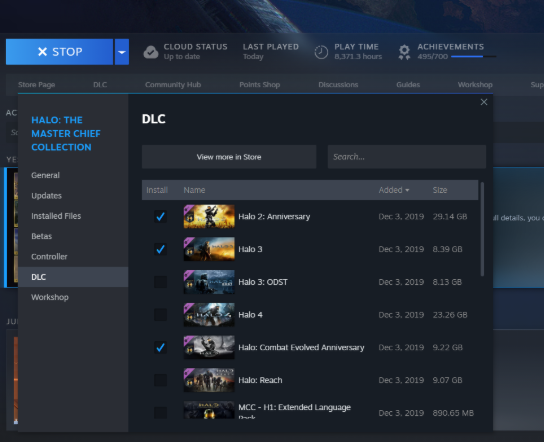
If you still are not able to access the theater, open the Properties -> DLC section of Steam and check the box next to "Halo 3" -> This is the campaign file.
It will download a few smaller files and run a validation.


EXAMPLES:

January 27th, 2021
Download BASE
download_depot 976730 976731 3916960619121697109
Download MULTIPLAYER
download_depot 976730 976739 3747952903602120628

October 18th 2021
Download BASE
download_depot 976730 976731 740379036428020971
Download MULTIPLAYER
download_depot 976730 976739 7546014327679828214

August 31st, 2022 (ALSO REQUIRES CAMPAIGN)
Note: Because of the date of this file, you'll have to download the campaign AND click the DLC Enable button in Steam before it will work.
This will start a ~3GB download. You CANNOT skip this step!

Download BASE
download_depot 976730 976731 3398001368072059567
Download MULTIPLAYER
download_depot 976730 976739 2472348697636137511

1 kommentarer
zdavee 20 nov @ 13:15 
Great guide, used before and works perfectly.