Warhammer: Vermintide 2

Warhammer: Vermintide 2

评价数不足
How to automate a number of routine processes in Vermintide 2
由 ChadMasodin 制作
This guide explains how to use the AutoHelper script, which helps automate a number of routine processes in Vermintide 2.
   
奖励
收藏
已收藏
取消收藏
Introduction:

I made a handy AHK script called AutoHelper, which helps automate a number of routine processes in Vermintide 2:
  1. Salvage items of any rarity.
  2. Opening chests.
  3. Upgrading weapons or amulet for essence in Athanor.
  4. Reroll Properties for any item.
  5. Other crafting functions.

Russian version of the guide:
https://psteamcommunity.yuanyoumao.com/sharedfiles/filedetails/?id=3385048068
Usage:
Necessarily:
  1. First, go to the releases page GitHub.
  2. In the list of assets, select the archive with the word (ENG).
  3. Unzip the archive to any location on your disk and install AutoHotKey v1.1.
  4. Done, you can now run the AHK script itself and work with it.
Optional
  1. After running the script, name the preset and save it.
  2. Next, in the script folder, click on the shortcut %appdata% and go to the automatically created folder AutoHelper, the preset file will be located in it.
  3. In the Presets folder, select the type of game interface you are using, such as FOR OLD UI. In this folder, move the presets.ini file to the newly created AutoHelper folder and confirm replacing the contents.
    (This file contains pre-made presets for different screen resolutions)
How it work:
There are a few important things to consider before you begin:
  • This script works for both New and Old game interface. If you wish, you can change the interface type in the game settings.


  • It is recommended to run the game in Borderless Fullscreen.


  • If for the function "Reroll-Properties" the program (OCR) does not recognize text well. Try to increase the selection area or disabling scaling in the game settings, if you are using 2K resolution or higher.

1. Presets setup
At the top of the window is the Presets List. By default, it will be empty, to make something appear here, enter a name in the field and click on “Save” the preset will save all values from the interface to a separate file, which is located in:
(C:\Users\<your user\AppData\Roaming\AutoHelper).

After restarting the script, you will be able to select the saved preset from the drop-down list. To delete the preset, use the “Delete” button on the right.
If you have overwritten the preset file, then the list will show ready-made variants, choose the one that matches your screen resolution:
2560X1440 +SCALE (not recommended)
2560X1440
1920X1080
1366X768
If your screen resolution is not listed, you will need to manually adjust it. It won't take long, just read the info below.

2. Scripts setup
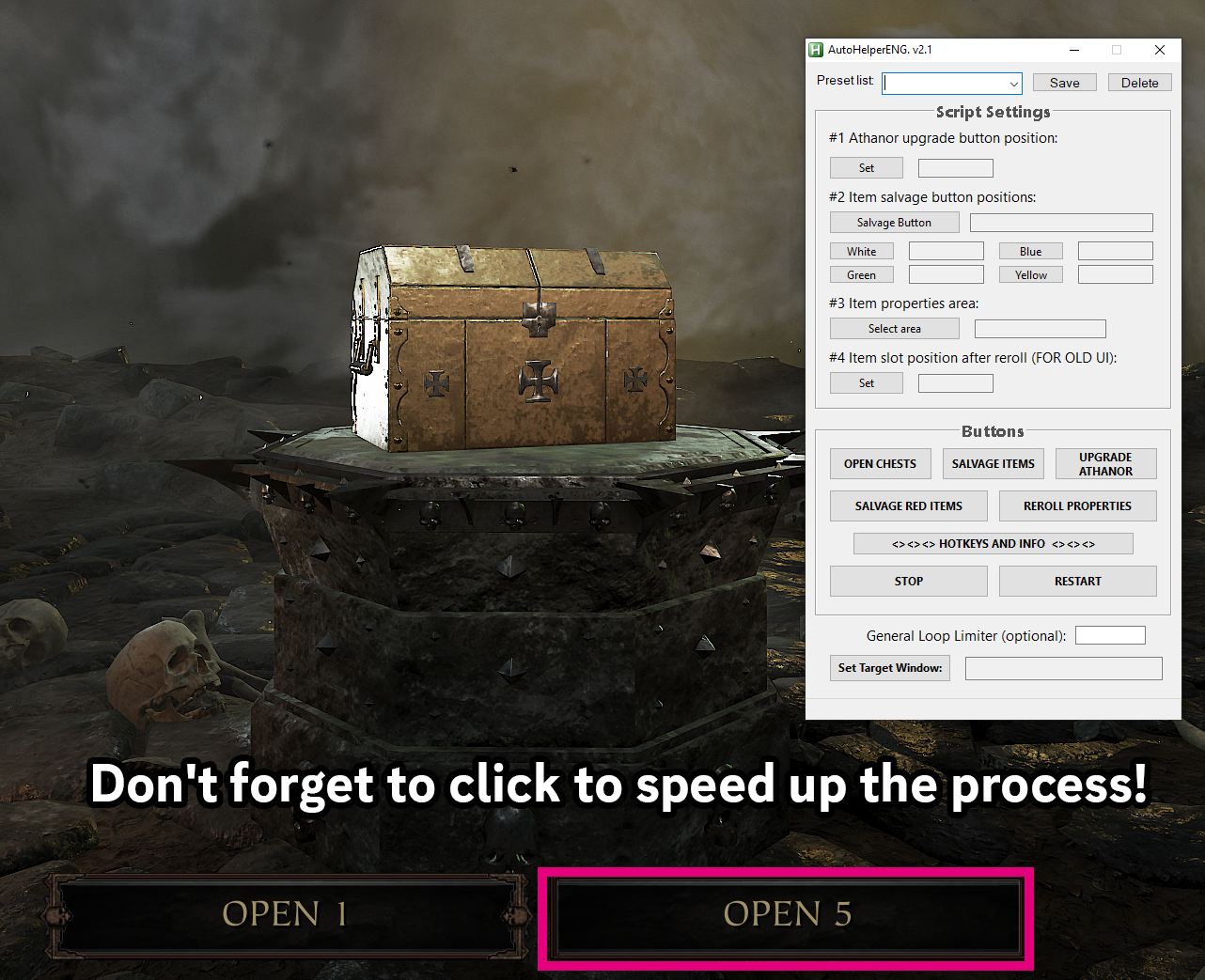
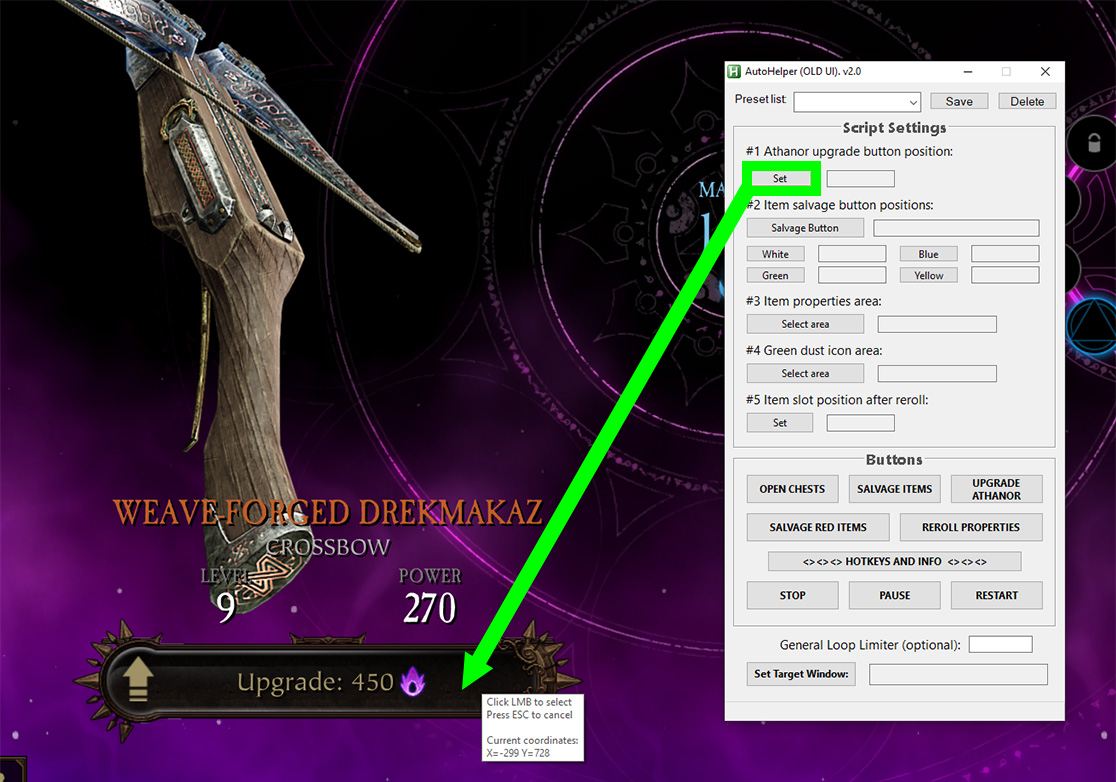
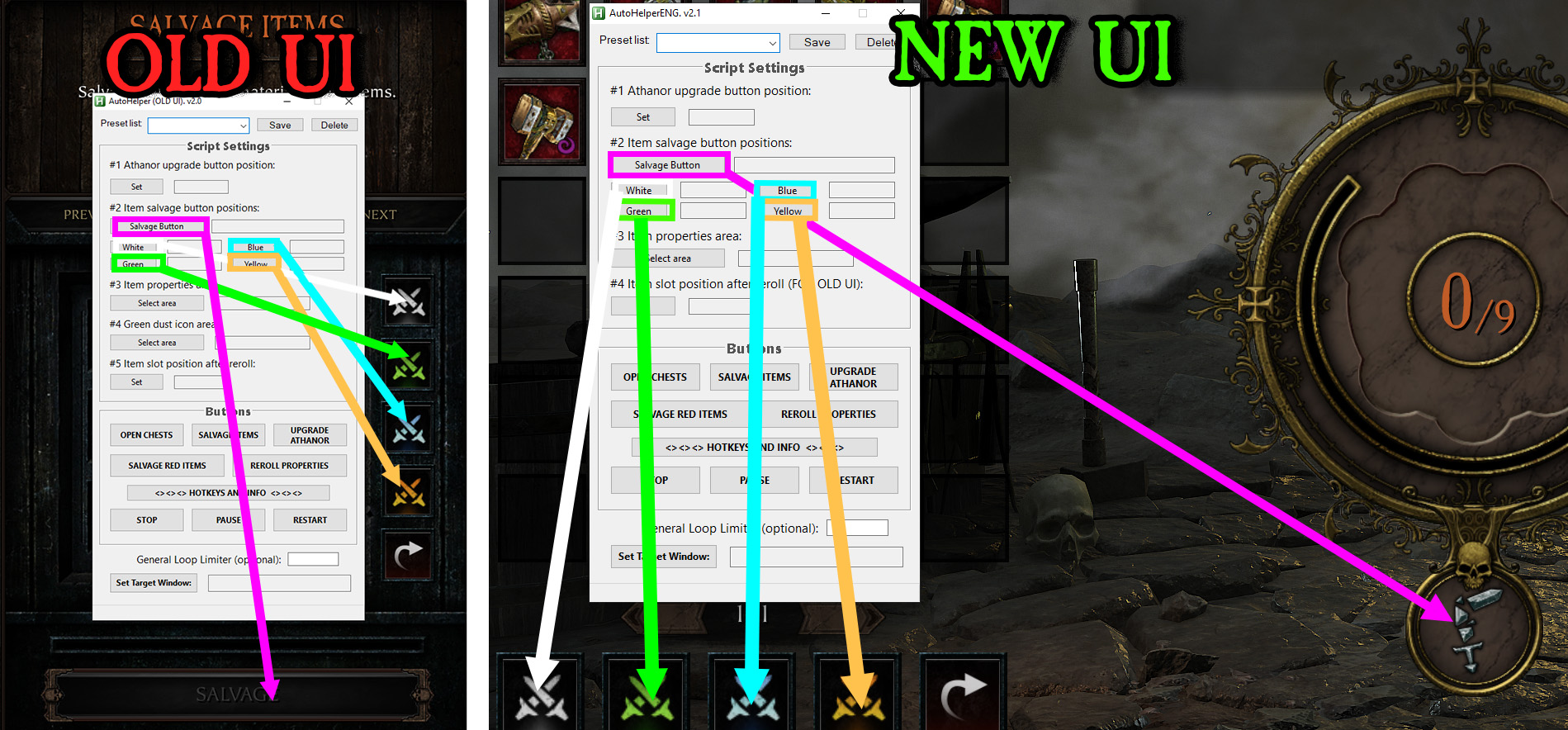
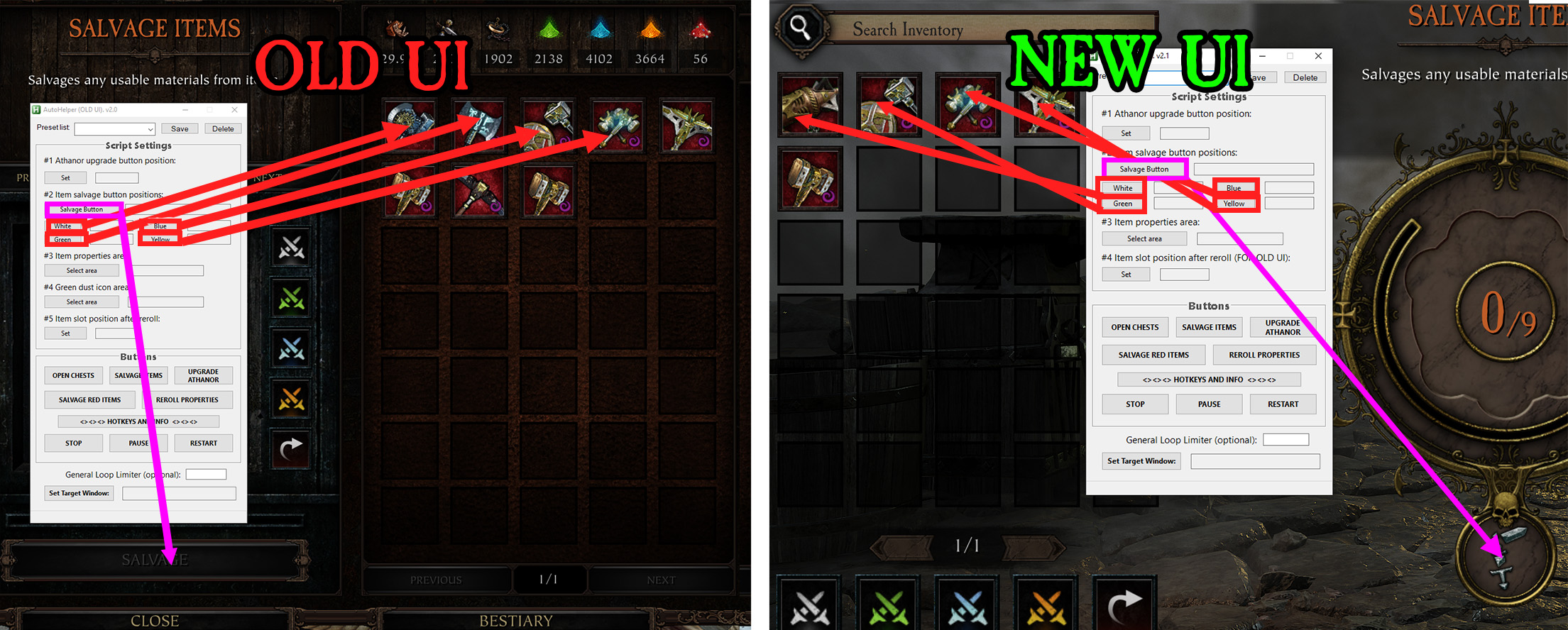
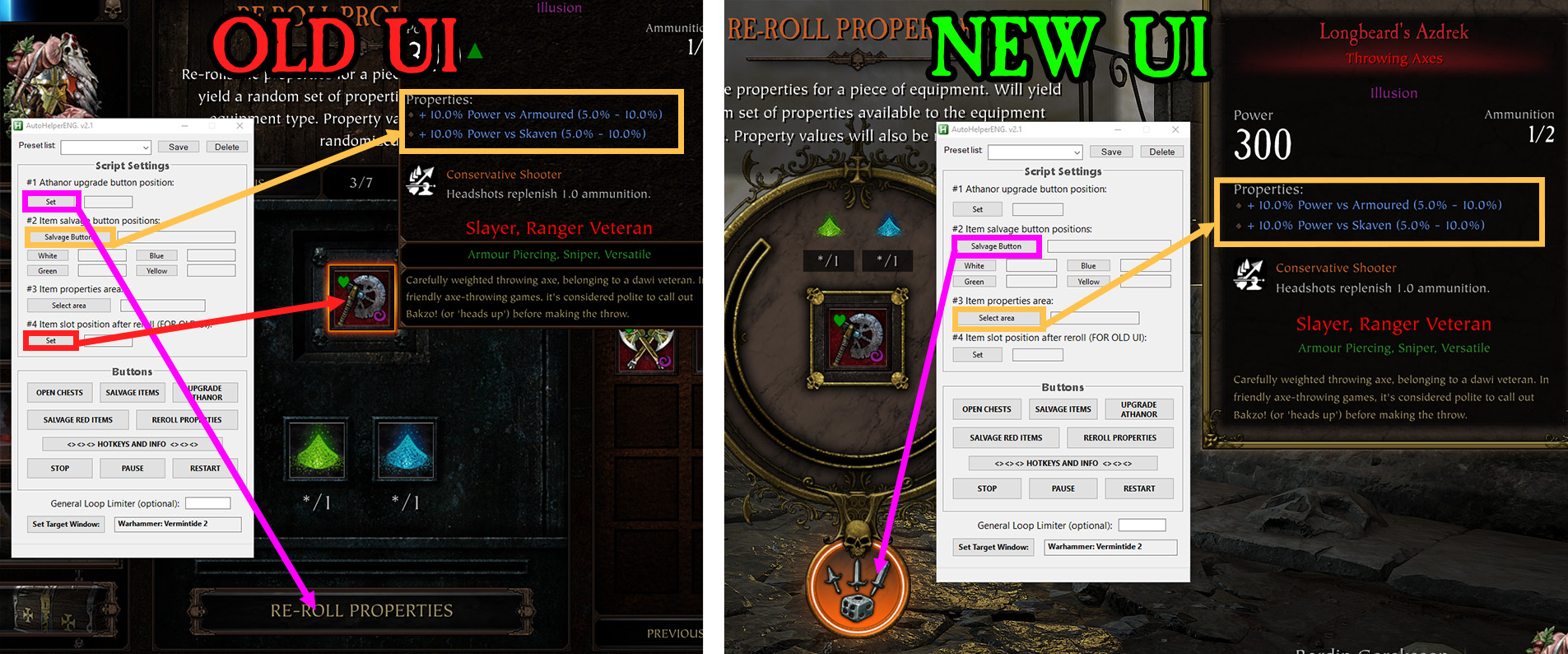
In this section, you must specify the coordinates of the game element. Click the button and hover your mouse over the desired element in the game, as shown in the images:

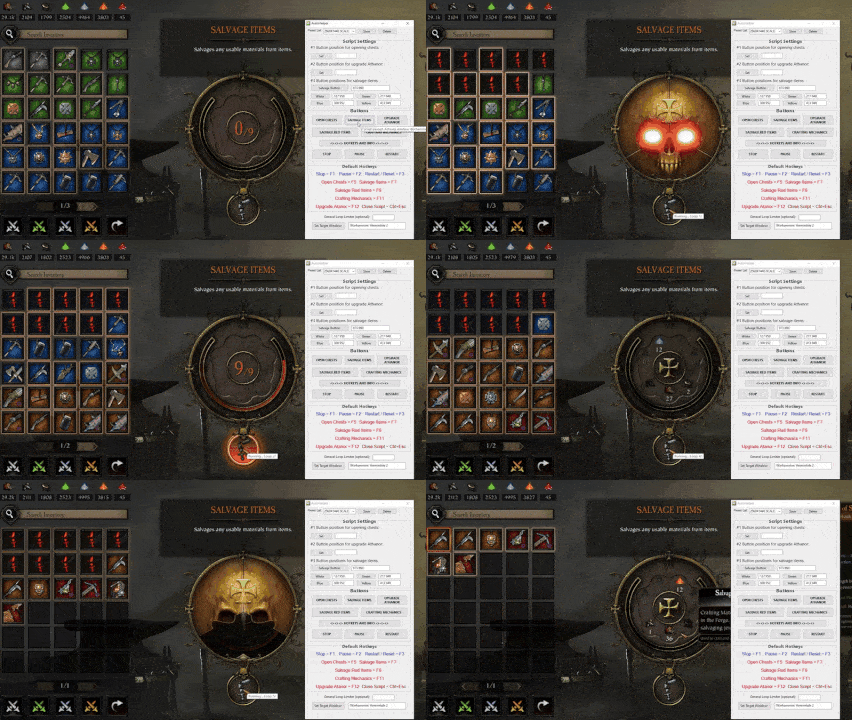
Open Chests


Upgrade Athanor


Salvage Items


Salvage Red Items


Reroll Properties
This function automates the rerolling process by crating a menu system with pretty much every item property combination that once selected, will reroll the item until the chosen combination is found.

It uses OCR to cature the current properties on the item in the reroll slot and checks that agaisnt a predefined set of words that are associated with the menu item you selected. Make sure to read further for all the requirement and usage instructions.

Usage:
To start the process of rerolling an item's properties, first make sure to load the item into the reroll slot in the crafting menu, then click the reroll button once (for new interface) or hover over the item itself in the slot (for old interface) to display a window with results.

Once that's done, bring up the script menu and navigate through the different submenus to the combination that you want.

Remember that if you are rerolling a melee weapon, you'll want to choose a combination from the melee menu. Otherwise the script won't work as intended.

This also works for orange and blue items, but I wouldn't use it on anything with less than two properties because it will confuse the script and reroll until you run out of dust.

The basis for this function is the script VT2-Auto-Reroll-Properties by d-geula. This script was expanded and improved during the port.


Other Crafting Functions
If you need to automate other crafting functions, such as Creation Item or Dust Conversion, then for them you can use Salvage Items.

3. Starting processes and settings hotkeys
Let's assume that you have configured “Salvage Items”. You can start this process in two ways: by pressing a button in the GUI or by using a hotkey.
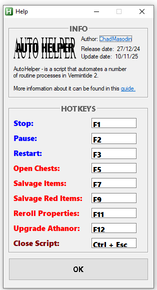
By default, pre-defined hotkeys are used. However, if you wish, you can re-bind them to others. To do this, click on the “HOTKEYS AND INFO” button.

This will open a new window that contains the script info and hotkeys setup. Once the customization is complete, click on “OK”.


4. Binding the game window
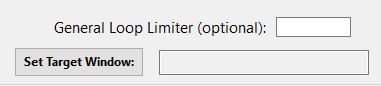
At the very bottom is the button Set Target Window. Click it, then double-click the game window. (This is to immediately prevent the script from running when you switch to another window, for example, using ALT+TAB.)

General Iteration Limiter - is the number of loops after which the script will automatically stop. If the field is left blank, the process will continue until you stop it manually. This setting is optional and can be left untouched.


5. Process control
To stop the script, click the "Stop" button.
To clear all set values ​​from the interface, click the "Restart" button.
Conclusion:
I hope you enjoyed my script, as it took quite a bit of time and effort to develop.

Remember, creating ready-made presets and feedback will help make this script even better! (To share your preset, open your preset file, copy contents and post it in the comments. I will check your preset and if everything is fine, I will add it to the archive).

TODO List:
- Add localization to the script for all supported game languages?
3 条留言
ChadMasodin  [作者] 11 月 27 日 上午 10:43 
Minor update to version 2.2

List of changes:

- The pause button has been removed from the interface.
- Hotkeys F1-F12 have been changed to standard Numpad 1-9.
- Added visualization to highlight item properties.
- Updated guide in Steam.
ChadMasodin  [作者] 11 月 16 日 上午 12:06 
Minor update to version 2.1

List of changes:

- For convenience, the old and new interfaces have been merged into a single script.
- Added Salvage/Reroll button for additional protection in new interface. Green dust search function has been removed due to inconvenience.
- A new Presets folder has been created, which contains files with coordinates for both new and old interface.
- Updated guide in Steam.
ChadMasodin  [作者] 11 月 15 日 上午 6:54 
Updated to version 2.0

List of changes:

- Added the reroll properties function. Now you can select the desired combination of item properties, for example: vs Skaven - vs Infantry, and the script will automatically reroll properties until the desired combination is found. (Special thanks to: d-geula)
- Added a separate script for the old game interface. The script can now work with both the new and old game interfaces.
- Updated the guide for the script.
- Slightly modified the script interface.
- Numerous code bugs have been fixed.