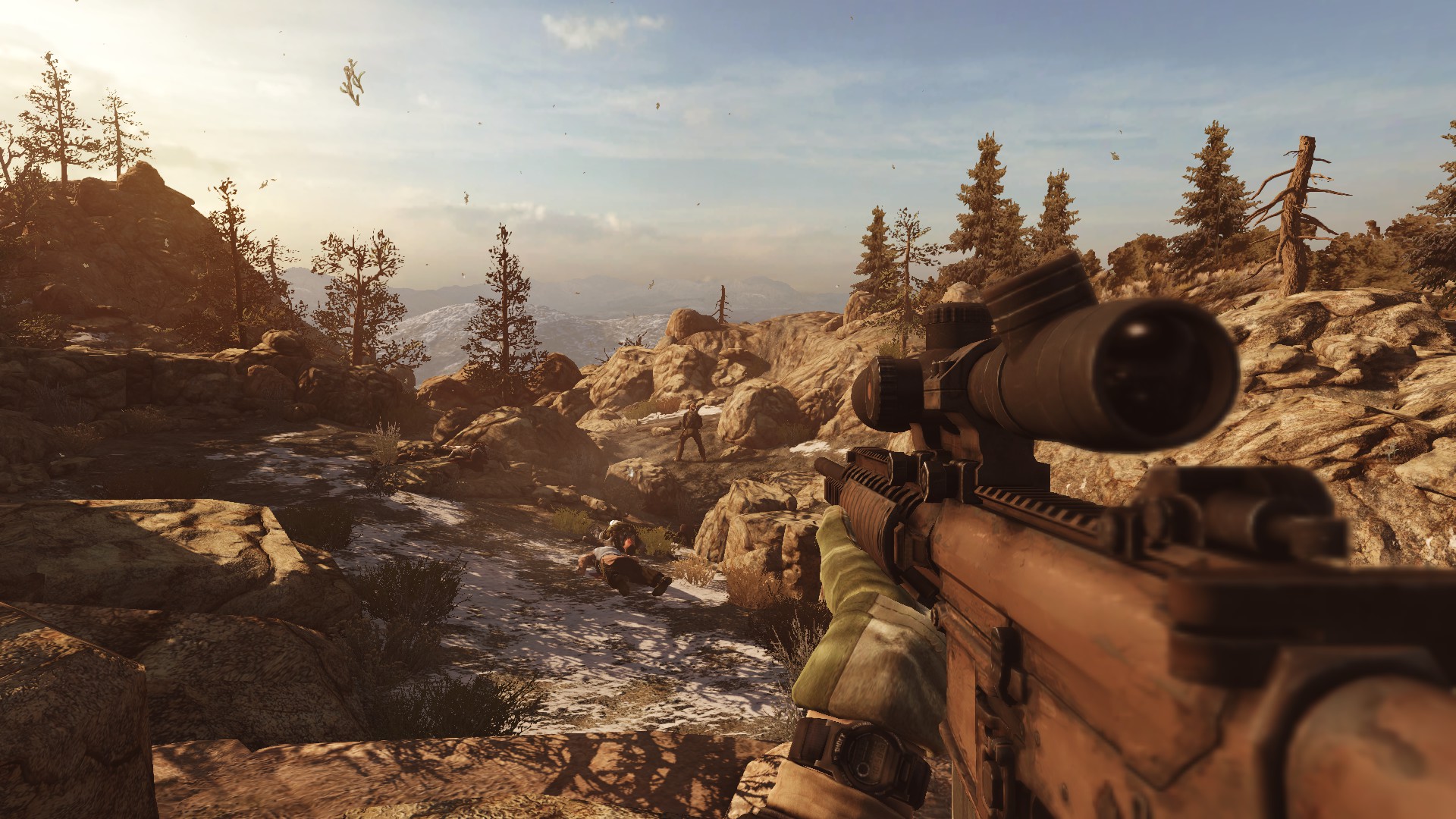
Medal of Honor(TM) Single Player

Medal of Honor(TM) Single Player

评价数不足
How To Change FOV In Both Single & Multiplayer
由 OshanG 制作
This guide will show you how you can change the field of view in both single and multiplayer.
   
奖励
收藏
已收藏
取消收藏
Changing FOV In Singleplayer
To change the FOV in singleplayer, you need to download a tool called "MedalOfHonorFOVChanger". The tool is completely safe and free to use, there are no VAC bans or Viruses.

Download Link: MedalOfHonorFOVChanger [community.pcgamingwiki.com]

STEP: 1
On the website, click on Download This File, and it will download a zip file.


STEP: 2
After that, extract the folder using WinRaR or 7-zip, and open the file.

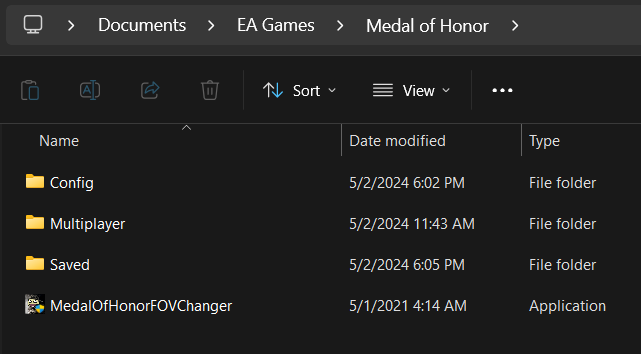
Then you'll see the application, so before you run it, you need to copy and paste this application into your EA Games > Medal of Honor folder, which is in Documents.


STEP: 3
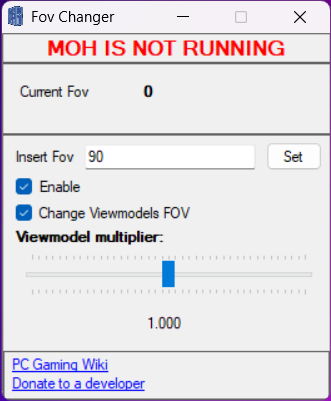
Now double-click on the application, tick the Enable box, type the FOV to anything you like, FOV 90 will be the best-looking one. After that, click on "Set" and Launch the game. You can change the FOV at anytime while you are in the game. Make sure to click Set if you're changing to a different one.

You can also try changing the Viewmodel by sliding the Viewmodel multiplier. However 1.000 is the best-looking one.

If you want to remove the program, simply right click on it and click Delete.

NOTE! 
You need to run this program every time you play the game.
Changing FOV In Multiplayer
For this, you don't have to use the MedalOfHonorFOVChanger application, we can configure it through the cfg file.

STEP: 1
So again, navigate to the Documents > EA Games > Medal of Honor > Multiplayer

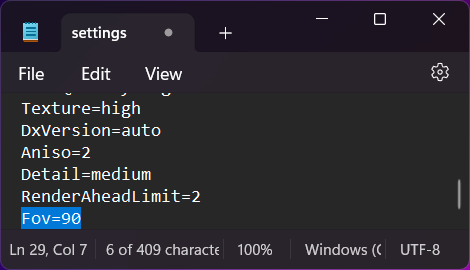
Then right-click on the Settings configuration file and open it with Notepad.

STEP: 2
Then, at the bottom of the notepad, you'll see the FOV parameter. The default FOV is 55. You can change it however you like. I changed mine to 90.


Once you have done that, press "Ctrl + S" together to save the changes, and you are good to go.

NOTE!
You can't change the FOV while in the game, you need to close the game and relaunch it if you need a different FOV.
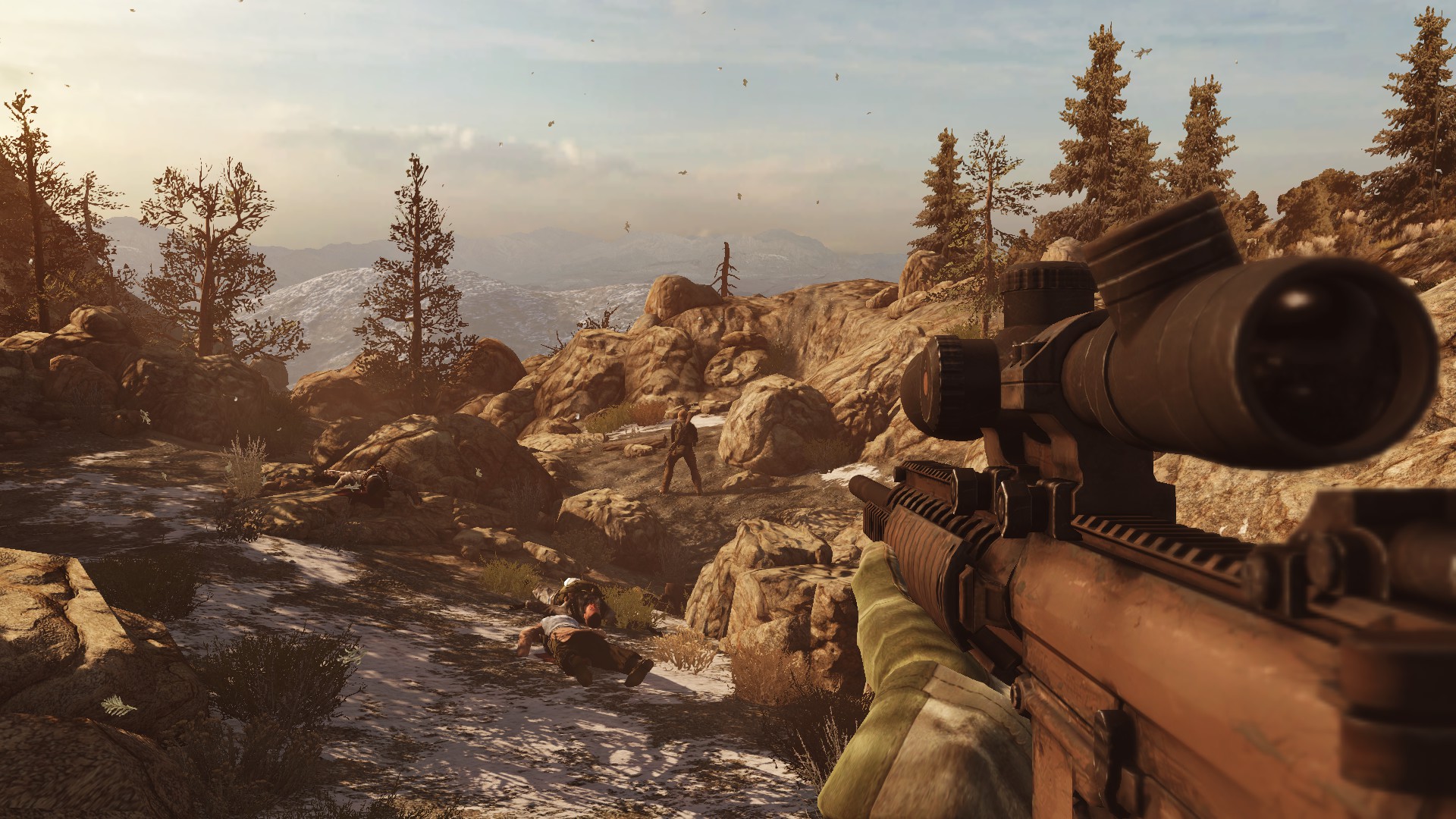
Results (BEFORE & AFTER)
                   BEFORE (DEFAULT)


                   AFTER (90 FOV)
C L O S I N G N O T E S
If you have any questions or comments regarding this guide please feel free to leave a comment below. You can view more guides here.