Ancient Warfare 3

Ancient Warfare 3

评价数不足
Persistent Storage
由 JNI 制作
This guide explains how to use the persistent storage feature to store scripting data between sessions of the same battle or campaign
   
奖励
收藏
已收藏
取消收藏
Intro
The feature Persistent Storage allows you to store data between sessions of the same battle. For instance, you could save the player's hp at the end of a battle. When you play the battle again, you can load the hp and apply it to the player.
It also works to store data in a campaign to use it at the next or a later level.
Battle Id
To allow the data to be persistent, it has to be saved to your hard drive. This works like saving custom battles, units, etc., but fully automatic. To identify which data belongs to which battle, all battles now have a unique id. You can see that id in the bottom left corner of the custom battle editor

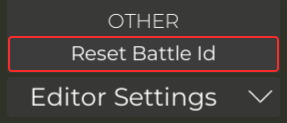
If you save the same battle at a different path, it will share the same id. This can be useful if you just want to experiment and try something on a different save for a moment, but if you actually want to make it a standalone battle, you can reset the id in the edit settings (bottom right corner)

If you upload your battle to the workshop, it will also share the id of your current battle. However, if other players load your workshop item into their editor and try to save or upload it, it will receive a new id.
Campaigns
Campaigns also have a unique id, which works exactly like the battle id. The only difference is that when using the storage nodes below, all campaign levels share a single storage file which all levels can access. You can use this to share data between levels/transitions in your campaign.
Any type
With the addition of the persistent storage feature, the scripting runtime was expanded with a new "any" type for make this feature more convenient to use.
You can use "any" in variables or arrays. You can connect any type into an any connection slot.
This can be used to create mixed arrays or for persistent storage, to have single node which can store all types.
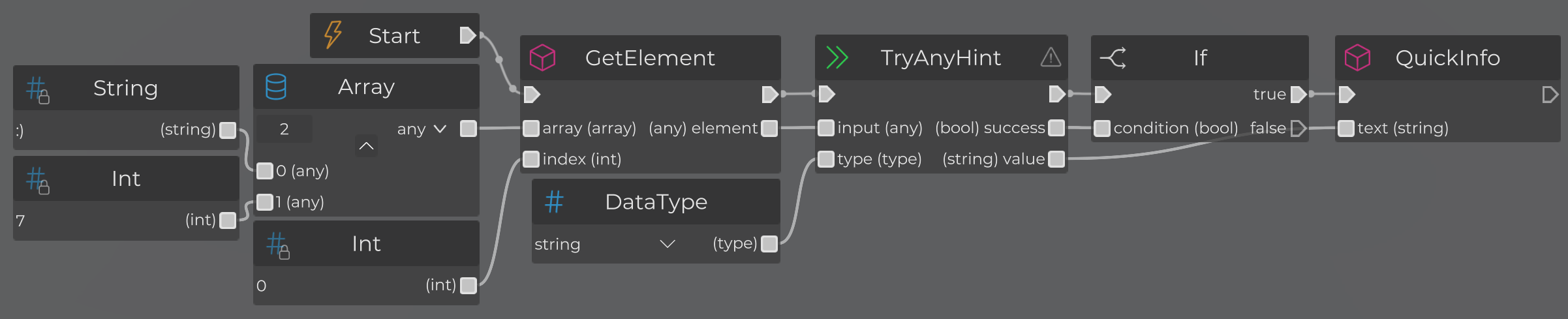
Some nodes also return any types (for instance GetElement for any arrays). You can use the TryAnyHint, to test if the any value is of a specific type and output the typed value. There is also a variant without the "Try", which you can use if you are sure which actual type is behind an any value.
Saving/Loading
Which types can be saved?
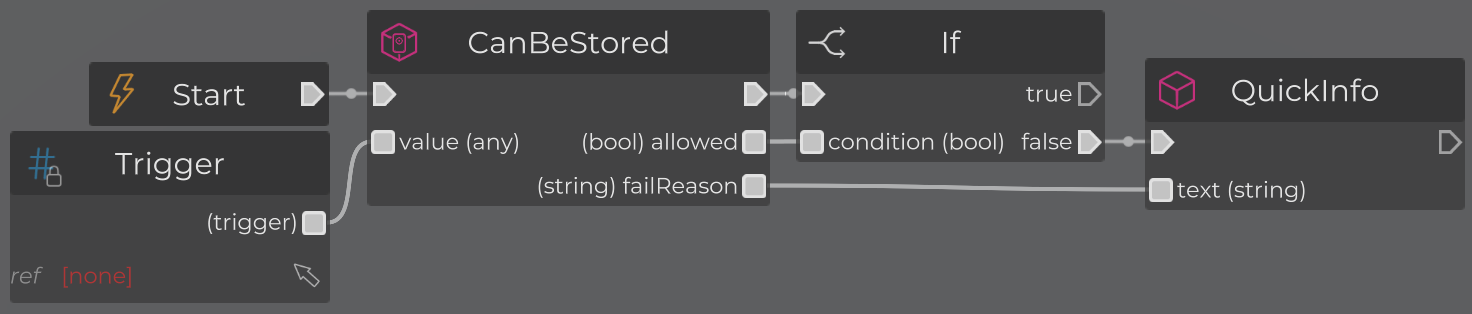
You can pretty much all types except references to objects in the battle (like triggers, units, etc.). You can even save mixed arrays of the any type and nested arrays as long as all values in it can be saved. If you are unsure if your array or type can be saved, you can use the CanBeStored node, which outputs a bool to indicate sucess/failure and the reason if your value cant be saved.
_

How to store values
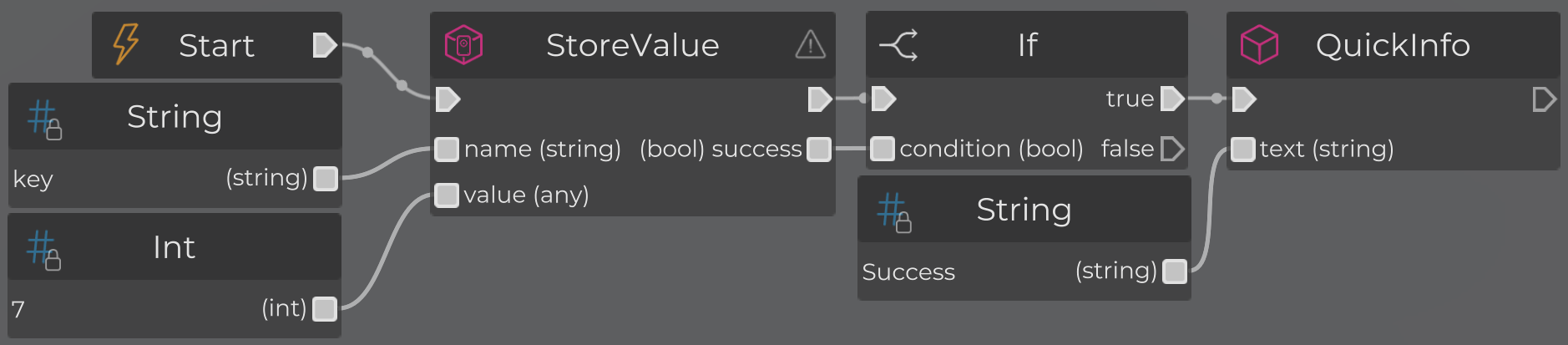
To store a value, just use the StoreValue node which accepts any input. It also outputs the success similar to the CanBeSaved node.
It is important to understand that this node doesnt actually save the value to your hard drive.
But your stored values will be available in all other scripts to load.
_

How to save stored values to disk
To actually store values between sessions of the same battle, your stored values (see above) have to be written to your hard drive. You can simply do that by using the SaveStorage nodes, which will write all your stored values to disk. Since disk operations can slow down the game, it's recommended to do this when the battle ends.
_

Deleting stored values on the disk
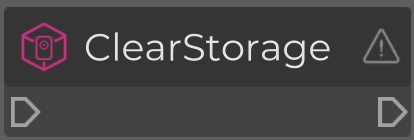
To delete the currently saved data on your hard drive for your battle, you can just run the ClearStorage node. Please note that all loaded values still persist! (see below)
_

Loading stored values from the disk
To load previously saved values from your hard drive, use the LoadStorage node. This node will override all values in the current loaded storage with the values from the hard drive.
_

Loading saved values from storage
As previously mentioned, you can load stored values (from StoreValue or after LoadStorage) by using the LoadValue node. To find a previously stored node, just use the same name input to find it again. The node will then output a copy! of the stored value which has the any type. To get a typed value, use the (Try)AnyHint like described in the previous section.
_

Managing stored values
There are 3 important nodes to help you manage your stored values:
  • DeleteValue - [Delete a stored value by name/i]
  • ContainsValue - Test if a value with a given name is stored
  • GetStoredNames - Outputs an array of strings with all names that values are stored by