Left 4 Dead 2

Left 4 Dead 2

51 个评价
How to Enable SGSSAA
由 Die Elfen sangen 制作
Simple guide on how to enable SGSSAA for better graphics and visibility. (Nvidia only)
2
   
奖励
收藏
已收藏
取消收藏
Enabling SGSSAA in Left 4 Dead 2: A Complete Guide
Supersampling Anti-Aliasing (SGSSAA) dramatically improves image quality in Left 4 Dead 2 by rendering the game at a higher resolution and downscaling it. This guide will walk you through enabling Full-Scene SGSSAA (FSSGSSAA) using Nvidia Profile Inspector for sharper textures and reduced aliasing.
What is SGSSAA?
SGSSAA (Sparse Grid Supersampling Anti-Aliasing) is an advanced anti-aliasing technique developed by Nvidia. It comes in two forms:
  • FSSGSSAA (Full-Scene SGSSAA) – Applies supersampling to the entire scene.
  • TRSSAA (Transparency Supersampling) – Only affects transparent textures (e.g., fences, foliage).
Originally, a driver bug allowed FSSGSSAA to work universally, which many users preferred. Nvidia later released a tool to re-enable this behavior, though it’s unsupported ("use at your own risk").


Technically both of them are SGSSAA, but only the fullscene implementation is called SGSSAA.
What You’ll Need
Nvidia Profile Inspector (Download Latest Release[github.com])
Nvidia GPU (GTX 600 series or newer recommended)
Left 4 Dead 2 Installed... Obviously

You'll probably see many versions of this tool on the Internet, but it doesn't really matter, any one of them will work. If you want to download the exact one I'm using, it's this one here: nvidiaProfileInspector 2.3.0.13 [github.com]
Step-by-Step Guide
Step 1: Run Nvidia Profile Inspector
  • Open Nvidia Profile Inspector (run as Admin if needed).
Step 2: Select Left 4 Dead 2 Profile
  • In the top dropdown, search for "Left 4 Dead 2" or manually select it.
Step 3: Configure Anti-Aliasing Settings

Settings
Value
Antialiasing - Transparency Multisampling
Disabled
Antialiasing - Transparency Supersampling
8x Sparse Grid Supersampling
Texture Filtering - LOD Bias
-1.500
Texture Filtering - Negative LOD
Allow
Antialiasing - Mode
Override Any Application Setting
Antialiasing - Behavior Flags
None
Antialiasing - Setting
8x Multisampling
Anti-Aliasing Compatibility
0x000012C1

Step 4: Apply Changes
  • Click "Apply Changes" (top-right corner).
  • Close Nvidia Profile Inspector.
Performance Notes
⚠️ SGSSAA is demanding – Expect a FPS drop on weaker GPUs.
Improves visual clarity – Removes jagged edges and shimmering.
🔧 Test different values (e.g., 4x SGSSAA if 8x is too heavy).

It can differ a lot from PC to PC, in my case, my performance remained the same. But remember, this is a function that is not officialy supported or constantly maintained by Nvidia (like most good functions), so don't expect it to be perfect.
Linux Users
If playing on Linux, check Nvidia’s Linux driver notes[www.nvidia.com] for potential fixes.
Applying SGSSAA to Other Games
📄 AA Compatibility Flags List: Google Docs Sheet[docs.google.com]
  • Find your game’s hex flag and replace 0x000012C1 with the correct value.
Final Result

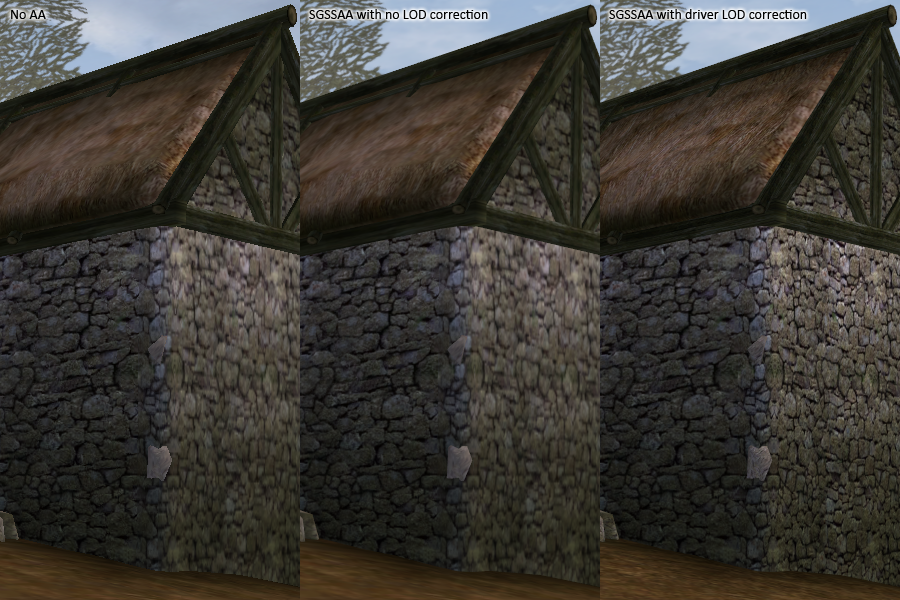
Before (No AA)
After (8x SGSSAA)
Jagged edges, pixelated textures
Smooth edges, crisp details

Enjoy your enhanced Left 4 Dead 2 experience! 🧟💥

Need help? Ask in the comments!
Closing Notes
If you have any questions or comments regarding this guide please feel free to leave a comment below.

And don't forget to give this guide an award if you found it useful..
18 条留言
Xāryomen XIth Sense 11 月 18 日 下午 12:45 
lipe
Die Elfen sangen  [作者] 11 月 18 日 上午 11:58 
qm é vc
Xāryomen XIth Sense 11 月 14 日 上午 9:57 
meu comment tomou hide eu ia chamar pra jogar l4d2 aff
Xāryomen XIth Sense 11 月 8 日 下午 4:40 
此留言正在等待我们的自动内容检查系统分析。在我们证实其内容无害之前(例如试图窃取信息的钓鱼站点链接),留言将暂时隐藏。
Die Elfen sangen  [作者] 2 月 14 日 上午 3:43 
SGSSAA kinda weird when it comes to compatibility, on my rig it works fine and performance stays the same, like some other people too. But like you just said, it didn't work, well it didn't work at all, unfortunately SGSSAA is not very well documented so it's hard to provide good information.
Live Nick Reaction 2 月 13 日 下午 2:27 
To be honest, the MSAA (which I assume the guide wants you to use as there is no other AA options in my version of NVPI (the other version just crashes when I launch it)) makes the game look just blurry, and while there is no more anti-aliasing, I just want to have a screen that looks actually crisp.

Now this may be because I have a 1080p screen, or maybe because my NVPI (the most recent version of GitHub - 2.4.0.11) changed the settings around or whatever, or just because our gaming rigs are different, so I'm willing to accept that this guide just won't work for a guy like me.

It also doesn't help that the MSAA is what absolutely TANKS the performance, and even my RTX 4060 started doing jet engine noises and reaching +60°C while it usually never goes over 40°C.

I'll just keep the funny ambient occlusion shadows and ditch the rest. I appreciate the guide tho.
2 月 12 日 上午 6:09 
ngl this guide makes the game look a lot more better, everything looks crispy (fps kinda cooked tho)
Die Elfen sangen  [作者] 2024 年 10 月 27 日 下午 5:50 
when you apply the option inside nvidia inspector, it will also change inside the game! so it doesnt matter really :steamthumbsup:
Yuzu 2024 年 10 月 27 日 上午 10:24 
I know it's a stupid question but do I have to disable the anti-aliasing mode or the filtering mode inside the game? for this to work
Die Elfen sangen  [作者] 2023 年 10 月 26 日 下午 5:46 
@ambassador yea