Dead Space (2008)

Dead Space (2008)

83 个评价
How to get the game to f**king work
由 Sanakan 制作
Dead Space 2008 won't even launch on modern computers with modern operating systems.
Here's how to trick Dead Space into thinking your PC is from 2008 so it will actually open.
2
3
   
奖励
收藏
已收藏
取消收藏
Part 1: Compatibility
Short guide on what I had to do in order to get this game up and running. System is Windows 11 running on a 13900k. Dead Space does not like running on systems with a new OS (such as Windows 11), or on processors with a high core count (like a 13900k). So I got the worst of both worlds and had to manually fix the game in order to play it.

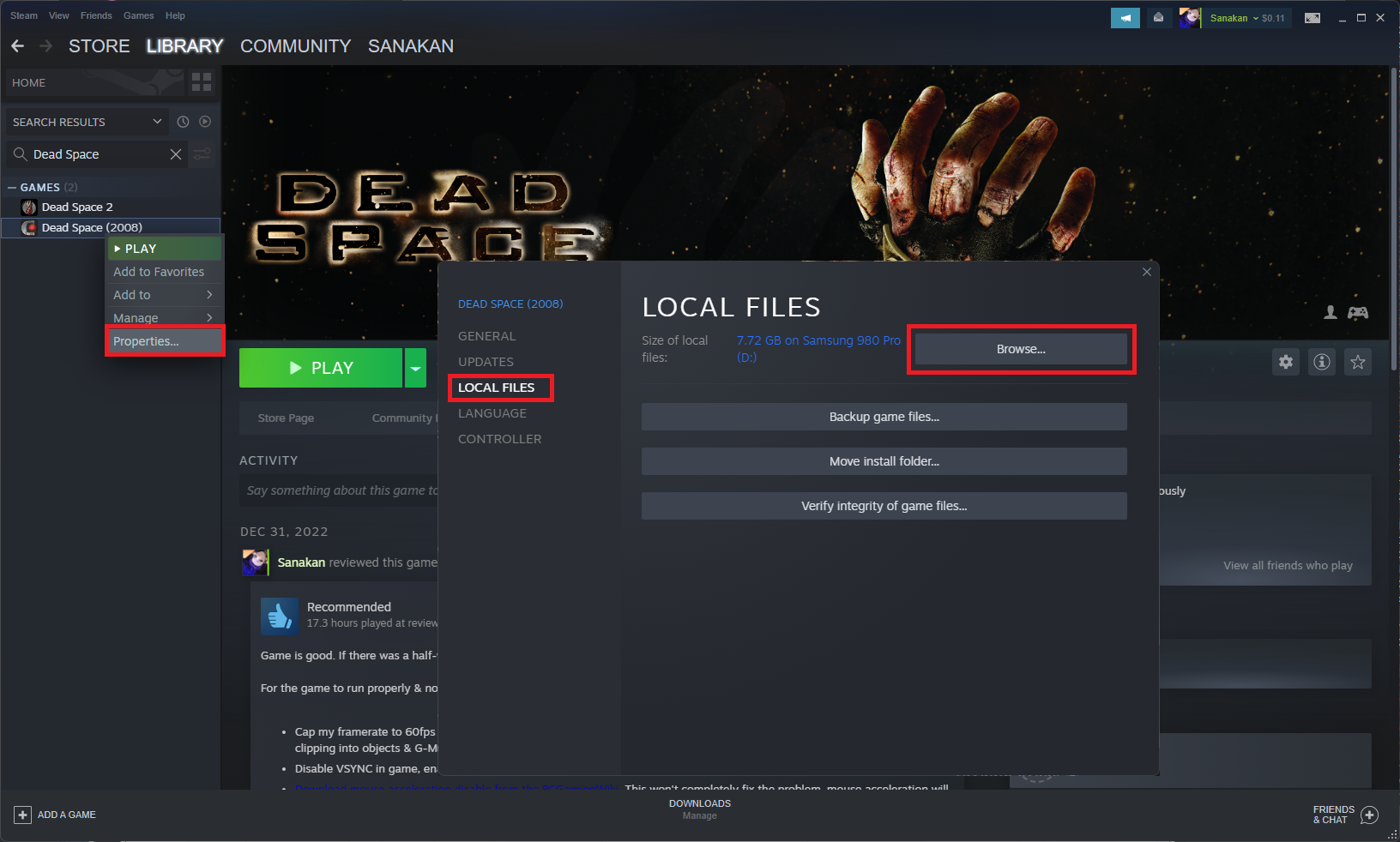
  1. Right click on the game in Steam, go to PROPERTIES/LOCAL FILES/BROWSE. This will take you to the main game directory.

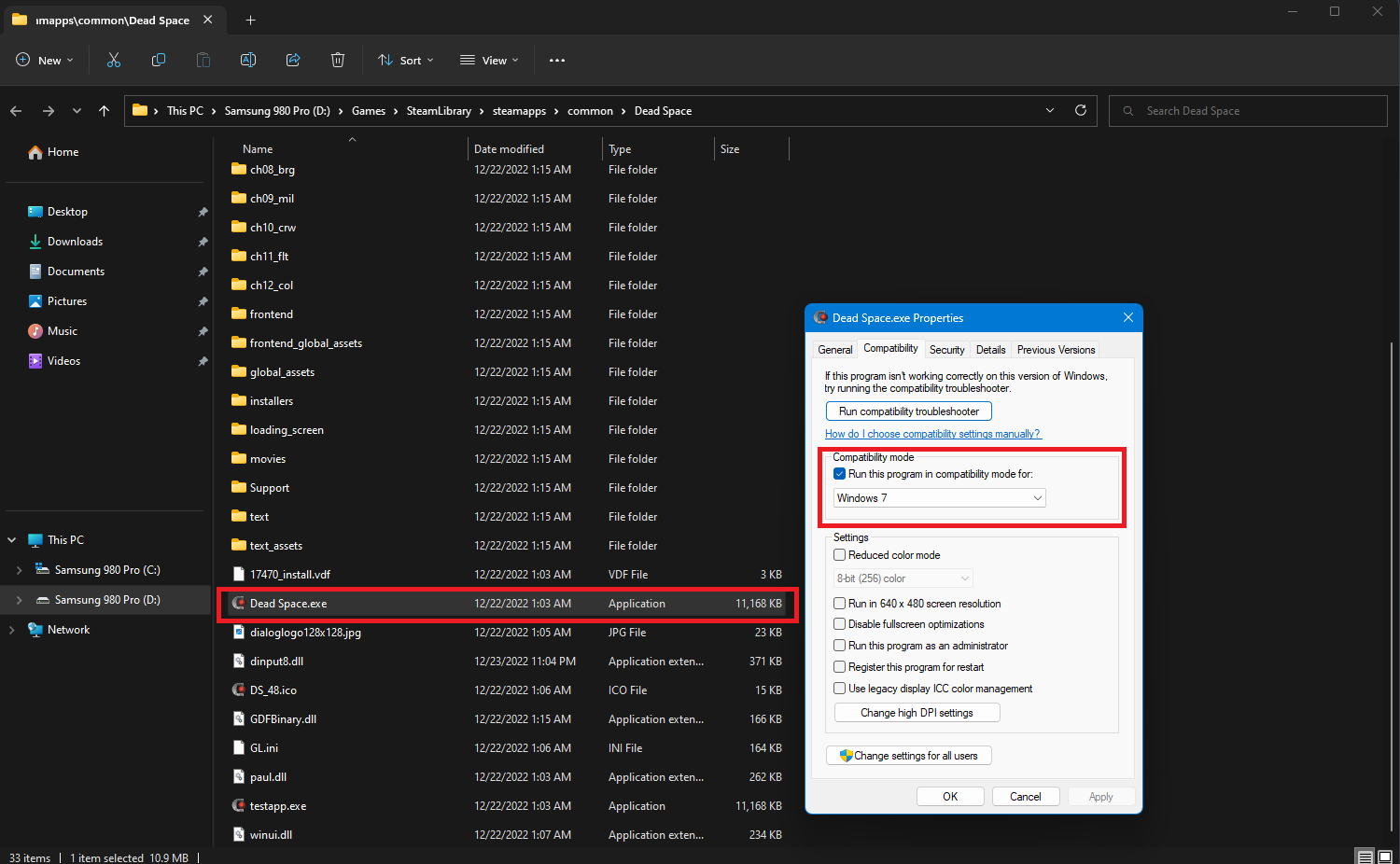
  2. Locate "Dead Space.exe," right click on it, PROPERTIES/COMPATIBILITY. Select "Run this program in compatibility mode for:" and in the drop-down menu immediately below it, select "Windows 7." NOTE: If Windows 7 does not work, try an older version. For me, both Windows 7 and Windows Vista worked.

  3. Hit APPLY, then OK.
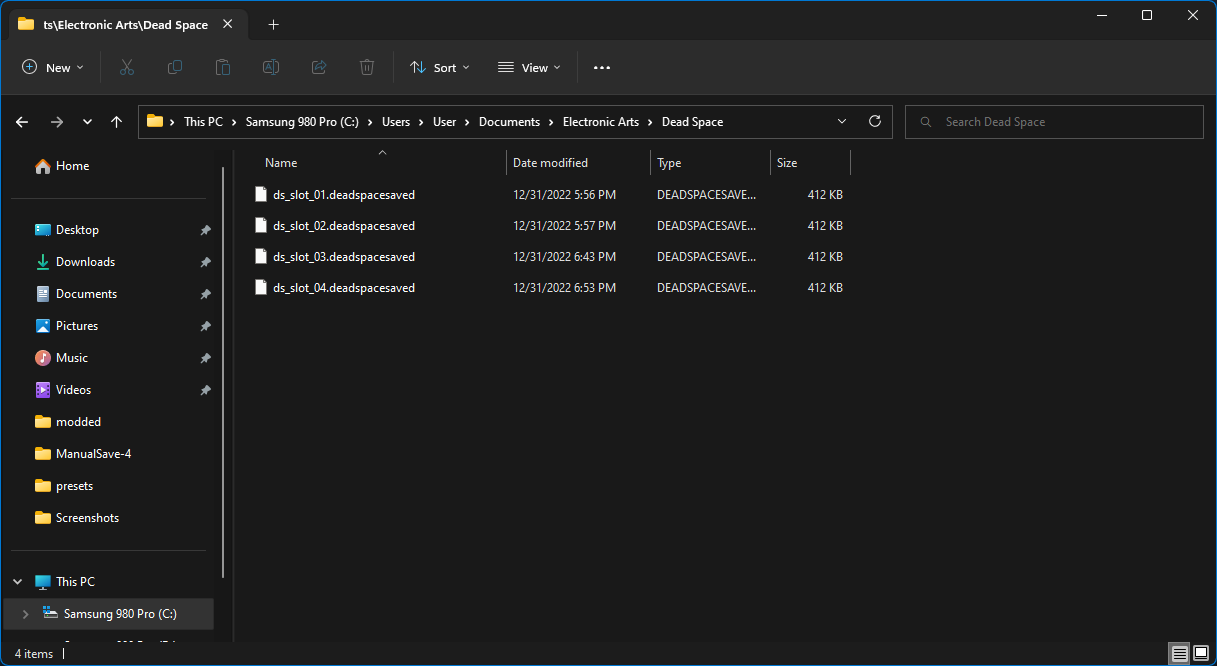
  4. Go to C:\Users\[YOUR USERNAME]\Documents\Electronic Arts\Dead Space. IF YOU HAVE SAVES: copy your saves inside the Dead Space folder and paste them somewhere safe for now.

  5. Go back to C:\Users\[YOUR USERNAME]\Documents and delete "Electronic Arts" along with everything inside.

At this point, try to launch the game. If it works, great. That's it. You're done.
If you had save files, let the game go to the main menu, then exit out. Move the save files back into the C:\Users\[YOUR USERNAME]\Documents\Electronic Arts\Dead Space folder.
Part 2: IF THE GAME STILL DOESN'T LAUNCH
Author note: It's come to my attention that the free version of Process Lasso has an annoying pop-up. Check section 2.5 if you would prefer not to deal with this. I would PERSONALLY recommend against Process Lasso because of this change.

IF THE GAME DID NOT LAUNCH:
  1. Download Process Lasso[bitsum.com]. You only need the free version. This program allows you to control your CPU and how many cores processes can use. This is a useful functionality, as some games (like Dead Space) freak out when they detect a CPU with a lot of cores.
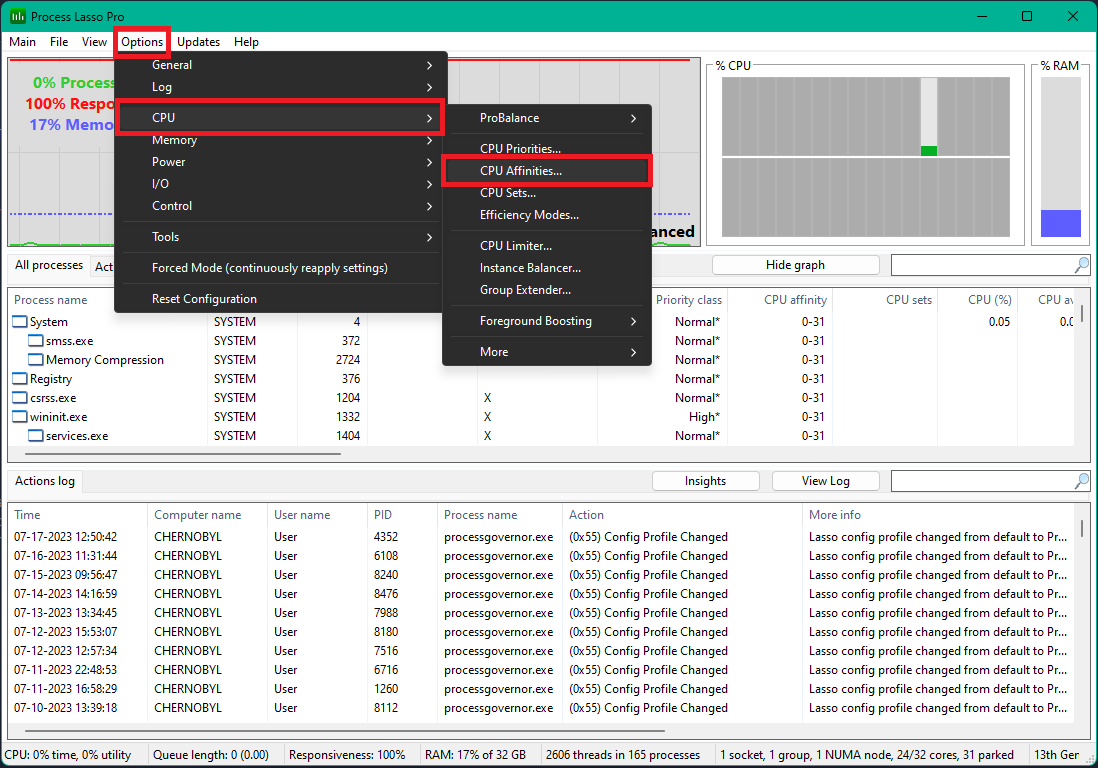
  2. Open Process Lasso. Don't freak out with the UI, what we're doing will be very simple. Go to OPTIONS/CPU/CPU AFFINITIES...


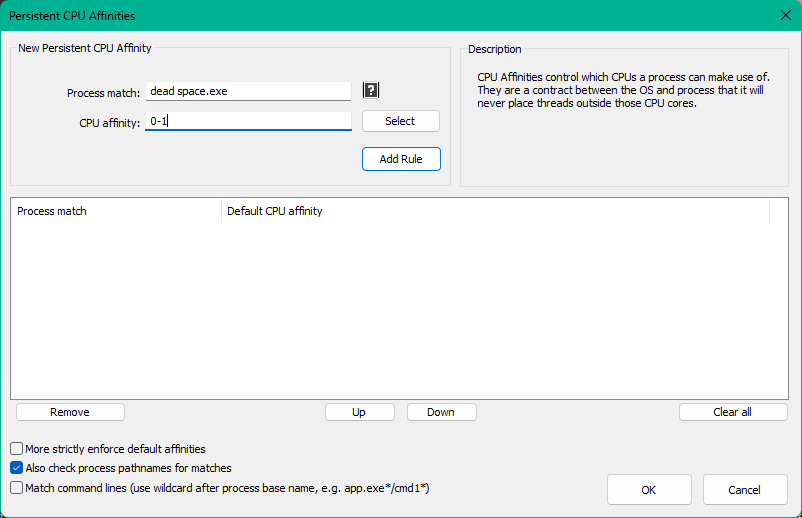
  3. Next we're going to designate cores for Dead Space to use. Dead Space only needs 2-4 cores to run properly. In the "Process match:" section, enter "Dead Space.exe" (without quotation marks). In "CPU affinity:" section, enter the cores you wish to assign.
  4. For basic users, enter 0-1 (this assigns core 0 & 1 to the process) or 0-3 (this assigns cores 0,1,2,3 to the process).


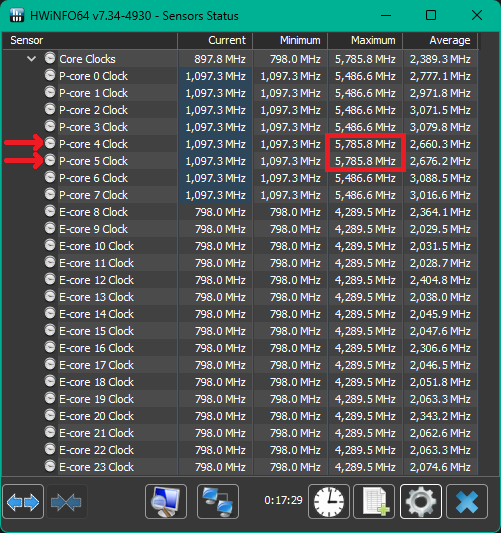
  5. For more advanced users, you can locate your fastest cores using software, such as HWiNFO64[www.hwinfo.com]. I can see that my fastest cores are 4 & 5, so I will assign cores 4,5,6,7 to the process, using the same process as described in step #3. This will allow Dead Space to access my 2 fastest cores, and 2 additional cores.


  6. Hit "Add rule" and then "OK".
NOTE: You will have to have Process Lasso running in order for this change to persist. Process Lasso can run in the background, it uses next to no CPU power, and barely any RAM (~5-15 MB). It's worth just letting it persist in the background.

Now try launching the game. If it is still returning an error, repeat the first set of instructions but with Windows Vista instead of Windows 7. Windows 7 worked for me, I've read that some people have needed to run it in compatibility mode with Windows Vista.

This is how I was able to get the game up and running.
Part 2.5: Process Lasso Alternative
It's come to my attention that the free version of Process Lasso has an annoying popup that users can not close for 10 seconds. That's unacceptable.

Here is an open-source alternative, Process Governor.[github.com] This program does not have that bullsh*t for free users. I've tested this program, and it works for the purposes of this guide.

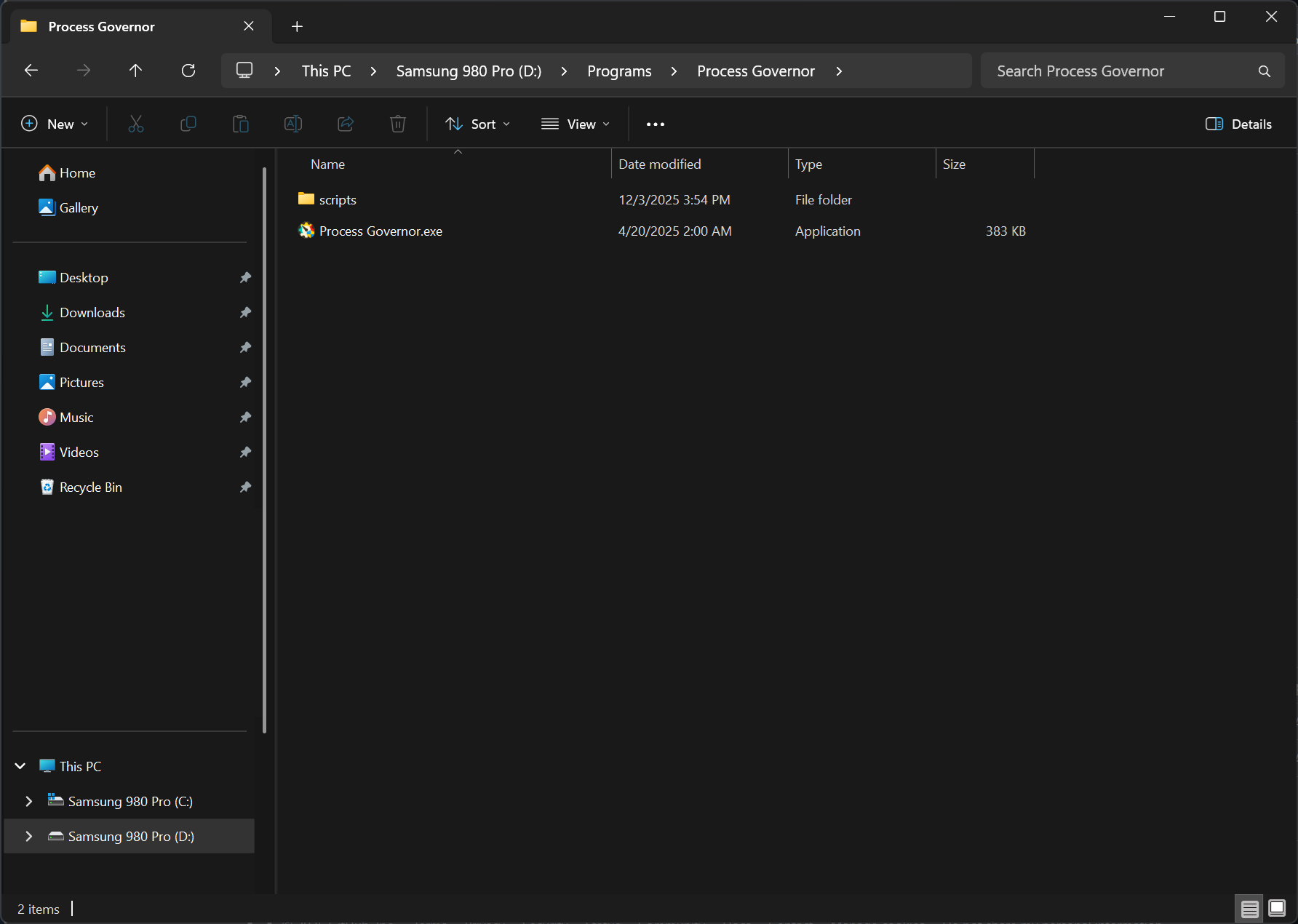
  1. Download Process Governor[github.com]. Extract the files to a folder on your PC.


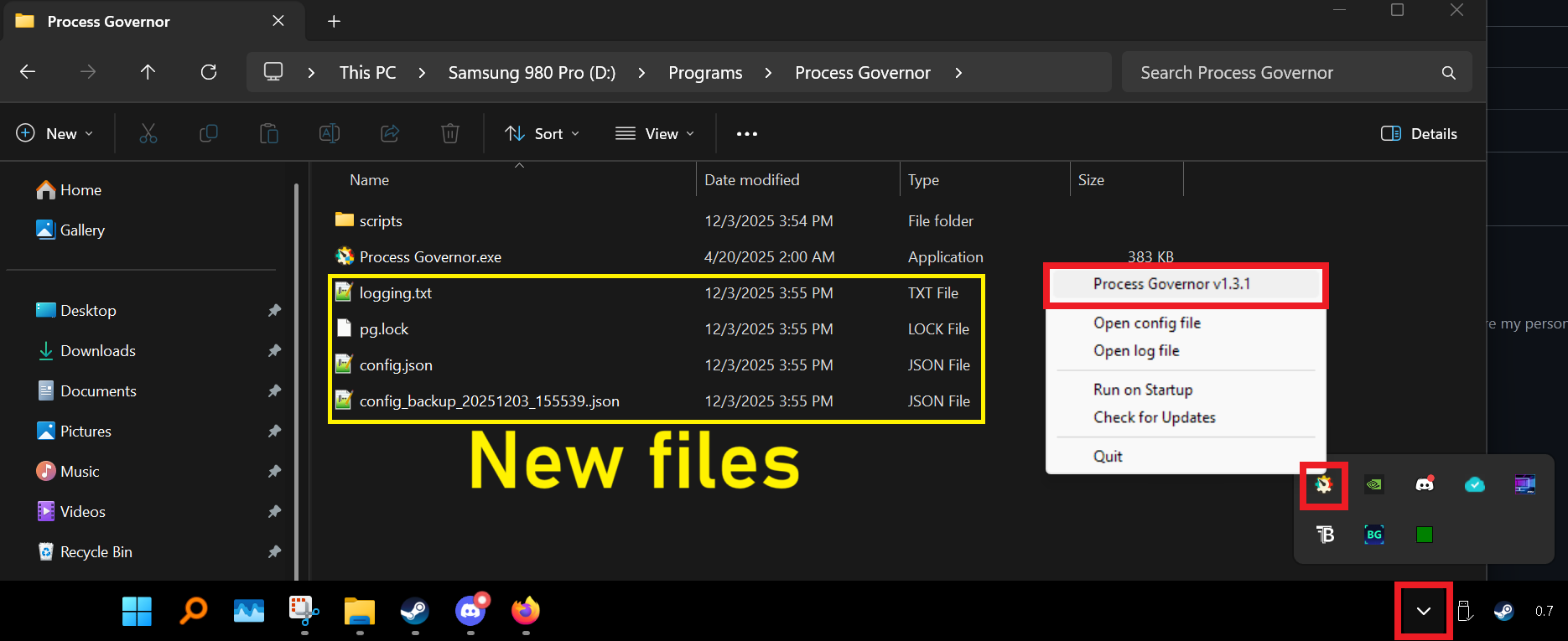
  2. Run Process Governor as administrator (it should by default). Note that it should generate additional files within the folder on running. It will also default to system tray, so you'll have to open it from there.


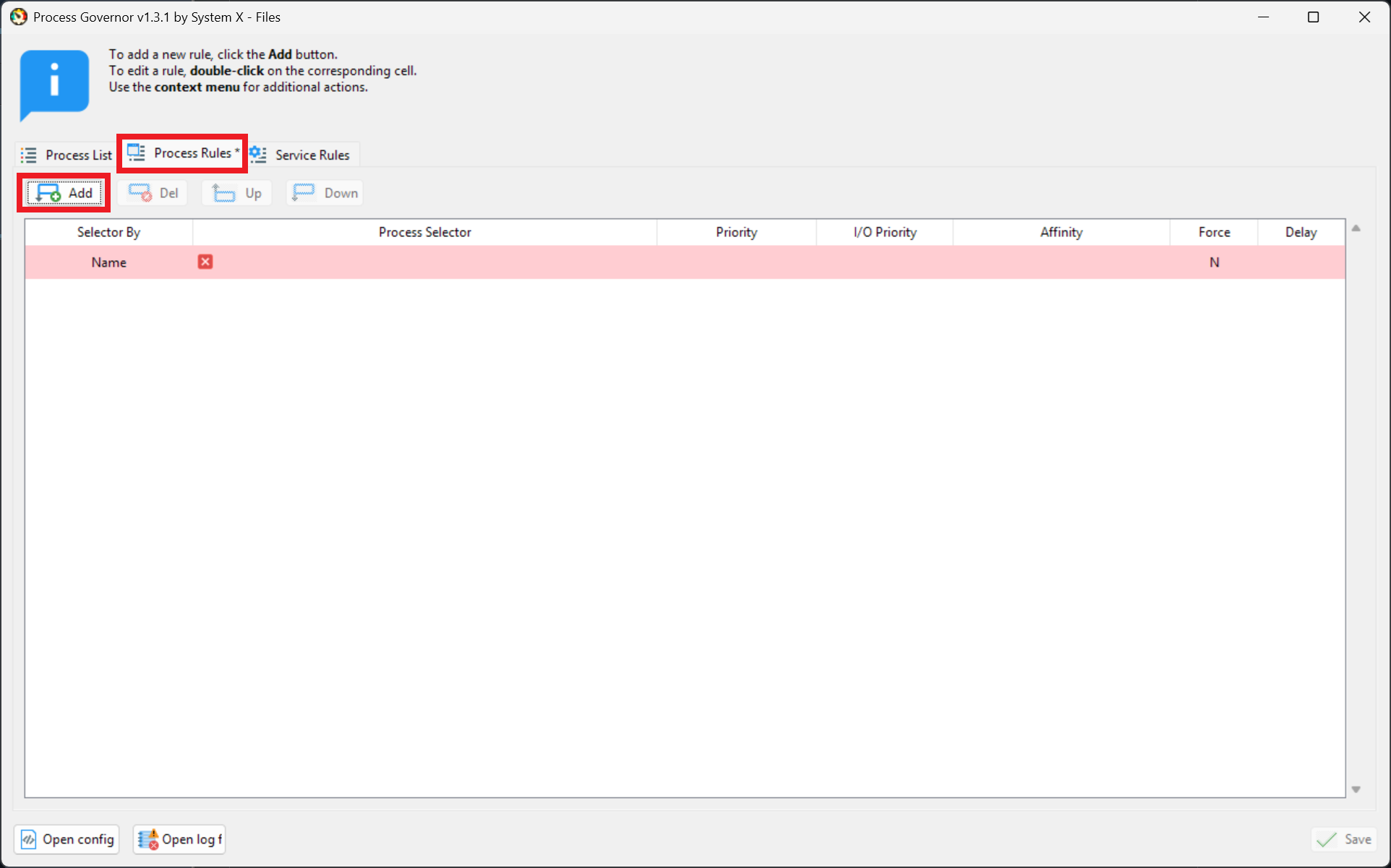
  3. Next we're going to designate cores for Dead Space to use. Dead Space only needs 2-4 cores to run properly. Head to the "Process Rules" section. Select "Add." A new, blank row should appear.


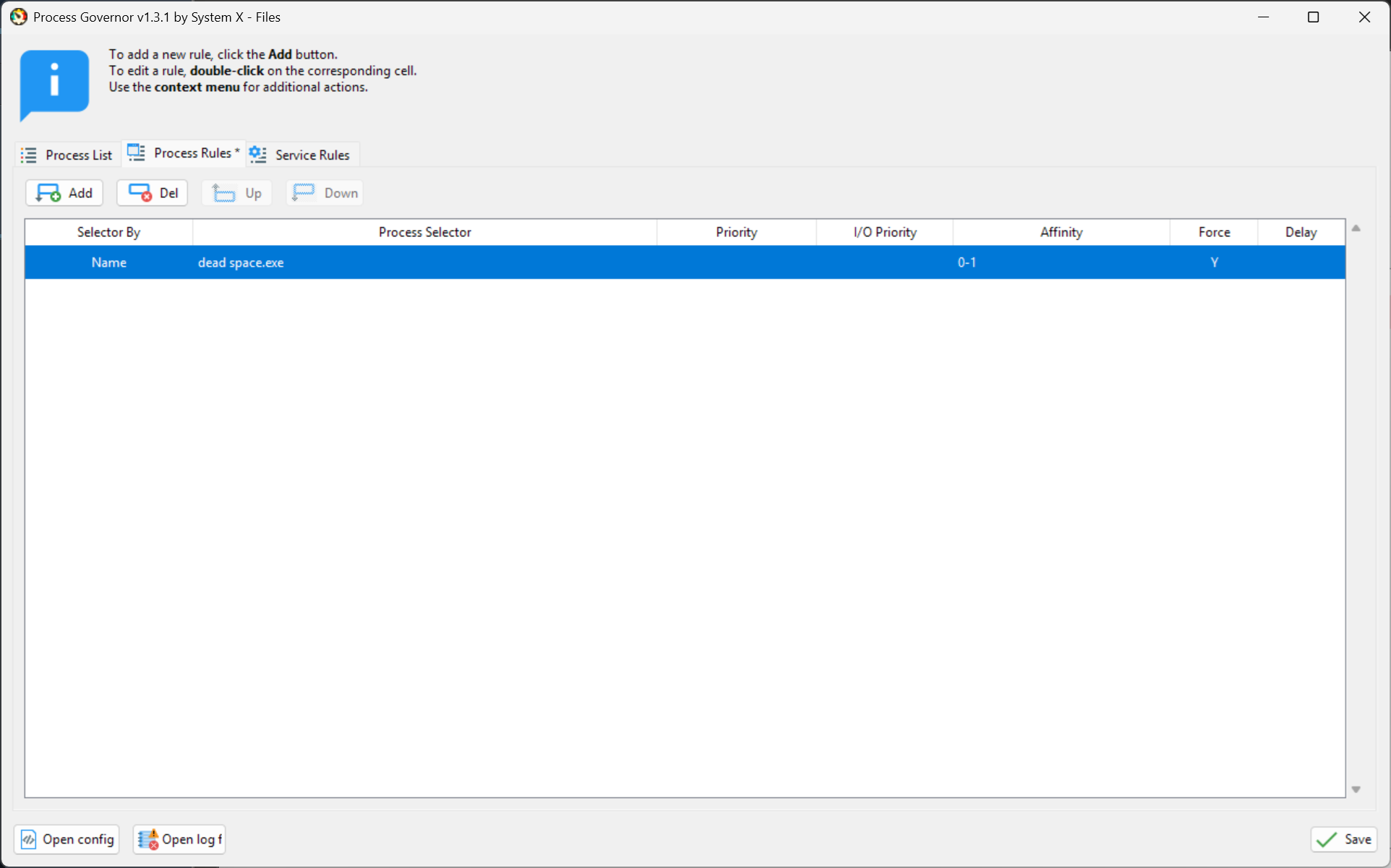
  4. For basic users, ensure that "Selector By" is "Name." For "Process Selector," enter "Dead Space.exe" (no quotations). Now whenever Process Governor detects a program "Dead Space.exe" running, it will apply the rule we're creating to that program. Leave "Priority" and "I/O Priority" empty, or default. For "Affinity," enter 0-1 (this assigns core 0 & 1 to the process) or 0-3 (this assigns cores 0,1,2,3 to the process). For "Force," select "Y."


  5. For more advanced users, you can locate your fastest cores using software, such as HWiNFO64[www.hwinfo.com]. I can see that my fastest cores are 4 & 5, so I will assign cores 4,5,6,7 to the process, using the same process as described in step #4. This will allow Dead Space to access my 2 fastest cores, and 2 additional cores.


  6. Hit "Save" and you're done. You can close out, the program will minimize to the tray.
NOTE 1: You will have to have Process Governor running in order for this change to persist. Process Governor can run in the background, it uses next to no CPU power (~0.5% tops), and barely any RAM (~50 MB at most). It's worth just letting it persist in the background.

NOTE 2: By default, Process Governor will not run on system start up. Create a shortcut to Process Governor.exe. Open "Run" on Windows (Windows key + R) and type shell:startup. Move the shortcut to the Startup folder.

Now try launching the game. If it is still returning an error, repeat the first set of instructions but with Windows Vista instead of Windows 7. Windows 7 worked for me, I've read that some people have needed to run it in compatibility mode with Windows Vista.
Additional: Mouse Acceleration, PhysX
DO NOT USE IN-GAME VSYNC. It will halve your framerate and induce atrocious input lag.

Mouse Acceleration
Check out this guide to undo mouse acceleration in Dead Space:
https://psteamcommunity.yuanyoumao.com/sharedfiles/filedetails/?id=830188980
*Note that in certain sections, mouse acceleration will return briefly on certain surfaces.

PhysX
Dead Space is an old game, and an old console game at that. Running Dead Space at higher FPS can induce PhysX problems, most notably through my playthrough: a G-Mod like rag doll effect where the dead enemy ragdolls will consistently collide with other objects, creating a ton of noise and generally looking weird.

The solution is simple. Use the in-game menu Options/Visuals/Resolution to select the appropriate resolution with 60 FPS.
42 条留言
Sanakan  [作者] 12 月 3 日 下午 4:48 
Updated guide with an alternative to Process Lasso after learning that the free version bombards your PC with popup on startup. :steamfacepalm:
MrShowKneeTTV 12 月 2 日 下午 6:43 
All I did was runit in compatability mode with sindows vista. Course I only did that as an extra precaution. The game seems to run perectly without. As for the physics issue, if you have an Nvidia Card, just go to control panel and limit the frames to 58. Thats a perfect frame rate so you dont go above 60 at any time and cause issues. My CPU is a Ryzen 7 5700G 8 core I believe its 4.7 htz speed. My GPU is a n RTX 4070 regular.
Sanakan  [作者] 11 月 19 日 下午 10:26 
Linux players trying not to make everything about their OS challenge:
NoahTheGoodra 11 月 19 日 下午 8:16 
works perfectly under linux
Clavvy 10 月 31 日 下午 3:35 
Unfortunately doesn't work on Ryzen 7 3700X 8-core. I tried every combination listed here and the game won't start. Even tried mixing different cores (slowest, fastest, or mixed). Running Win10. I'm actually saddened by this.
CasSaY 7 月 27 日 下午 9:31 
cheesus pc master race my ass
rapidfirer56 7 月 18 日 上午 12:42 
Installed and worked just fine on windows 11 with modern hardware.
rapidfirer56 7 月 18 日 上午 12:23 
I've had success running it in the past on modern systems. Re-downloading now so I'll find out in just a minute if it's still working. lol
Ishimura 5 月 3 日 上午 10:19 
Thank you for this guide I understood it so easily.
DJCOOL101 3 月 19 日 上午 11:08 
THANK YOU SO ♥♥♥♥♥♥♥♥ MUCH DUDE