Divine Divinity

Divine Divinity

34 个评价
dgVoodoo for Divine Divinity
由 Farmer1 制作
This guide will give you tips on how to set up dgVoodoo to run Divine Divinity for best performance and advice on other compatibility fixes for best experience. I've had good success running this game using dgVoodoo but I have found it does require some tweaking to run the game best. You may need to experiment with some settings depending on your hardware and this is just a general guide with a slight bias towards running this game on Nvidia GPUs. I have tested this on Windows 10 and Windows 11 using a modern Nvida GPU. It fixes the rainbow save/load screen bug. It has decent performance (remember this game didn't run all that flawlessly on good hardware of the day). If you are using the Windows Compatibility layer patch uninstall it using the uninstall batch file included with that patch as dgVoodoo will obviate the need for this tweak since it translates old DirectX to the newer APIs.
   
奖励
收藏
已收藏
取消收藏
dgVoodoo
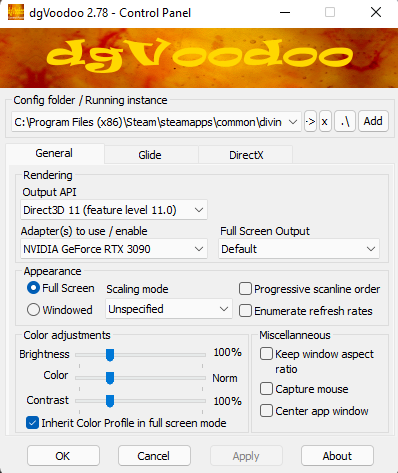
For solving any graphics or performance problems all you really need to do is use DgVoodoo by copying the ddraw.dll and d3dImm.dll (use the ones from MS/x86) into the divinity folder. You should configure your dgVoodoo in the included control panel.

General Tab


Output API - Direct3D11 (feature level 11.0)
Tested on RTX 3090 this method produces the fewest Windows glitches (messed up window positioning/size in Windows after quitting) and best game performance for me.

You probably do not need to change any other options on this tab but I have disabled "keep window aspect ratio", "capture mouse", "center app window". I recommend selecting Full Screen under appearance for the proper experience. Do not select MS Basic Render Driver for adapter to use, this is basically software mode. Select your normal graphics card for this.

DirectX Tab


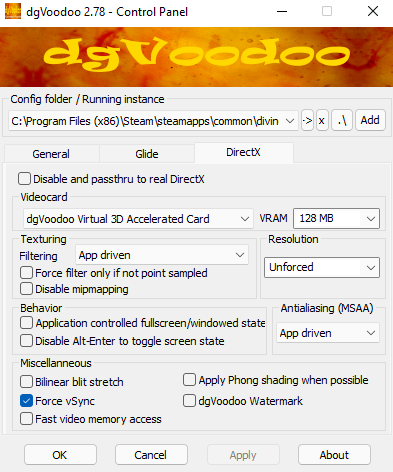
I will list all options and settings here. Do not worry about the Glide tab as we will not be using Glide. It is the same as using Software or DDraw, visually inferior. (Note DDraw and Glide are not selectable by the default configtool.exe on digital distribution versions anyway)

Disable and passthru to real Directx - Unchecked
If this is checked it will be as if you are not using dgVoodoo

Video Card - dgVoodoo Virtual 3D Accelerated Card, VRAM - 128MB
This option is probably not important just do not choose dgVoodoo SVGA, this will allow only software rendering. All of the other simulated cards are capable of running this game.

Texturing - All options unchecked/app driven
This game does not make use of any texture filtering it is not 3D.

Resolution - Unforced
The resolution does not need to be forced, we will be using the game's config tool to set it.

Behavior + Antialiasing - All options unchecked/app driven
I have found forcing full screen to work best for game window behavior when quitting, you may need to experiment with different hardware and OS combinations. Leaving Alt-Enter enabled will allow you to switch to windowed mode and back if the game screen gets windowed for some reason (monitor turning off if idle etc).

Misc. - Set Force vSync to checked, all others unchecked
You can leave dgVoodoo Watermark on for testing, this is useful because you will know dgVoodoo is working by seeing the watermark if you don't you have made an error installing dgVoodoo for the game follow their quick guide for information on that. Fast video mem access can be checked I guess but I have not tested it. It is not needed for better performance and dgVoodoo advises leaving that setting off.
Other Compatibility Advice
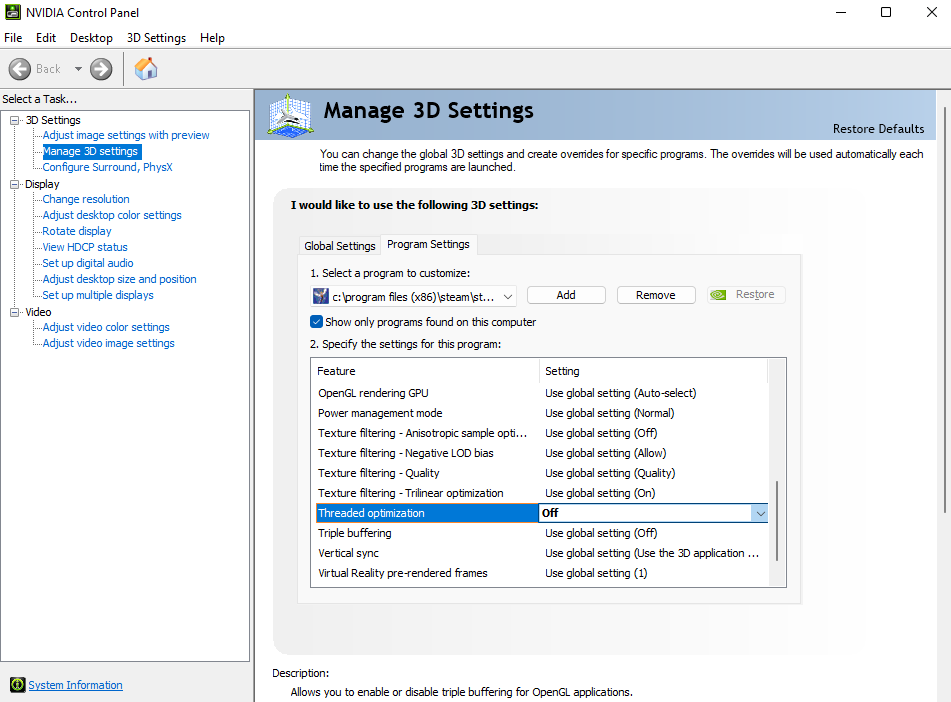
This game is old and it doesn't seem to play well with multi-core CPUs in Windows. Remember, when this game came out multi-core was not common or non-existant (at least in common consumer PCs). To start I have disabled Threaded Optimization for Div.exe in the Nvidia Control Panel (select Off, not Auto or On). If you are using AMD GPU then disable any threaded optimizations there I do not have experience with their driver config but I guess there is a similar option. There will be other steps to reduce the effects of having a multicore CPU.


Setting Process Affinity
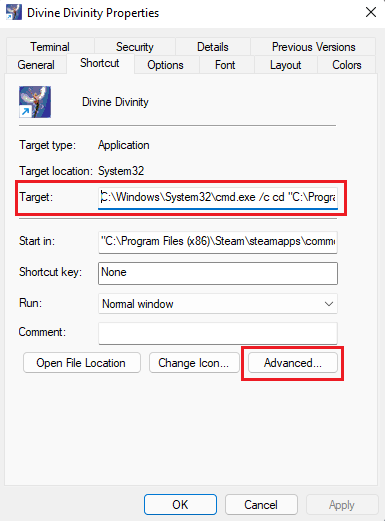
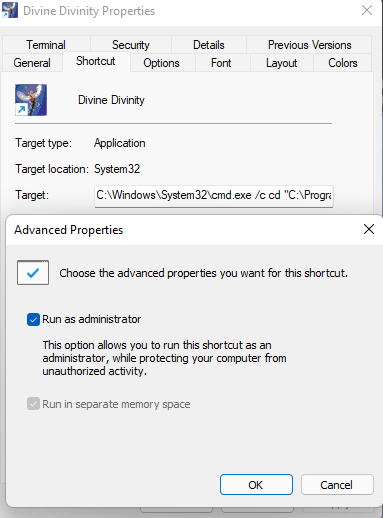
I also have followed other advice to set the game to run on one CPU core only. This also gives the benefit of giving you a bit more time to read the loading screen hints but it will still load very quickly. The best way to do this is to make a shortcut to div.exe and set the "Target:" field as follows (you will need to adjust for where your Divinity install is):
cmd.exe /c cd "C:\Program Files (x86)\Steam\steamapps\common\divine_divinity" & START "Divine Divinity" /normal /affinity 0x1 "div.exe"


Click apply after changing the "Target:" field. Click the "Advanced..." button. Check "Run as Administrator" in the window that pops up and press the OK button. Press the OK button again in the shortcut properties window.


You will run the game from this shortcut. You have to set run as admin in the shortcut to allow the process affinity to be set to 1 core. With the shortcut setup this way you do not have to right click and Run as Admin. The downside is Steam overlay does not work and Steam does not detect you are playing the game in this manner. There are no achievements or Steam integration so this is no problem (Though your friends won't see you playing or be able to watch you broadcast through Steam).

You can try setting only the Nvidia CP Threaded Optimization settings but I do not think it will work properly, have not tested. Running on many cores on my machine has produced freezes, error chimes, and audio bugs on my machine. This advice/procedure should help.


Sound Sampling Rate
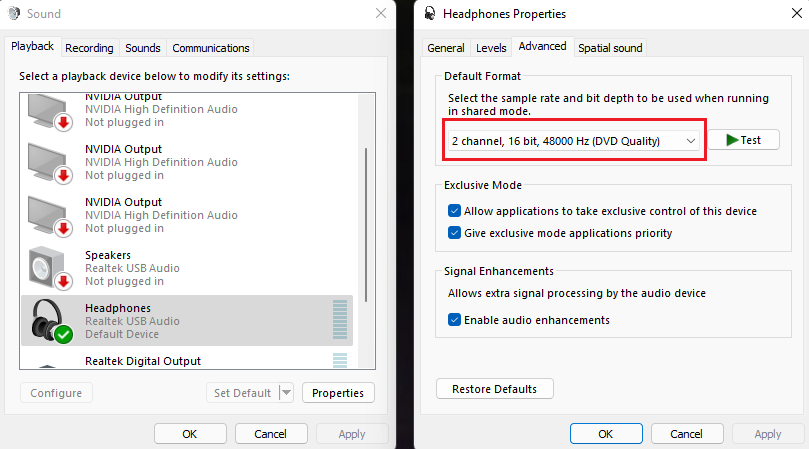
Some other compatibility issues may arise from your sound device's sampling rate. I have seen it recommended to be set at "DVD Quality" which is stereo (2 channel) 16-bit 48000Hz sampling. Try this if audio glitches persist after trying the above tweaks/fixes.

Running The Game
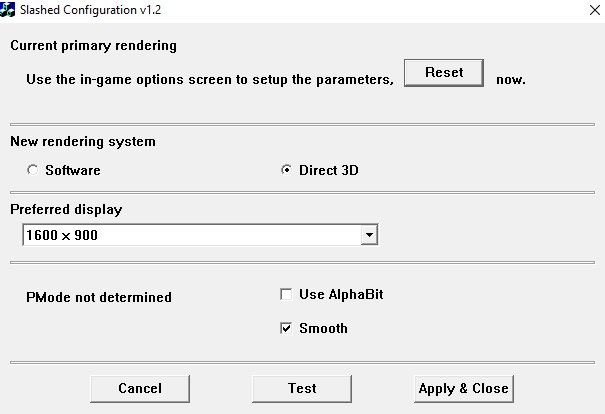
Go to the directory you have installed Divinity to. Run configtool.exe you will select Direct3D as your renderer here and select your resolution. I have a large 4k monitor (43") and I found 1080p is very readable even without the font patch but it does slow down at times. My use case is extreme, on smaller monitors everything will be smaller. I actually settled on 1600x900 as it is the next 16:9 resolution down from 1080p. The game crashes if I select 4k, 3840x2160.

Checking Smooth seems to make the game run better. YMMV. Run the test and it should work, showing a Larian Studios animated splash and will exit after 10s. A popup will show your FPS. You can then click Apply and Close and the game will run. You will need to quit this instance and run it from the shortcut we made earlier to limit the game to 1 core.

5 条留言
Baraz 2024 年 8 月 11 日 上午 11:56 
I HIGHLY recommend it ! Even the loading time and time to save is incredibly faster, by far.

Tip : the size of the main menu will not be the size you see in-game, so it is important to load a save (or start the adventure) to see the actual fullscreen gameplay. With dgVoodoo, I found that selecting 1920x1080 (with the game's configtool.exe) is a good compromise so I can see a certain distance around me (without dgVoodoo, I used 768p which ironically gave me a larger and more distant view).

Note that any size or resolution options I tried within dgVoodoo had any impact as evidently the game's configtool.exe takes precedence for that.
Baraz 2024 年 8 月 11 日 上午 11:51 
@mushy : you cannot have that patch, which is a homebrew made by a player for Windows 8, without having installed it yourself. If you did install it (and have forgotten :P), you will see files named "divinity.sdb" and "uninstall.bat". Click on uninstall.bat to uninstall it.
mushy 2024 年 3 月 28 日 下午 8:02 
how do you know if you have "Windows Compatibility layer patch" installed, and how would you uninstall it?
Claws 2022 年 10 月 5 日 下午 2:41 
Would've been nice to actually include a link to dgVoodoo!!!
Farmer1  [作者] 2022 年 2 月 8 日 下午 8:30 
Hope this is useful for people that have not already found all this information. I do assume you know certain things about using Windows and installing and configuring with the dgVoodoo panel so some things may be unclear if you have never used and API wrapper. If there is any extra information folks have or if something needs clarification let me know and I will edit the guide to be more concise.