糖豆人

糖豆人

70 个评价
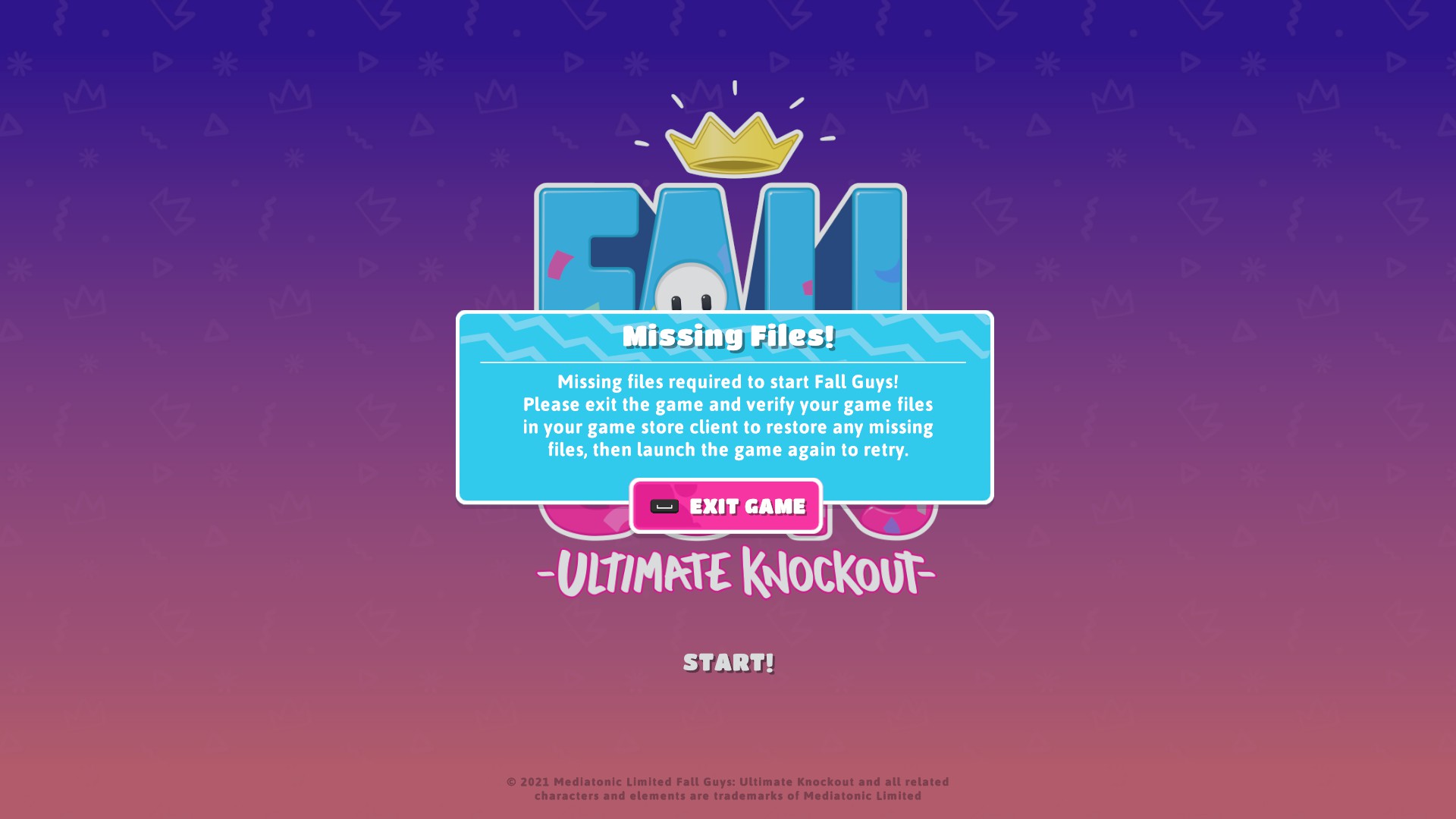
Updated "Missing Files" Fix!
由 Dr. Clocknik 制作
Updated version of how to fix the "Missing Files" error message when booting up Fall Guys.
6
   
奖励
收藏
已收藏
取消收藏
Introduction
This is a guide on how to fix the "Missing Files" error that can sometimes appear when booting up Fall Guys. This guide is 100% real, verified as a fix, and is not one of the many "joke guides" that you see floating around on here.

For those interested, the main culprit of the "Missing Files" error is that something has gone screwy with the Epic Online Services executable. To fix this, all that needs to be done is uninstalling and reinstalling Epic Online Services, which then allows Fall Guys to run properly.

2/25/2022: This guide has been updated with new steps that should solve this not working for some users. Steam must be running in Administrator Mode for this fix to work.

I've made two versions for this guide: a quick version for the computer literate and a step-by-step guide for the less technologically inclined.

So if you're experiencing the "Missing Files" error, please read on so you can get back to falling as soon as possible!
Quick Version (for Advanced Users)
The fix for this is actually very simple and can executed in just three steps:
  1. Make sure Steam is running in Administrator Mode; close and restart if needed.
  2. Find and uninstall Epic Online Services.
  3. Verify the integrity of the game files for Fall Guys.
  4. Boot up Fall Guys; it will re-install the latest version of Epic Online Services.
Step-by-Step Version
The fix for this is actually very simple and can executed easily by following these steps:
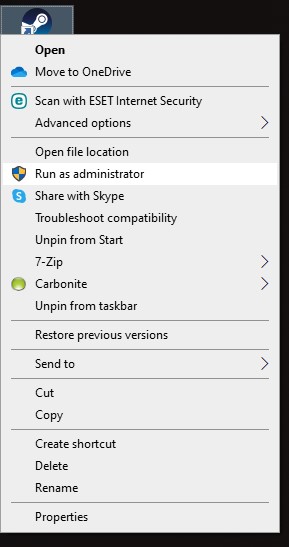
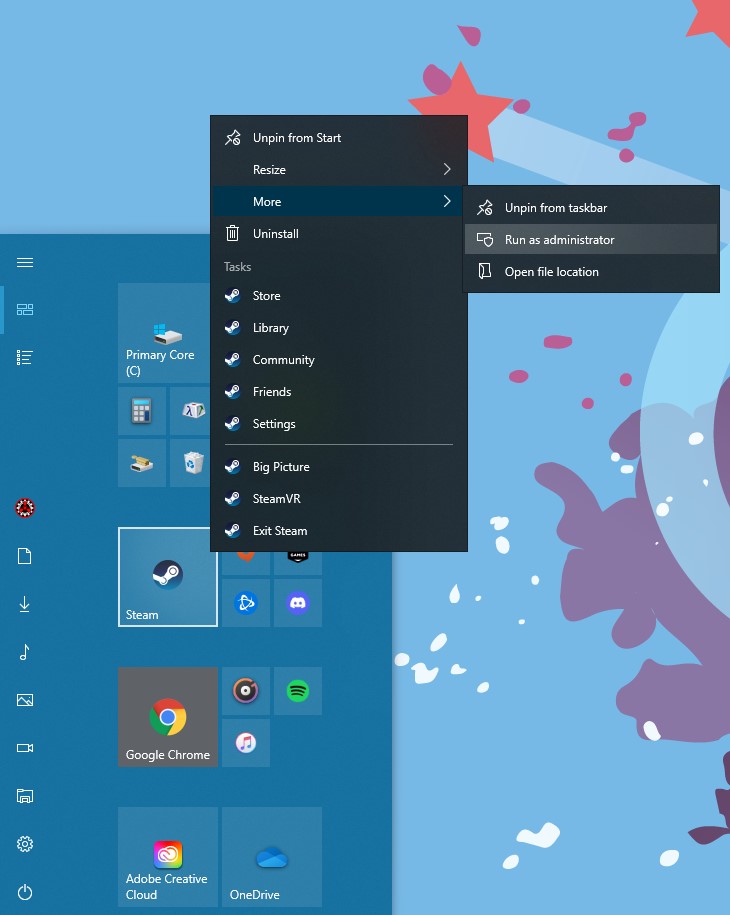
  1. Before starting, make sure that Steam is running in Administrator Mode. To do this, exit Steam completely and then right-click on your shortcut icon or your pinned Start Menu icon and select Run as administrator.


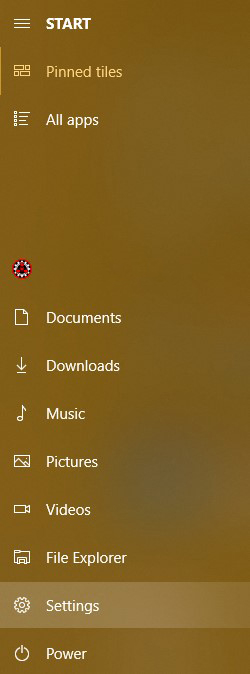
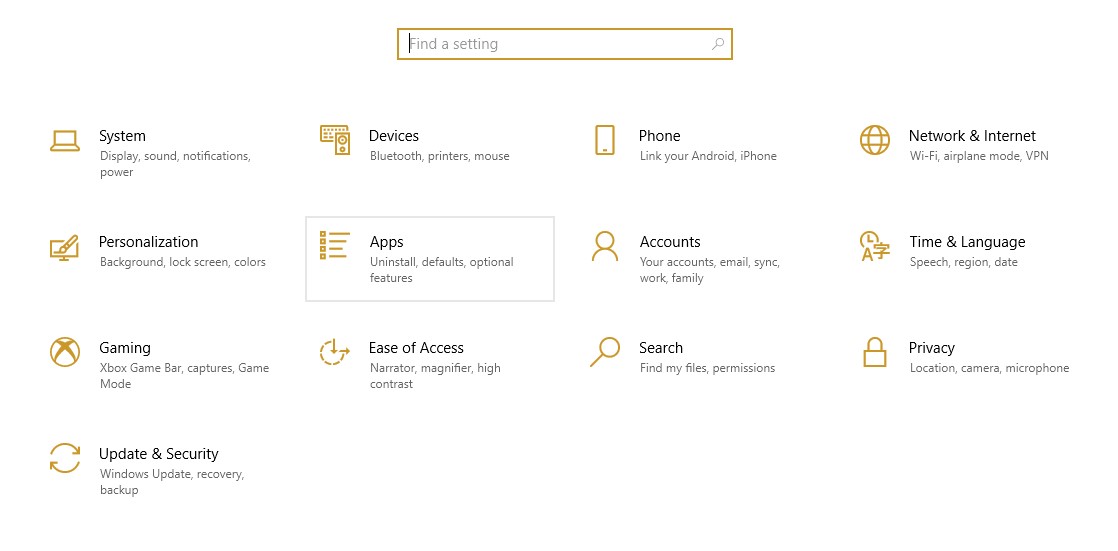
  2. Open the Start Menu (by pressing the Windows key or clicking the Windows icon in the lower left corner) and select Settings.


  3. Next, select Apps from the Settings menu.


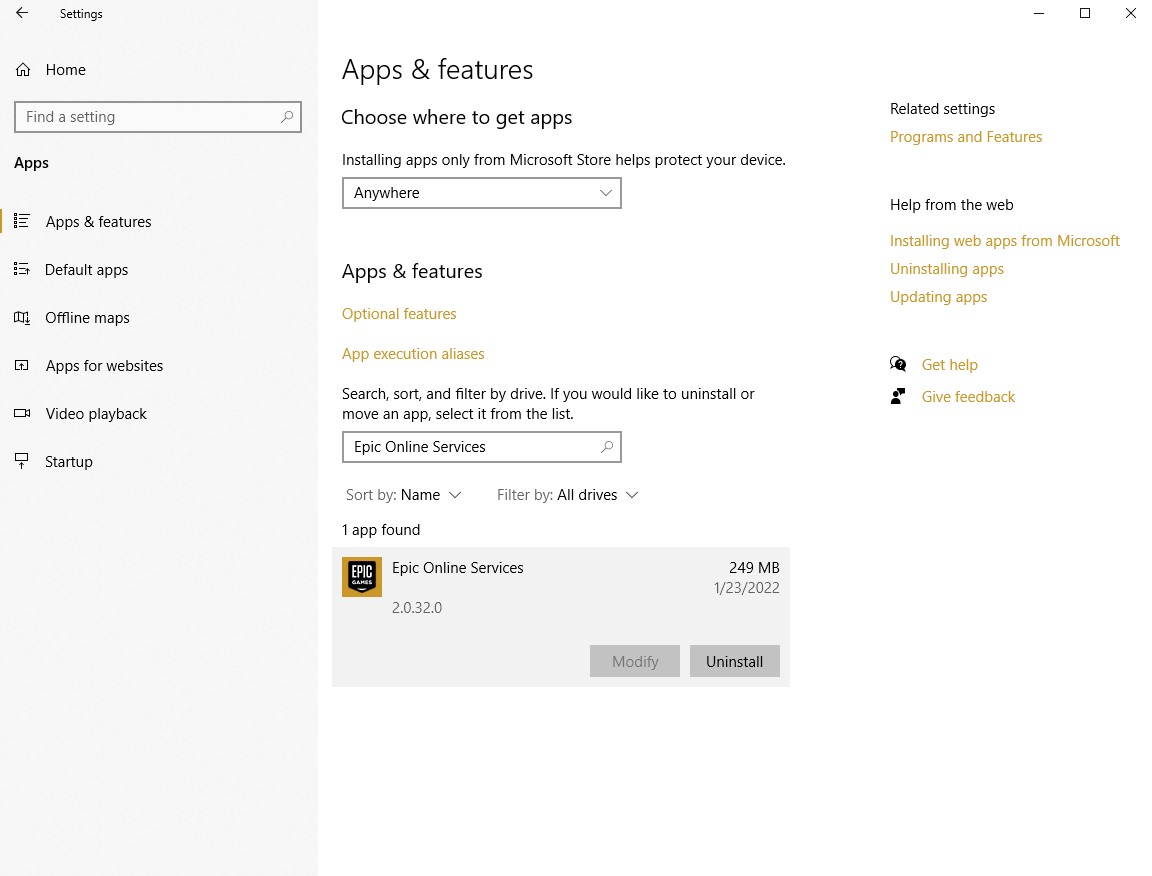
  4. In the Apps menu, search for Epic Online Services. Click it and select Uninstall.


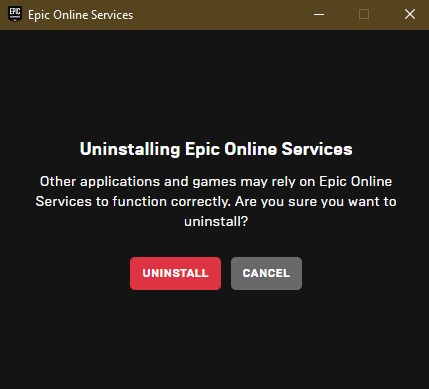
  5. While uninstalling, a pop-up from Epic should appear. Select Uninstall when prompted with this message.


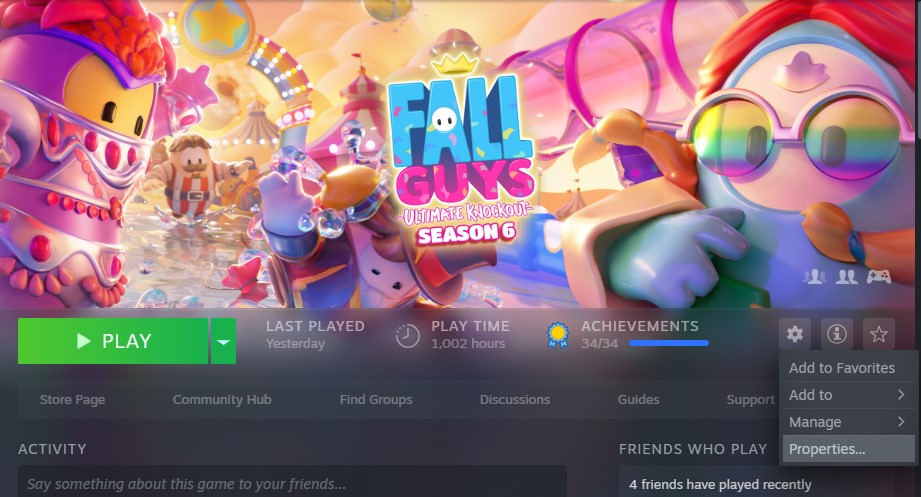
  6. Once the Epic Online Services has been uninstalled, go to the Fall Guys page in your library and click the gear icon on the right side of the header. Select Properties.


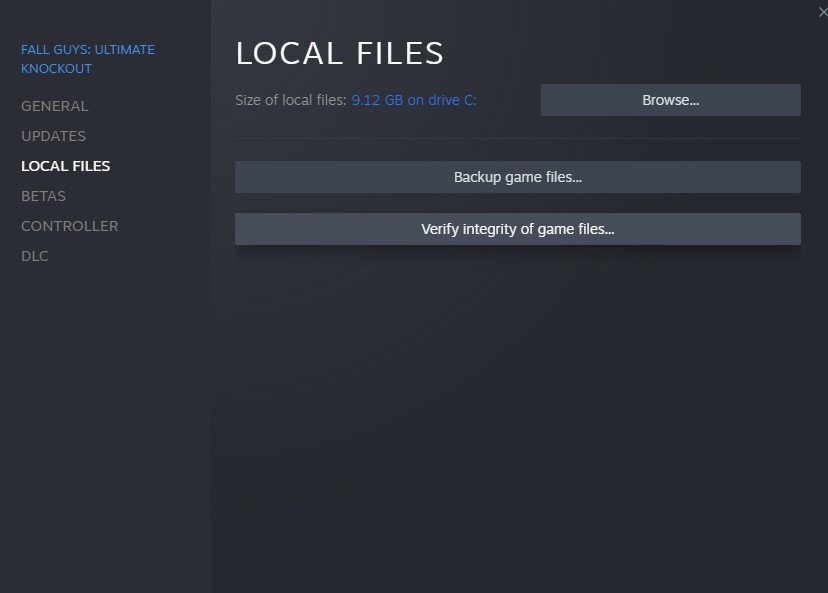
  7. In the Properties dialogue box, select Local Files on the left-hand side, then click Verify integrity of game files...


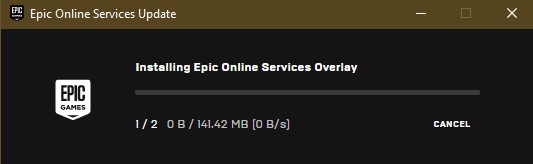
  8. Once all files have been verified, boot up Fall Guys as you usually do. As it's starting up, you should see this installation box appear:


  9. After the Epic Online Services installation is complete, Fall Guys should boot normally and you can get back to falling!
Conclusion
And that's all there is to it! I hope that I've helped anyone out who has been experiencing this unfortunate problem!

Special thanks to Kongo Musha for figuring out that Steam needed to be run in Administrator Mode!

See you in the Blunderdome!
34 条留言
j0k3 2023 年 9 月 4 日 上午 9:36 
the way i solved this problem is:
1) download revo uninstaller
2) close epic games launcher
3) open revo u.
4) go to epic games online services - right click on it and click uninstall
5) choose advanced click next
6) small window with uninstall proces will pop up
7) click next it will search for left overs in registry click select all then delete
8) it will do the same but this time it will search for left over folders
9) after process is finished close revo
10) open epic games launcher
11) go to library
12) click 3 dots next to fall guys go manage
13) open fall guys install directory
14) go to EpicOnlineServices folder
15) delete exe file
16) go back to epic games launcher this time click verify
17) it will re-download that exe file
18) as soon as it finishes right click on it run as admin.
19) it will start process and small black windows should pop up and it will start instaling dependencies

after all is done launch fall guys it should work
Bendy 2022 年 5 月 14 日 上午 5:38 
Just delete fall guys and download it again!!! :)))
Dr. Clocknik  [作者] 2022 年 4 月 29 日 上午 10:21 
@IMDSFULL: Eu não falo português, então tive que fazer isso pelo Google Translate. Desculpe se houver algum erro de tradução! O problema ocorre quando há um problema com a instalação da sobreposição Epic. Isso não deve acontecer com frequência e você não deve ter que corrigi-lo várias vezes.
IMDSFULL 2022 年 4 月 29 日 上午 8:29 
Fiz o procedimento acima e deu certo pra mim, obrigado, mas será que esse erro irá aparecer todas as vezes e pq acontece isso?
Dr. Clocknik  [作者] 2022 年 4 月 22 日 上午 9:09 
@Taxydromos: Unfortunately, I'm not sure what else to try. :(

@Relayer: It was the size of the game back when I made the guide. The current install size is now 7 GB.
Bowgart556 2022 年 4 月 22 日 上午 8:12 
how the f your game is 9 gb mine is 7 wtf
Taxydromos 2022 年 4 月 12 日 上午 12:44 
I have tried all the above and below, uninstalled the game but i'm still getting the missing files warning and cannot move forward from that. tried also different Internet connections (saw on Reddit a suggestion on that as well). Any further ideas?
benny fell off 2022 年 4 月 8 日 上午 3:45 
so helpful
Dr. Clocknik  [作者] 2022 年 2 月 25 日 下午 8:52 
@Kongo Musha: Thank you so much for the help! I run everything in Administrator Mode by default so I never would have caught this. I'll update the guide accordingly!
critHITproductions 2022 年 2 月 25 日 下午 8:48 
Okay, so I fixed it finally and it was a similar process but these are the steps I took after looking things up on the developer's website:

1. Uninstall Epic Online Services
2. Open Steam in Administrator Mode
3. Verify integrity of game files
4. Launch Fall Guys
5. As it launches, it should run the Epic Online Services installer.

The game finally launched and ran properly after that.