Montague's Mount

Montague's Mount

113 个评价
Read this before you start playing!
由 mendel 制作
Here are some settings you should make to enjoy the game, plus some other things you need to know (no spoilers). Seriously, read this and you'll enjoy the game more.
   
奖励
收藏
已收藏
取消收藏
Settings
Before you start exploring the island, do adjust some settings. Some reviewers have had complaints, and this avoids many of them.
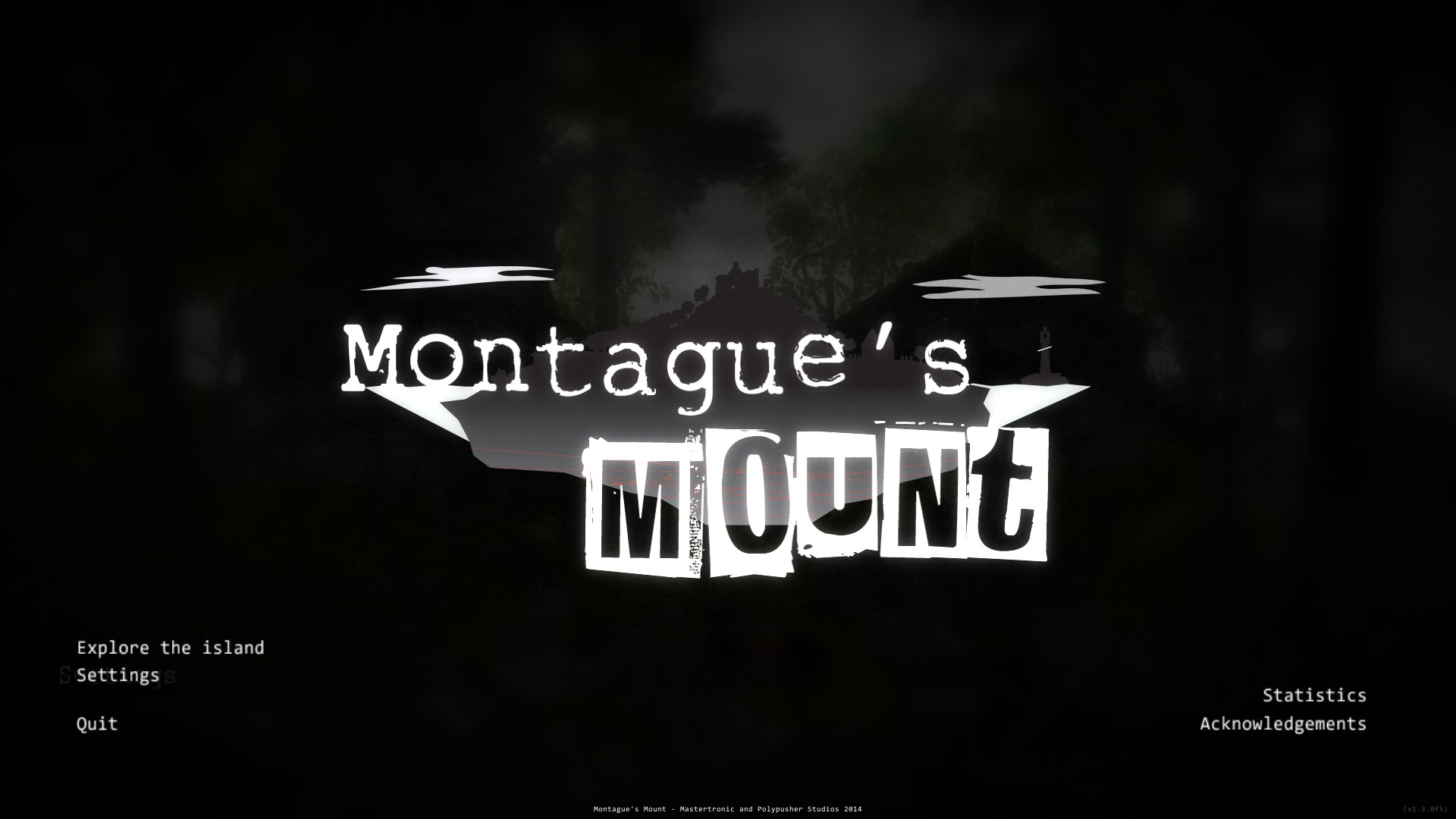
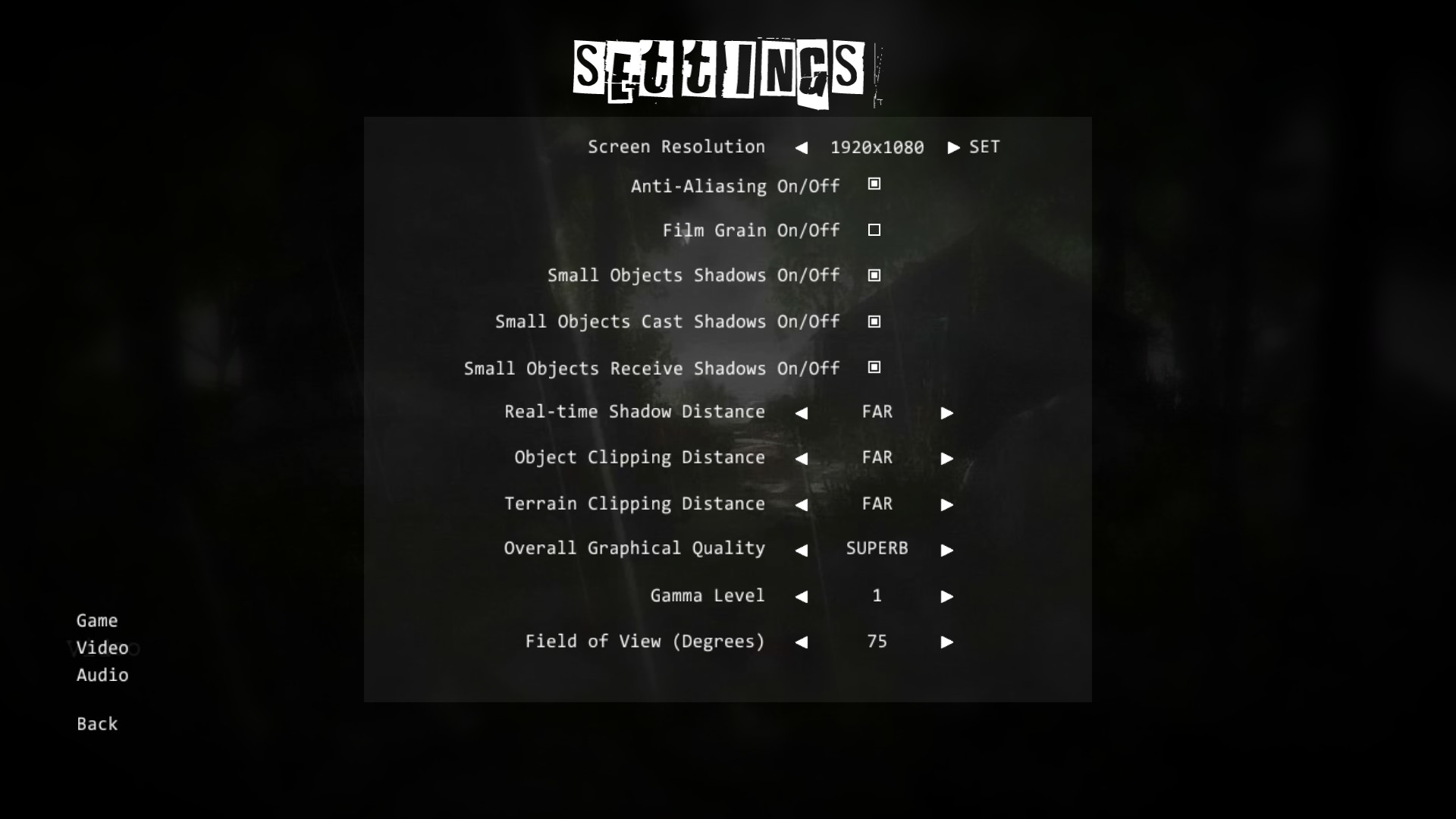
Click Settings on the main screen. This should give you the Video settings.
  • Turn Film Grain off. This will improve your frame rate, brighten up the game slightly, and the atmosphere will still be somewhat spooky.
  • Set all distances to FAR. The people who didn't complain about clipping and pop-up.
  • If the game appears too dark, you can come back here and turn the Gamma Level up. Please note that it will be quite dark in the houses initially until you manage to start the power generator and switch the lights on.
  • If the game makes you motion sick even after you found the walking stick, try increasing the Field of View. In fact, if you have a wide-screen monitor, set it to at least 75° right now. You can probably increase it even more. For some people, widening the FOV helps alleviate motion sickness.
  • If your frame rate allows, do turn Anti-Aliasing on, Shadows on, and Overall Graphical Quality to SUPERB. My intel i3@3.3 Ghz with a Geforce GTX Ti550 handles those settings just fine. If your frame rate suffers, try reducing your resolution before compromising quality.

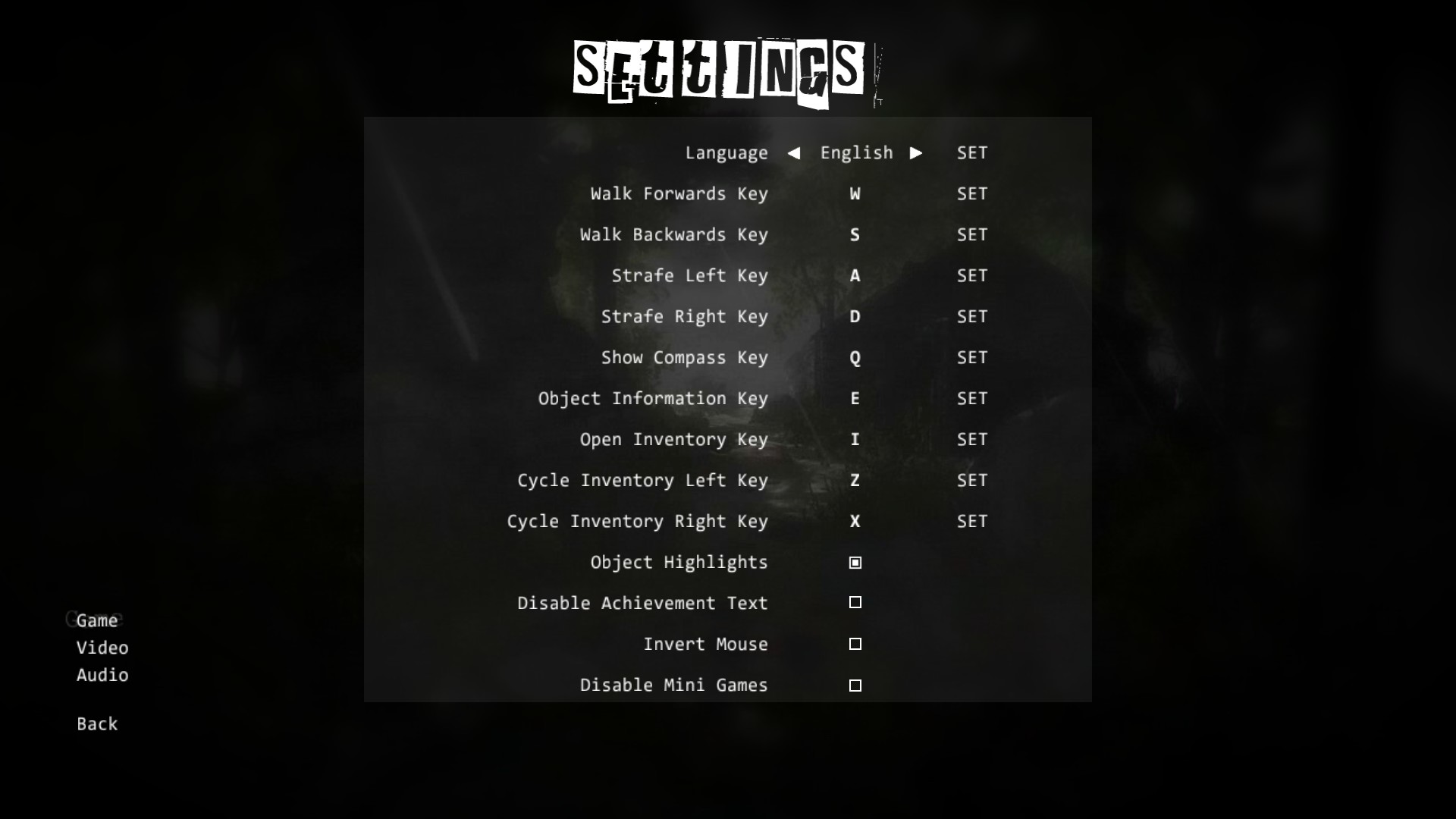
Now choose the Game settings on the left.
  • Note that the game controls are simple WASD, with extra functions on Q and E (you'll be using E a lot), and I to open your inventory. If you have a mouse wheel, you can use that to cycle the inventory, so you can forget about those keys.
  • Turn Object Highlights on. Some reviewers complained about having to hunt for the objects that are needed to complete the puzzles. With this option, the objects have a colored glow, which both enhances the surreal atmosphere of the game and makes it considerably less frustrating. If you're looking for a challenge, try to pick up all St. Bridget's crosses for an optional achievement; those are still hard to find.
  • Disable Achievement Text should be off to turn achievement notifications on. This will give you feedback when you have managed to complete certain puzzles, most importantly the one with the colored spinners.
  • You can invert the mouse here if you like to operate the game like a pilot.
  • Disable Mini Games turns the "generator game" off. If you get stuck at that point, turn this on. If you're an old-school adventure gamer who hates timing challenges, you might as well disable it right now; you won't miss anything.

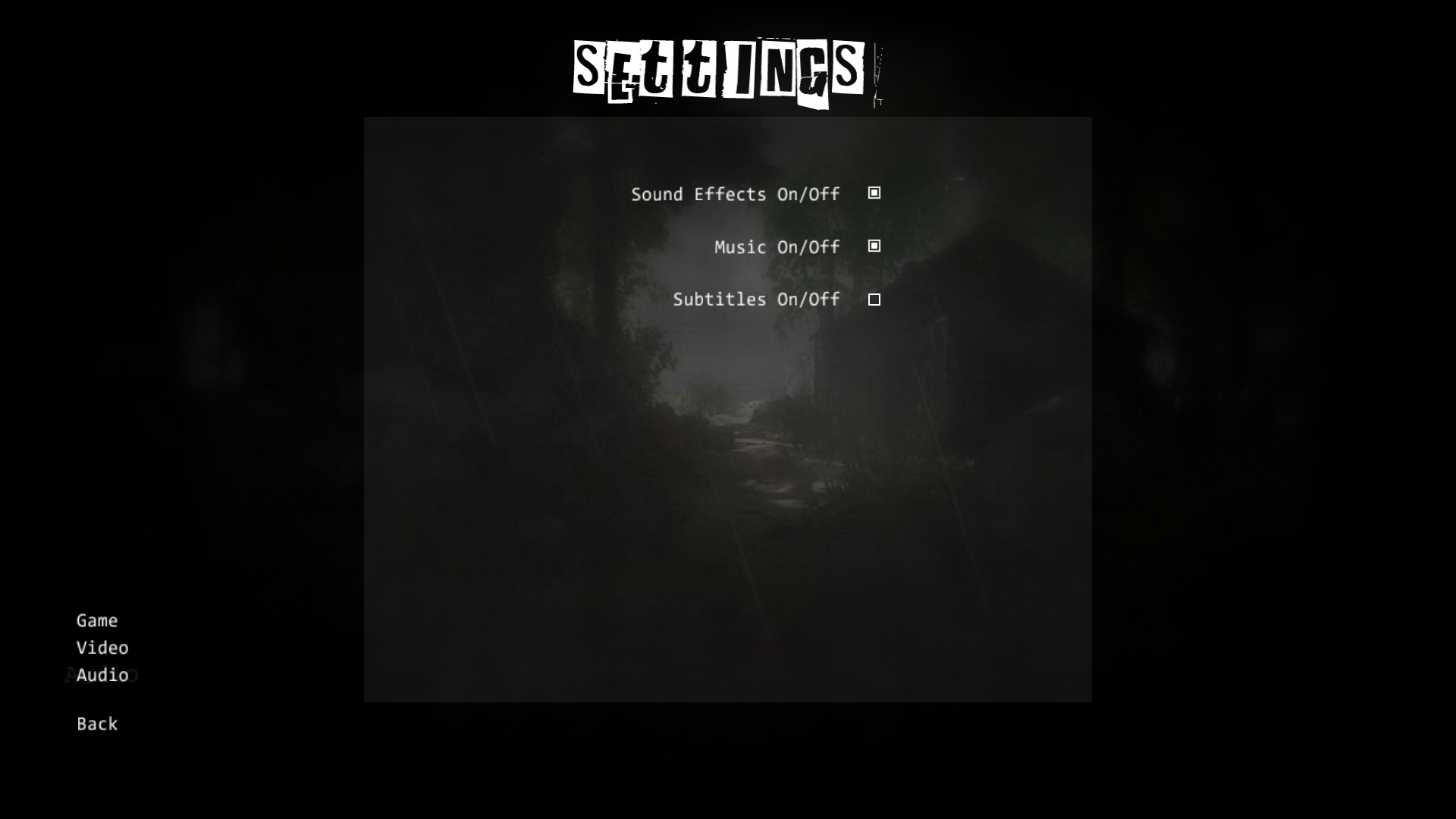
In the Audio options, I recommend turning Subtitles off if you can understand spoken English well enough, for a more immersive experience.
Tips
Pick up the walking cane before you leave the beach; it is SE of your starting point. This will stop the head-bobbing.

The game is fair in that objects that you need are easily accessible. There are no secret nooks and crannies.

Explore and observe as much as you can. You don't need to go looking for things you have already discovered, and you'll pick up some hints, too. Enjoy the world you've been placed in!

You can open your inventory with the I-key and select an object from it with the mouse wheel.

Starting up the generator and cranking the grammophone can be tricky, because these speed up as you go. You need to get the timing right four times in a row, and because the cycle speeds up, you need to click a little earlier each round. Once you have picked up how it works, it's easy.
(If you can't do it at all, just disable this minigame in the settings - see above.)

If you have picked up all the hints, you'll know the correct setting for the colored spinners. I found that I needed to adjust each spinner at least once before the game would accept the setting and the achievement popped up. This unblocks the opening.

I hope that using these tips, you'll have a better time playing this game than some reviewers did. The game certainly is worth it!
Screenshots
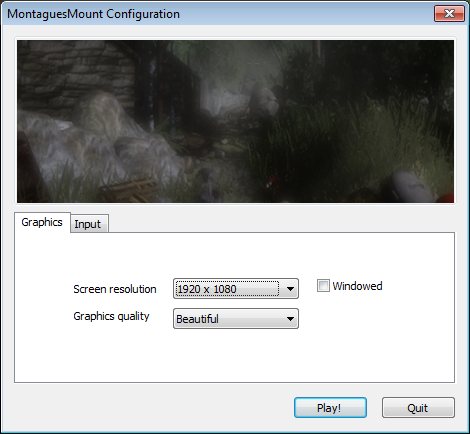
Hold down the Alt key when starting the game to see this dialog. Experiment with the settings if you have trouble starting the game.

The main menu screen.
Video settings.
Game settings.
Audio settings.
19 条留言
sabr 2021 年 12 月 28 日 下午 5:24 
Thank you so much for the help! I have been trying to finish the game but little things like the mini games would just won't let me progress. I appreciate this very much! Take care :D
mcquigan 2020 年 11 月 14 日 下午 4:30 
Great job, thanks!
Scylipt 2019 年 6 月 21 日 下午 3:27 
Why leave notes you cant read, or am I missing something? Whats the point in clicking on them just for it to tell you its a piece of paper?
🎄❄️ PCExpertGaming™ 2015 年 10 月 23 日 上午 3:05 
Thanks! :steamhappy:
mendel  [作者] 2015 年 8 月 4 日 下午 2:46 
I think the common advice is to try and start it windowed.
mendel  [作者] 2015 年 8 月 4 日 下午 2:41 
My advice would be to make a new post on the discussion board here on Steam. Describe your problem, your computer and your operating system, and mention the things that you have tried: does it still lag when you lower your resolution?
Anahorish 2015 年 8 月 4 日 下午 2:36 
I did all of this and I still have the most enormous lag. The menu screens all work fine, perfect actually; it's when I start a game that I see everything happening frame by frame. It was this way when I started the game up for the first time and changing the settings hasn't made any difference. I'm using a Mac, does anyone have any advice?
Haohmaru 2015 年 6 月 12 日 下午 3:39 
Thanks a lot dude !!! You made my day & this game much more enjoyable
mendel  [作者] 2015 年 6 月 11 日 上午 4:52 
Thanks! :-)
Arsinowey 2015 年 6 月 11 日 上午 4:44 
Thank you for a wonderful guide !!

I did,indeed,get here before I began the game and I'm right glad I did,you saved me a ton of headaches !!

I gave you both a thumbs up and I favorited it,I was very pleased with the game and I believe your settings and advice were a huge help !! Again,thank you !!