Dragon Age: Origins - Ultimate Edition

Dragon Age: Origins - Ultimate Edition

79 个评价
DAO: Ultimiate Edition - Ostagar / Loading Screen Crash Fix
由 AnneSilverBlade 制作
UPDATED for 2024 with new info!

Hopefully this will help resolve the crash issues that happen either during the Ostagar loading screen or when trying to cross the bridge at Ostagar.

It was tested on my own playthroughs using Windows/Nvidia only. Might not apply to Mac/AMD users.
2
2
5
2
   
奖励
收藏
已收藏
取消收藏
Important Note before you continue
This guide is for Windows 10 users who use an Nvidia graphics card. I'm not a Mac / AMD user so I won't be able to guarantee those fixes would apply there.

UPDATED in 2024: section: Ostagar / Loading Screen crash fix using 4BG LAA patch (2024) with findings/solutions from a recent DA:O playthrough.

My PC specs
Model: Asus TUF F15
Processor: 13th Gen Intel(R) Core(TM) i7-13700H 2.40 GHz
Graphics card: GeForce RTX 4050
RAM: 16 GB
Fix Ostagar / Loading Screen crash via Nvidia card settings (2020)
UPDATE: This guide was written in 2020 and at the time it worked for me. It's now 2024, I've changed PCs and I found that this doesn't quite work. Check section Ostagar / Loading Screen fix using 4GB patch below.

The information/screenshots below were captured on:

Acer Aspire 7
Intel Core i5-7300HQ
16GB RAM
Nvidia GTX 1050 ti

So you've survived the initial starting area and have arrived with Duncan to Ostagar, ready to being your journey as a Grey Warden. You are tasked to explore the area and then report to your contact person.

Alternatively, you launch the game and everything seems suspiciously unproblematic, you resume your most recent save and are shown the loading screen...

And the damn game crashes.

I've had this problem multiple times and unfortunately the EA customer service was of absolutely no help. The issue here is that if you have more than 1 GPU, then the game uses the integrated graphics (intel) by default. Unless you change it manually it won't recognize your additional (gaming) GPU. This is particularly relevant for laptop users like myself.

There are 2 parts to solving this:

Part 1

1. Make sure DAO runs on your Nvidia Card:
  • Go to your Nvidia Settings/Control Panel (accessible through system tray) and set your preferencfes to the following (of course use "save changes" before exiting):


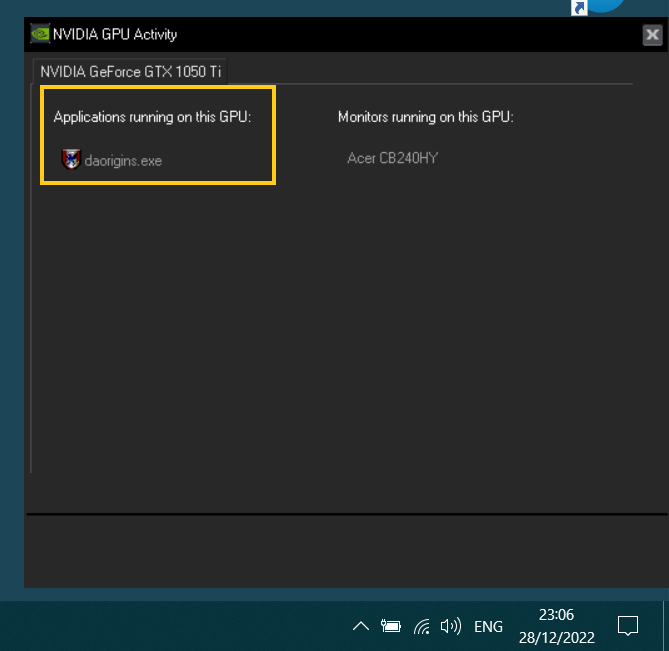
  • You can confirm that the Nvidia card is used by launching the game, pressing the "Windows button" and accessing your Nvidia GPU activity panel via the system tray. If it worked you should see the daorigins.exe on there, as shown below:


Part 2

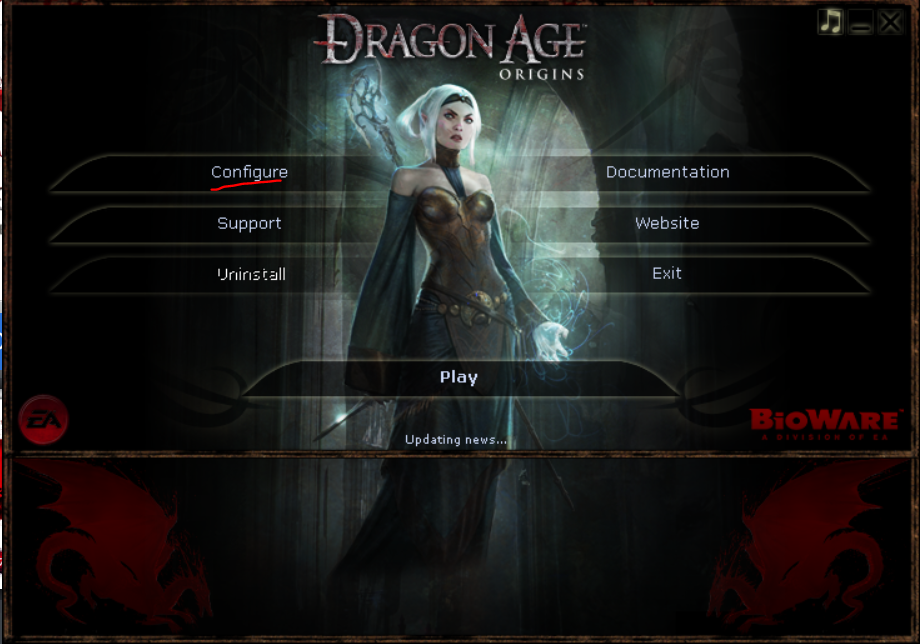
2. Once you launch the Ultimate Edition you should be faced with the following screen:


3. Click Configure and go to the "Video" tab on the left side panel. Apply the "Texture Details" to "Medium" (Graphics can remain as high or low as you want):


Important: Your texture details settings NEED TO BE ON MEDIUM for this to work!

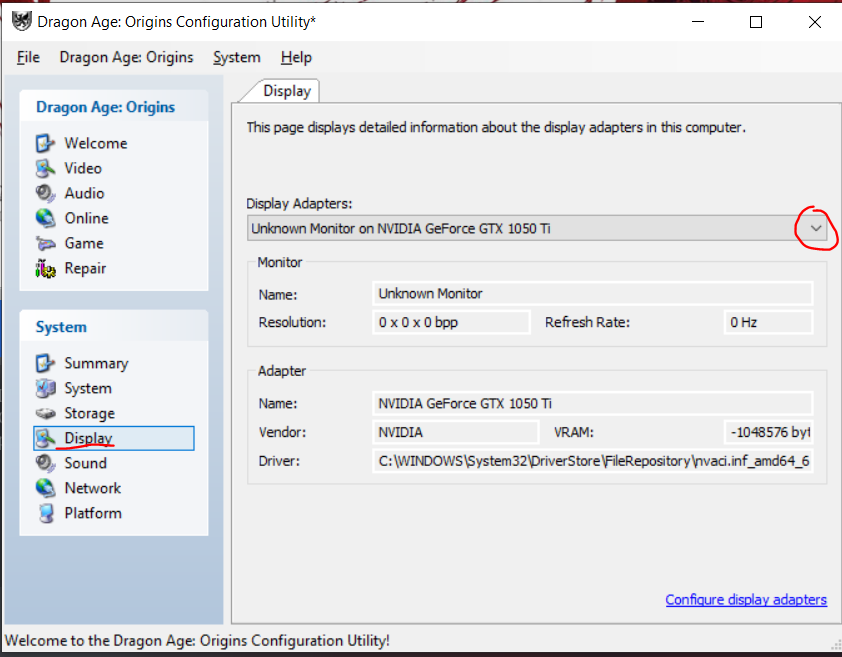
4. Afterwards, in the same window click on the "Display" Button further down in the same panel and choose your Graphics card from the drop down menu, as seen below:


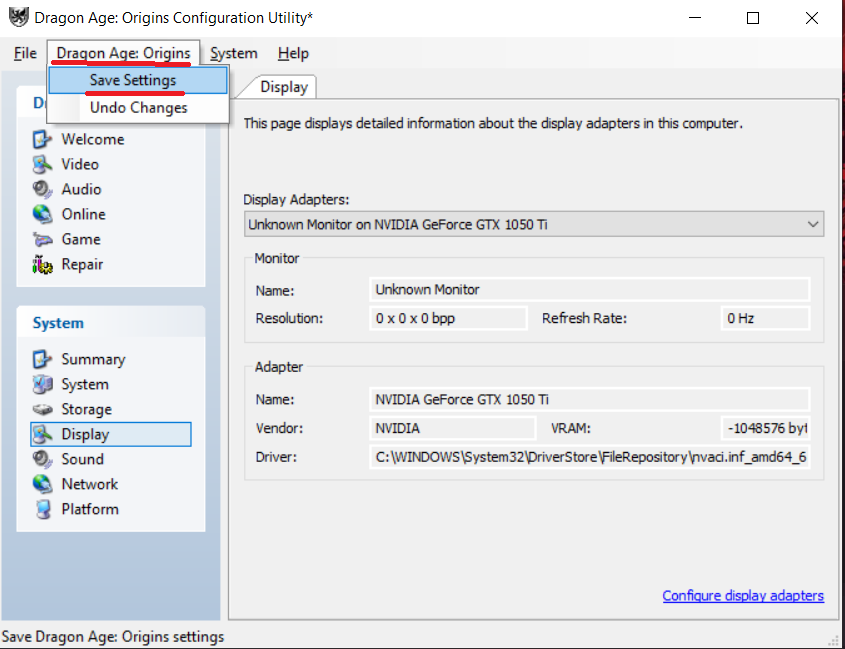
5. In the toolbar up top on the same window click "Dragon Age Origins" > "Save Settings"


6. Exit the Configuration window and launch your game.

PLEASE NOTE: Steps 2; 4; 5; 6 need to be repeated every time you launch the game

I hope this guide helps you and saves you the rage and hair tearing I went through when it happened to me.
Ostagar / Loading Screen fix using 4GB patch (2024)
If fiddling with the Nvidia settings didn't work or you don't have the options outlined in the previous section for some reason, try this:

For this fix/workaround you will need to install /mod the 4GB LAA patch[ntcore.com] to the game and the https://www.nexusmods.com/dragonage/mods/5989?tab=description.

That takes care of the RAM issue but not the processor issue.

What needs to be done next is make sure DA:O runs on only 1 CPU. Here's how you do that:

Steps 1 through 8 outlined below need to be done every single time you launch DA:O

1. Launch DA:O and wait till the main game screen loads to avoid the game crashing
2. Click CTRL + Alt + Delete to open the Task Manager
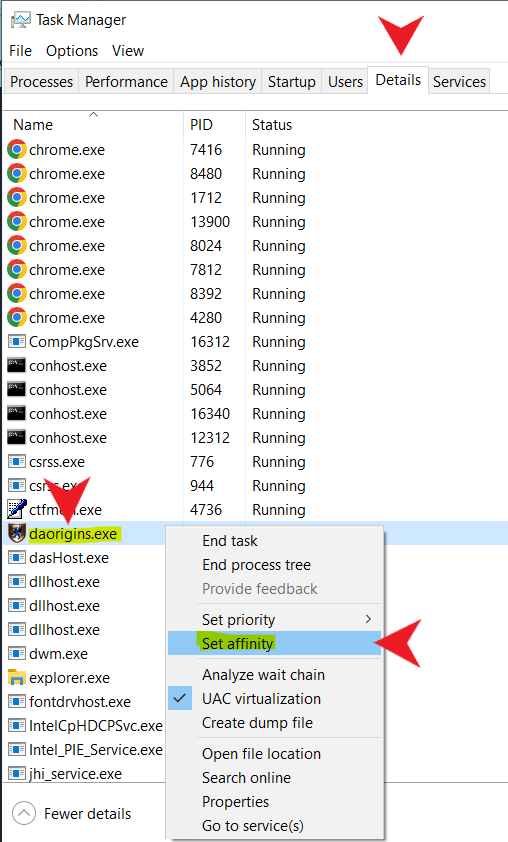
3. In Task Manager, navigate to the Details tab.
4. Scroll and find daorigins.exe
5. Right click daorigins.exe and select "Set Affinity"


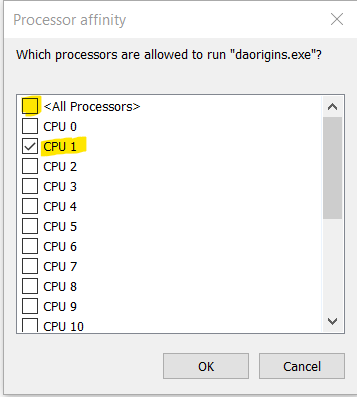
6. Unselect "All Processors"
7. Select 1 CPU manually. In my experience it doesn't matter which, the important thing is only 1 is selected.


8. Close task manager
9. Play the game

Note: This solution isn't foolproof, unfortunately. I applied it in my most recent playthrough a few weeks ago and I experienced only 3 crashes over these 3 weeks of play. Yes, it's still 3 crashes too many, but honestly, with how often it used to crash before - this made a world of difference for me.