生化奇兵:无限 完全版

生化奇兵:无限 完全版

612 个评价
BioShock Infinite - Tweak Guide
由 AngelGraves13 制作
Enable GUI Scaling / Expand FOV / Reduce Mouse Sensitivity
4
3
19
2
2
2
2
2
   
奖励
收藏
已收藏
取消收藏
Locating BioShock Infinite's Config Files
You will need to locate your XEngine.ini, XUI.ini and XUserOptions.ini to make the necessary changes mentioned in this guide. A simple search should locate the necessary folder.

%USERPROFILE%\My Documents\My Games\BioShock Infinite\XGame\Config\
XUI.ini
Enable GUI Scaling
* Change MaxResolutionUpScale to 1.0

OFF "MaxResolutionUpScale=0.0"
ON "MaxResolutionUpScale=1.0"
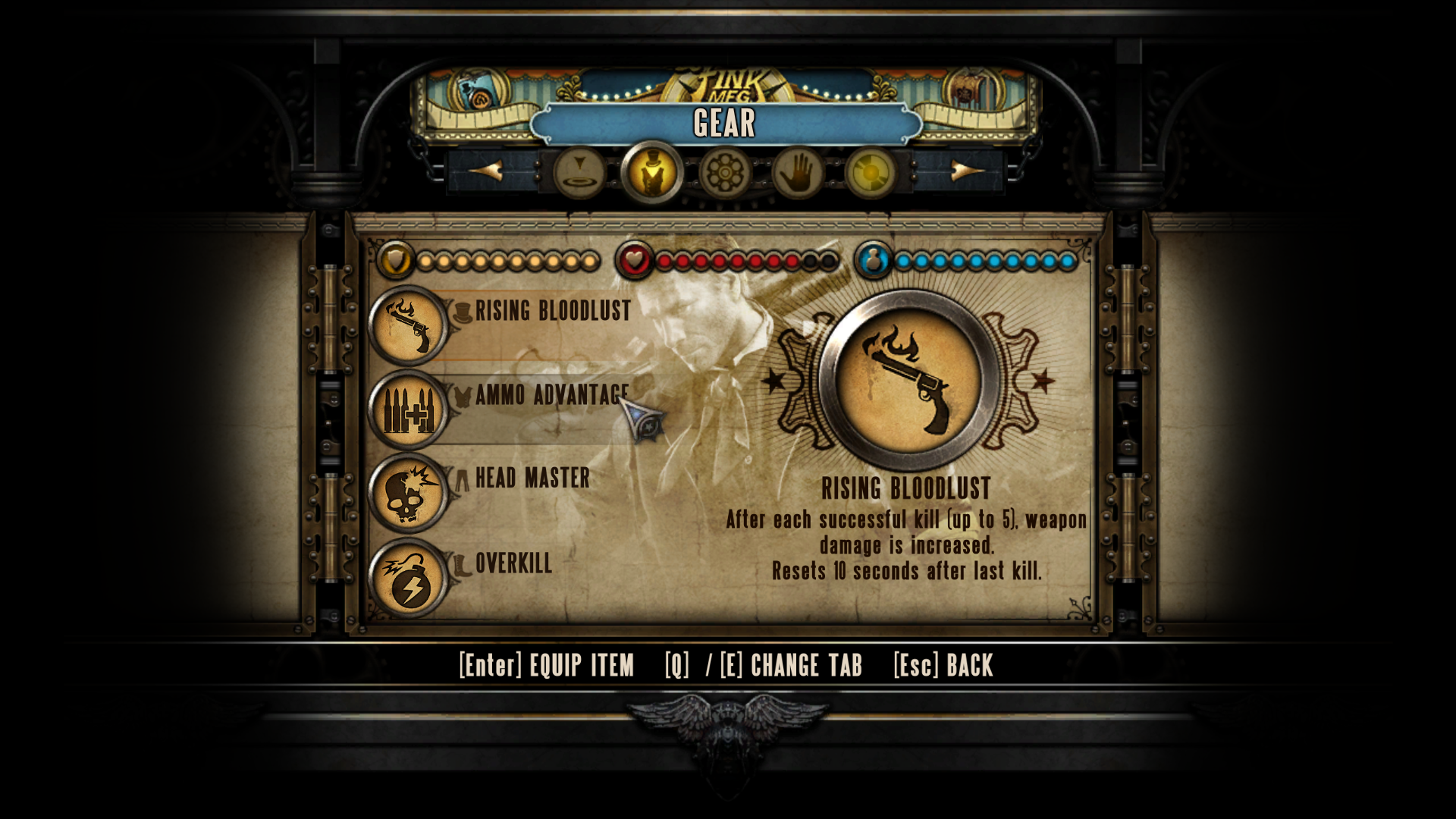
Unscaled Gameplay Menu
Scaled Gameplay Menu
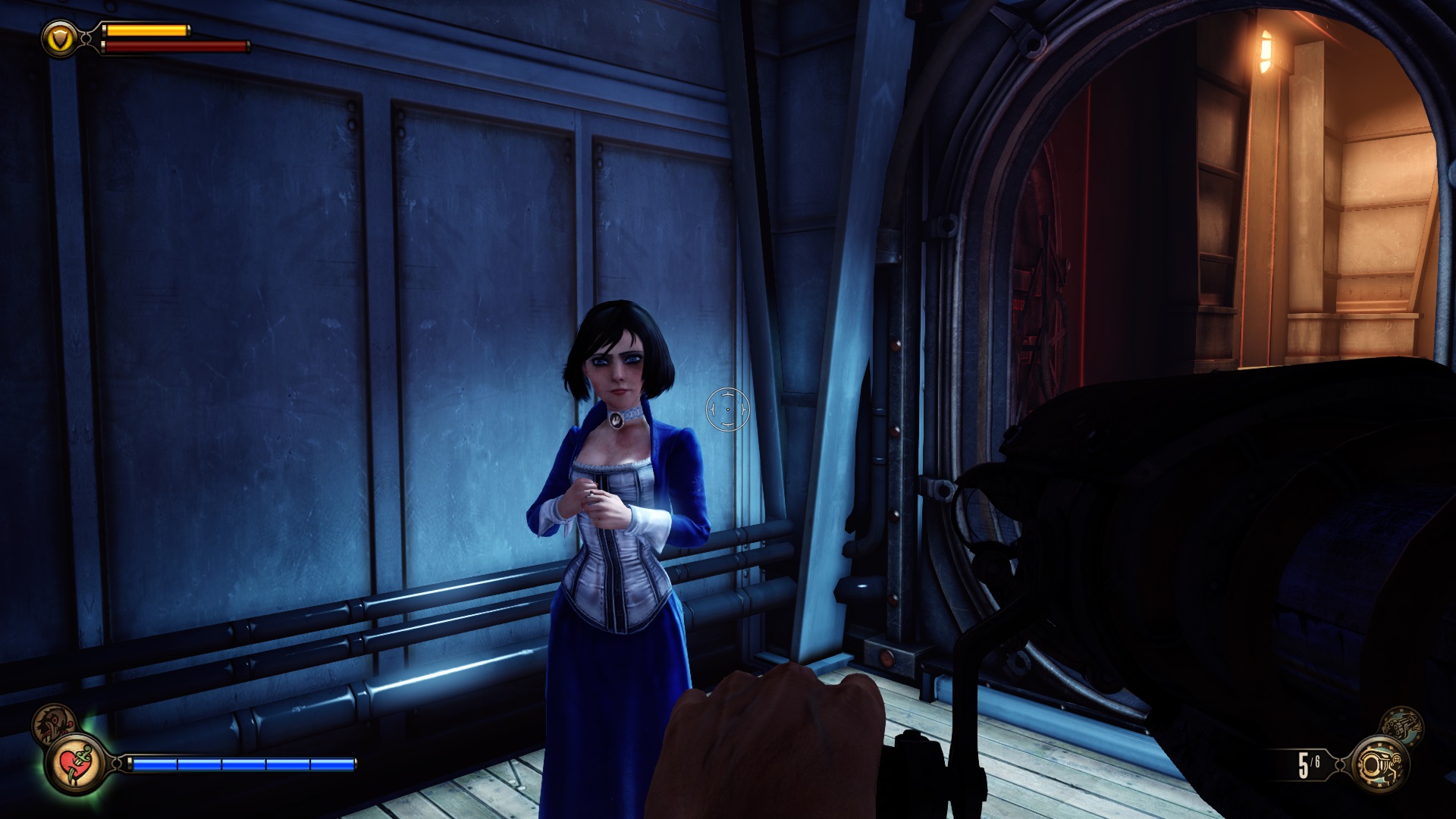
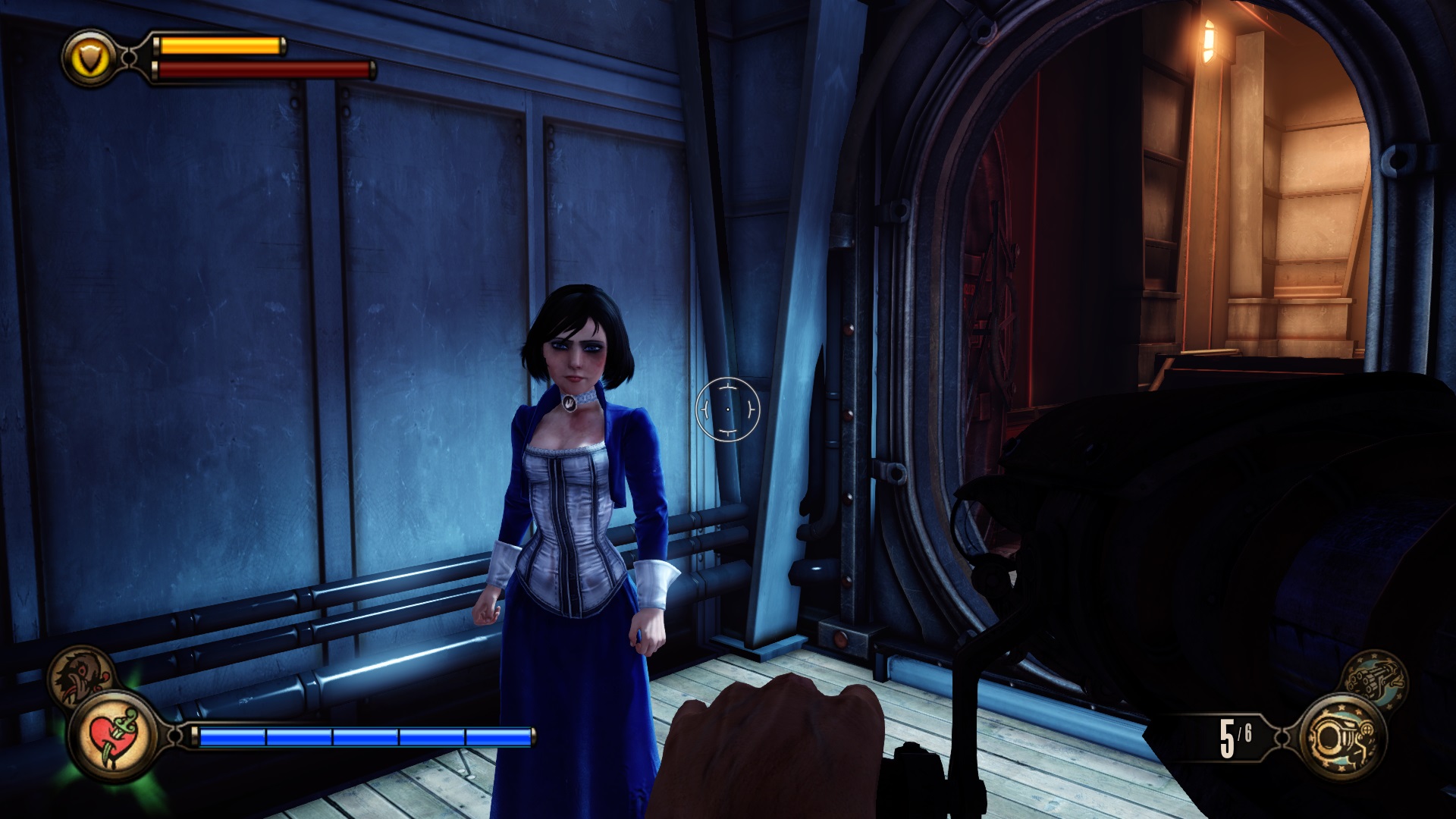
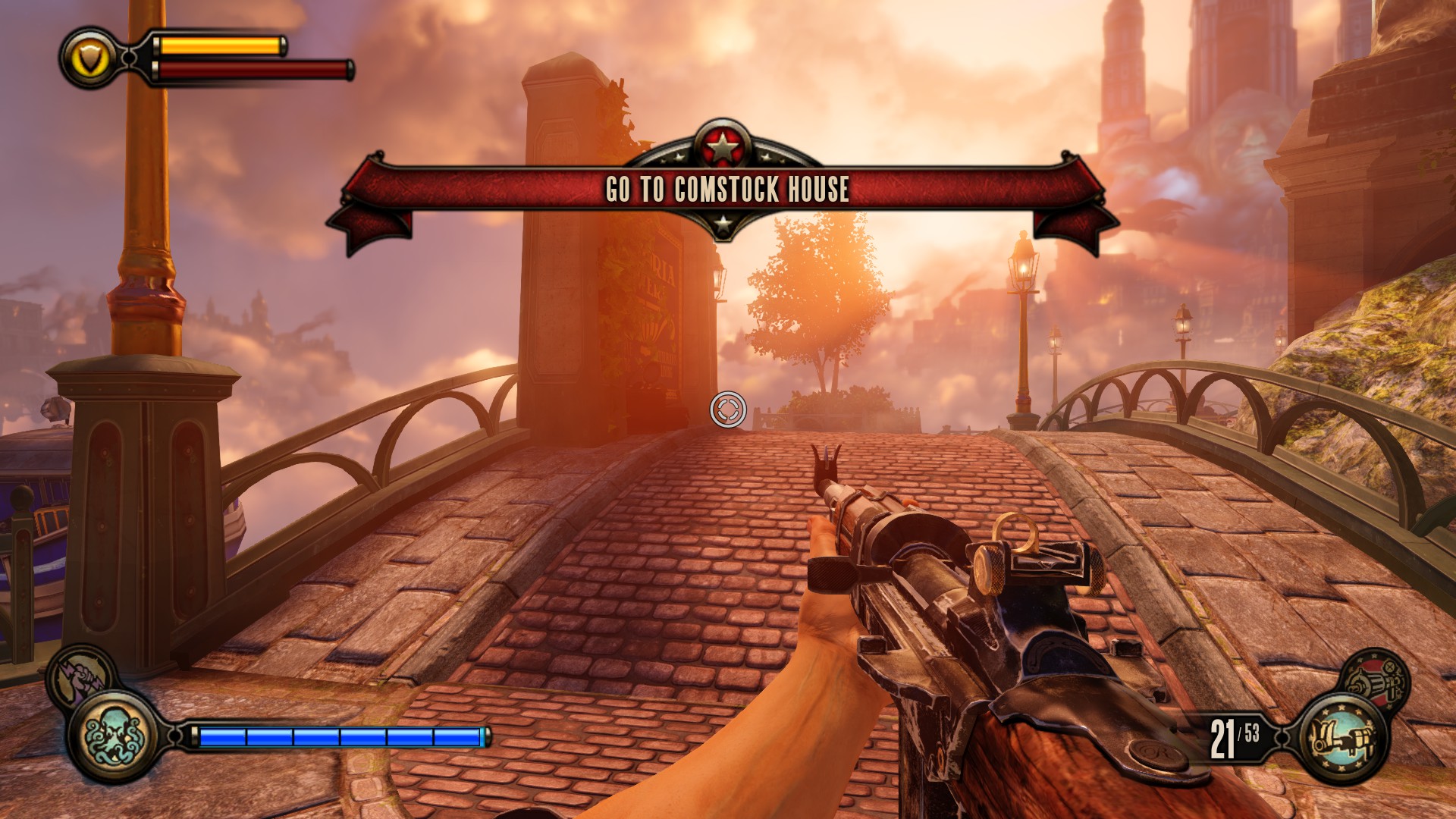
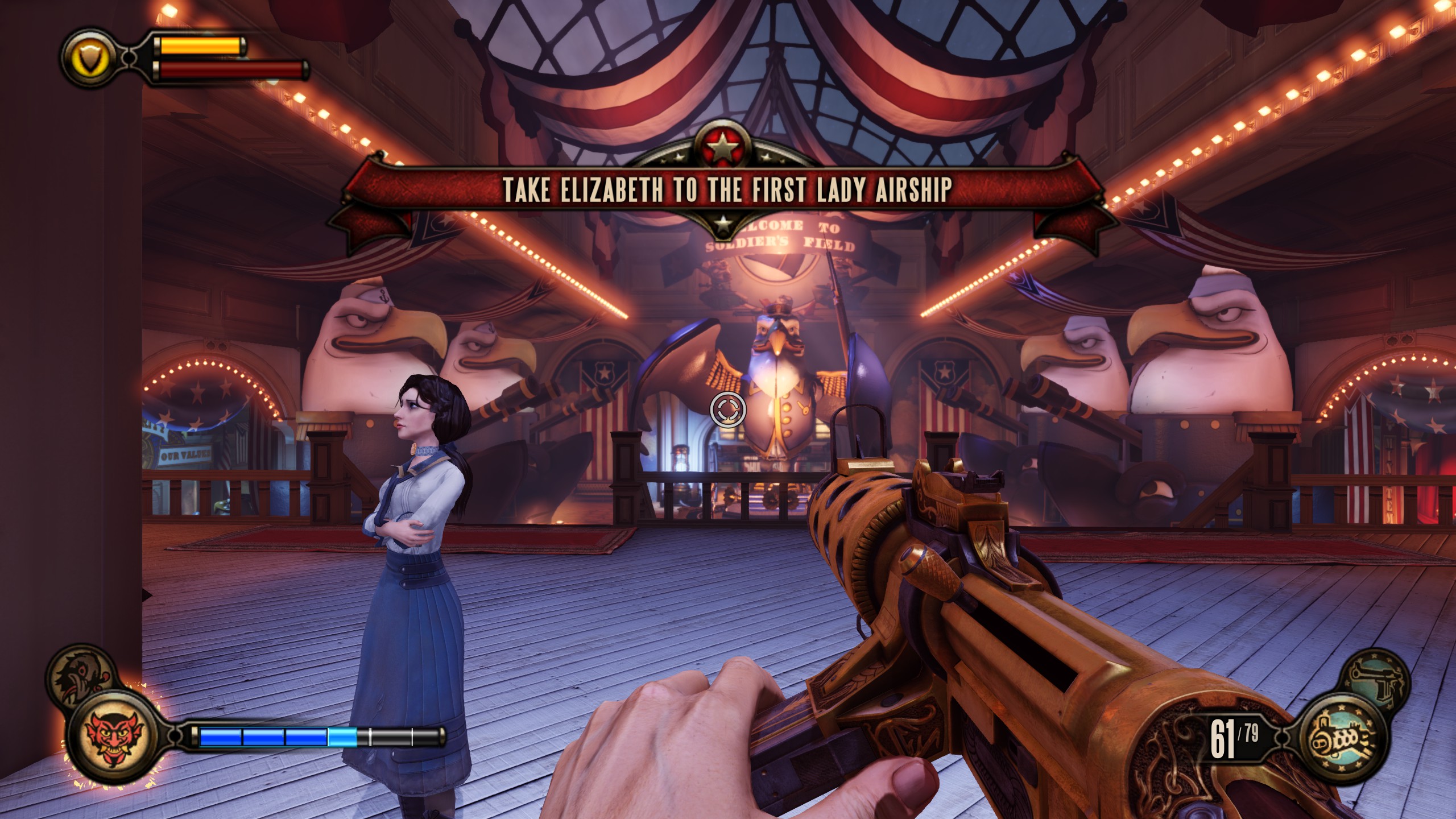
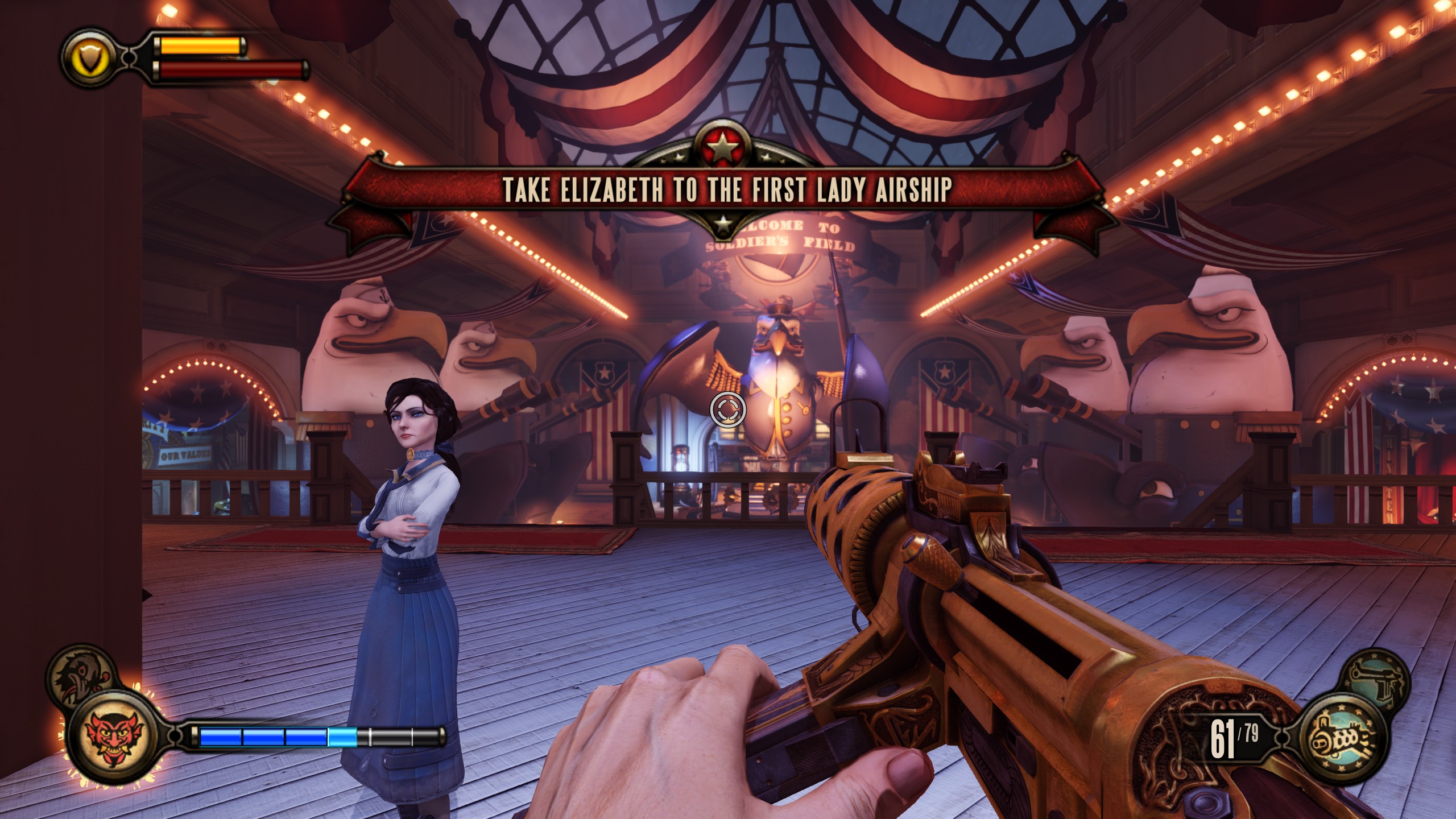
Unscaled HUD
Scaled HUD
XInput.ini
Reduce Mouse Sensitivity
* Change the value to desired amount. I found 50 to be a better value than the default of 60.

[Engine.PlayerInput]
MouseSensitivity=50.0
XUserOptions.ini
Reduce Mouse Sensitivity
* Change in-game Mouse Sensitivity Slider Values
An overall good fix if your mouse is too fast and the minimum option isn't low enough

[XCore.XUserOptionsManager]
MaxMouseLookSensitivity=0.250000

Enable 90 Degree FOV
* Change in-game FOV Slider Value to MaxUserFOVOffsetPercent=28.570000.

MAX "MaxUserFOVOffsetPercent=15.000000"
MAX "MaxUserFOVOffsetPercent=28.570000"
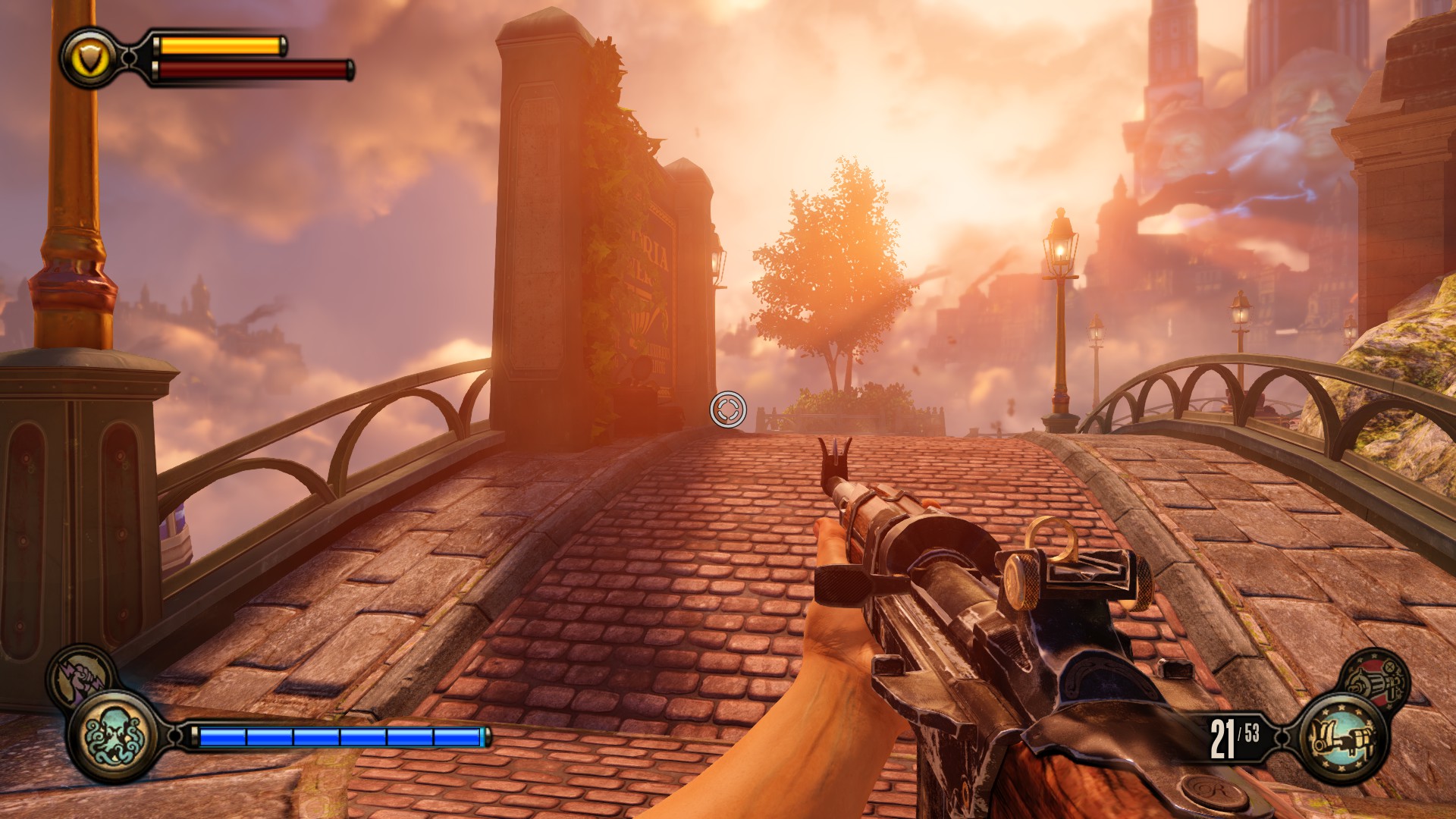
In-game Slider at MAX with 15% offset
In-game Slider at MAX with 28.57% offset
XEngine.ini
Reduce Stuttering
* Change PoolSize to Larger Value
[TextureStreaming]
PoolSize=2048

Enable Max Quality Mode
* Change bUseMaxQualityMode=False to bUseMaxQualityMode=True
This setting will produce the best visuals in-game and sets all shadows to 4096 resolution.

Enable Floating Point Rendering
* Add FloatingPointRenderTargets=True to [SystemSettings]
Renders the Image more accurately with floating point precision. Useful for all Unreal Engine games.

FloatingPointRenderTargets=False (Default)
FloatingPointRenderTargets=True
Integer Rendering (Standard)
Floating Point Rendering
25 条留言
PhoenixTail 12 月 7 日 下午 3:53 
Thank you!
BonesMalone 9 月 19 日 下午 1:45 
Thank you very much, was getting super frustrated with the teeny tiny health bar, subtitles were tolerable at least LOL
AngelGraves13  [作者] 3 月 8 日 下午 10:34 
Yes, you must add it.
Remember_Reach 3 月 8 日 下午 9:03 
Enable Floating Point Rendering
* Add FloatingPointRenderTargets=True to [SystemSettings]

Anyone explain this to me?
Do i type this because i cant find this line.
This is new to me.
caseysuavewhite 2 月 10 日 下午 7:16 
This worked for me, but my files begin with "Default" instead of "X." Thank you!
captviper2100 2024 年 12 月 8 日 上午 12:45 
♥♥♥♥♥♥♥♥♥ this worked thank you so much!!!
el_crabbo 2024 年 10 月 23 日 下午 2:51 
Thank YOU! :OGOA:
The Arizona Ranger 2024 年 10 月 5 日 上午 3:53 
Howdy. Thanks for the guide. I have a 1440p monitor and was tired of how small the hud was. 0.5 was perfect.

One thing that might be handy to add is to put "-nointro" into the launch settings on steam to skip all the logos every time you boot the game.
EVA.uwu 2024 年 4 月 23 日 下午 2:15 
thank you bestie
NathW14 2024 年 3 月 20 日 下午 5:04 
No matter what I do - playing at 1440p on a 1440p monitor - the HUD won't change. It doesn't get smaller, it doesn't get bigger. Any ideas?