Windows Mixed Reality for SteamVR

Windows Mixed Reality for SteamVR

34 vurderinger
How to adjust floor height in Windows Mixed Reality
Af Rellik66
Ever been in a game and you need to pick something off the floor and you cant reach what is on the floor? Or can you not reach something on a shelf that you should be able too? Then this is the guide for you!
2
   
Pris
Føj til foretrukne
Gjort til foretrukken
Fjern som foretrukken
Setting the Floor Height through the Cliff House
Here's how to set your height for Windows Mixed Reality:

Step one

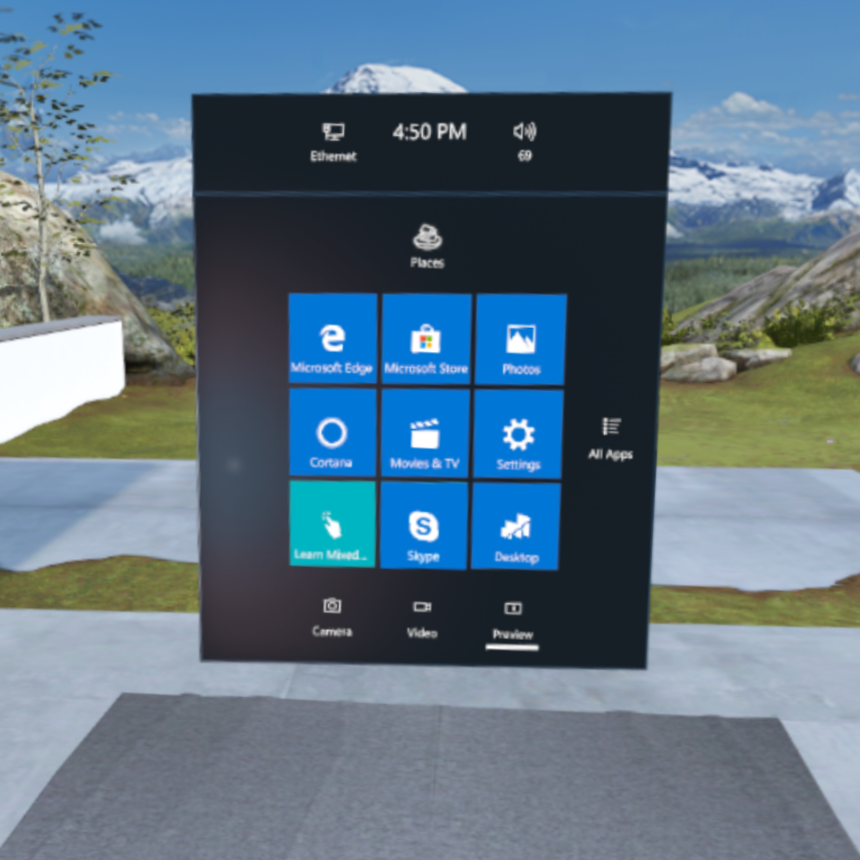
Enter the Cliff House and open your start menu by pressing the Windows button on your controller
Step two

Click on All Apps with your controller trigger
Step Three

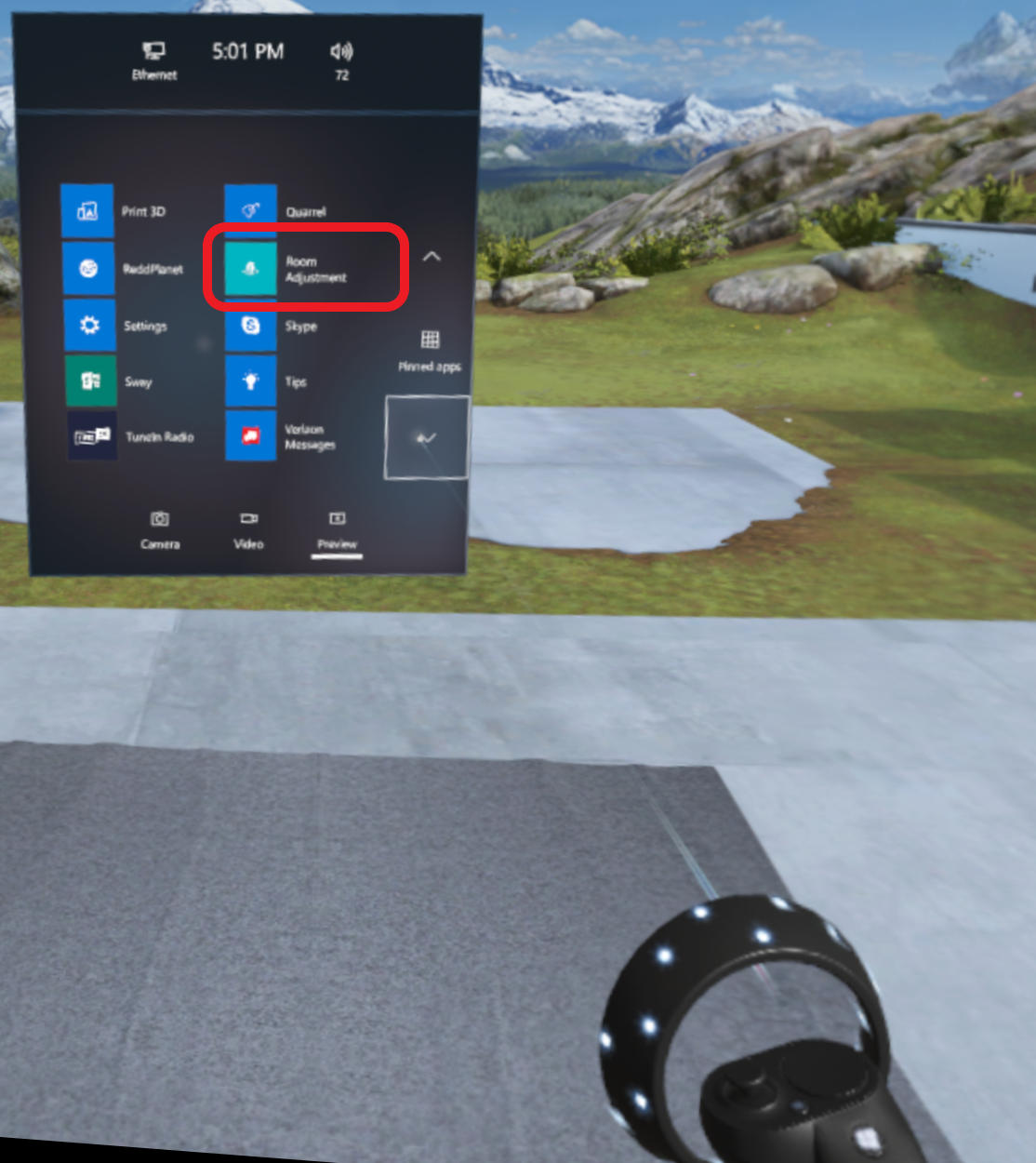
Scroll the list until you find st Room Adjustment app and select it with the trigger.
Step Four

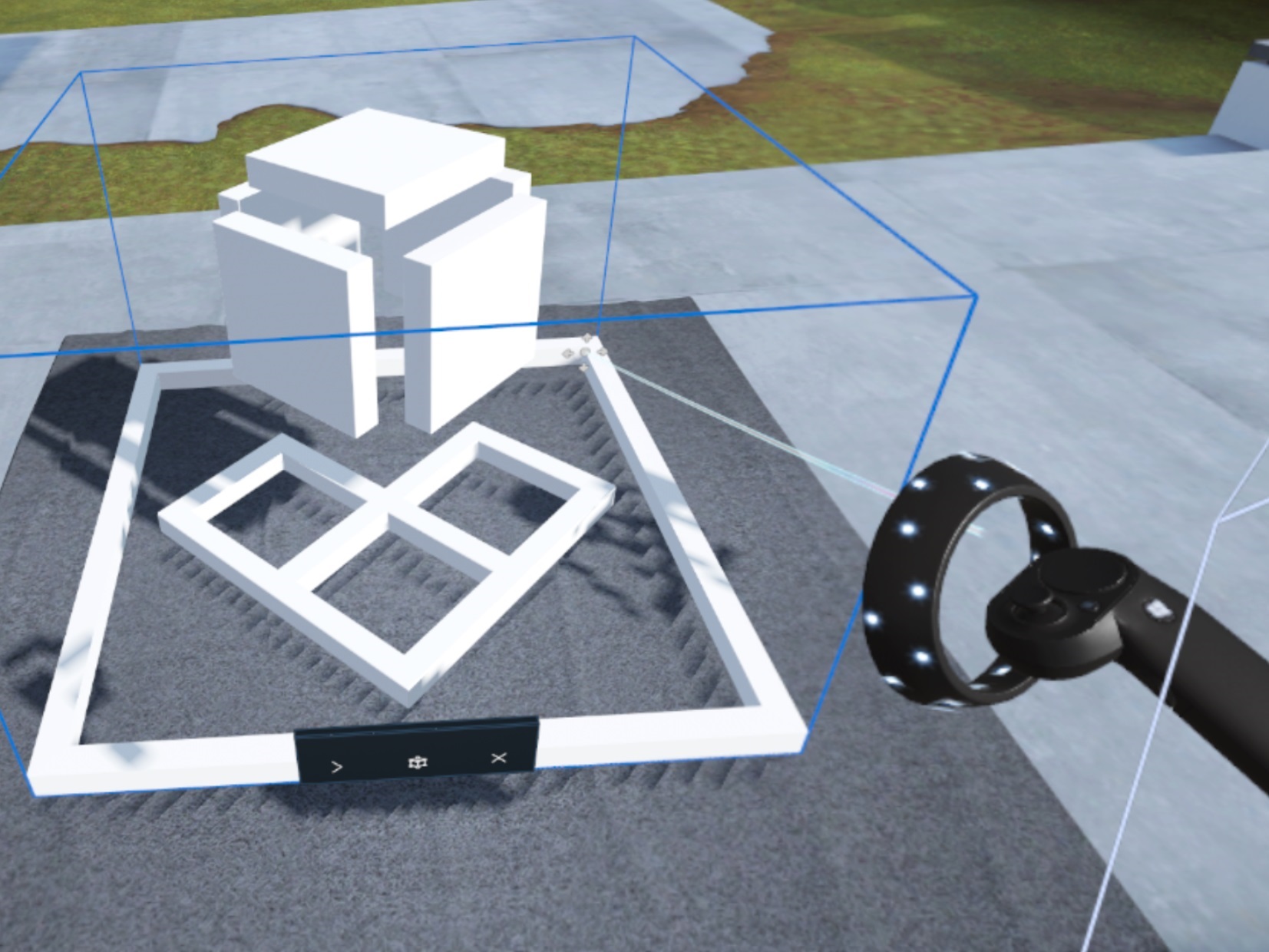
Once selected, you will be presented with a 3D representation of the Room Adjustment app, place it somewhere in your Cliff House, I usually stick it on the counter.

Once placed, it will automatically launch for the first time
Step five

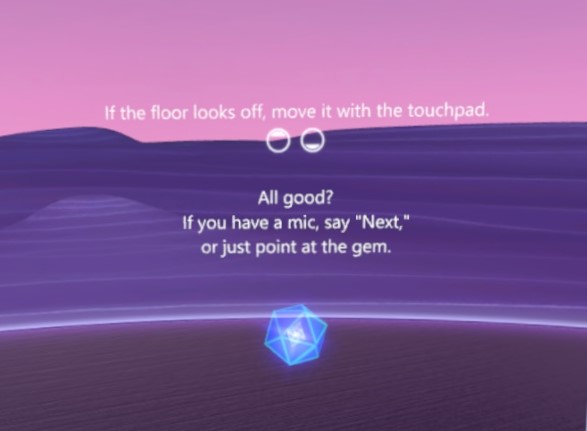
You are now in the Room Adjustment App, follow the instructions on screen with one exception:

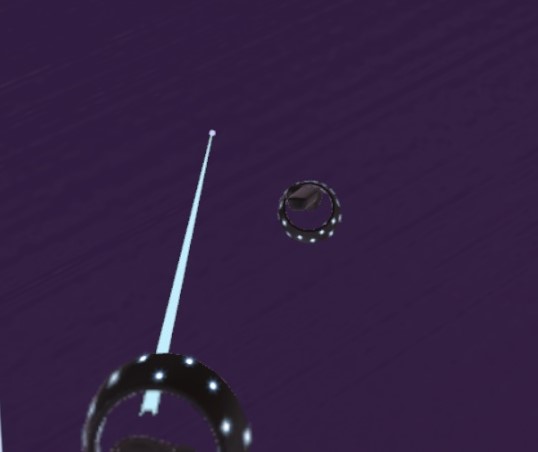
Place one controller on the floor so you can see the floor meet the controller while adjusting your height using the touch pad.

Once done, click the diamond

NOTE:
Keep in mind that the MR headset tracks best when the cameras on the headset can see contrasting elements in you room space, so a bare carpet or low contrast hard floor may cause the headset to lose tracking when looking down, consider getting a rug with contrasting stripes/shapes or applying vinyl decals to hard surfaces for best effect.

11 kommentarer
Riamtyn 14. okt. 2022 kl. 16:42 
you are my god
BanterLad 14. jan. 2022 kl. 23:18 
whoever you are thank you.
Kivan 30. juli 2021 kl. 2:05 
I'm tired of this manual adjustement. It's very slow to move the floor up. Is there anyway to do it automatically?? @RandomGuyWithoutSpaces I see what you mean, but I only get it as startup of the headset. How to go back to it anytime?
lord_cabbage2 1. juli 2021 kl. 3:25 
Hooray, no more playing beat-saber auto-detected to be 9 ft 6in!!! :steamthumbsup:
Player 1 12. maj 2021 kl. 1:03 
Cheers mate, You saved me time with trying to hold the headset at head height while doing the floor space tracking lol
Jonny Crash 5. juni 2020 kl. 3:26 
basically: headest off> go to calibrate> select seated> center it where the headset is lower or higher than you head
Rabbit 28. feb. 2020 kl. 23:47 
OMG I never knew this feature avail. Wow this is going to fix a lot for me. Thank you soooo muuuch.
RandomGuyWithoutSpaces 16. dec. 2019 kl. 4:50 
@Slowmover you can do the entire floor setup process without controllers, itll ask for you to move your head to position

also steamvr has a quicker setting, but I think it only can be used within steamvr titles. in the dev settings there is a quick floor calibrate option where you put the headset on the ground, click the setting and itll set it to the floor, but since the tracking is inside out its less accurate than setting it manually when the cameras can track the head correctly.
Slowmover 3. nov. 2019 kl. 6:39 
would be nice...maybe.. if i had controllers ...
eiamhere692 10. juli 2019 kl. 2:07 
Nice guide, good job.:cozybethesda: